Ask Alvin (AI Chat)
Editing an Existing Page in the Menu Manager
Use the Edit button to update settings for an existing page in the Menu Manager.
Your ability to change page settings depends on your CMS permissions. Users with restricted permissions may be able to view page settings without being able to save changes.
Edit the Page
To edit an existing page, follow these steps. The images below show the row action button and the detail view areas referenced in the instructions.
- Open the Menu Manager from the System accordion.
- Find the page you want to update.
- Click the page's Edit button.
- Update the page settings.
- Click Submit.

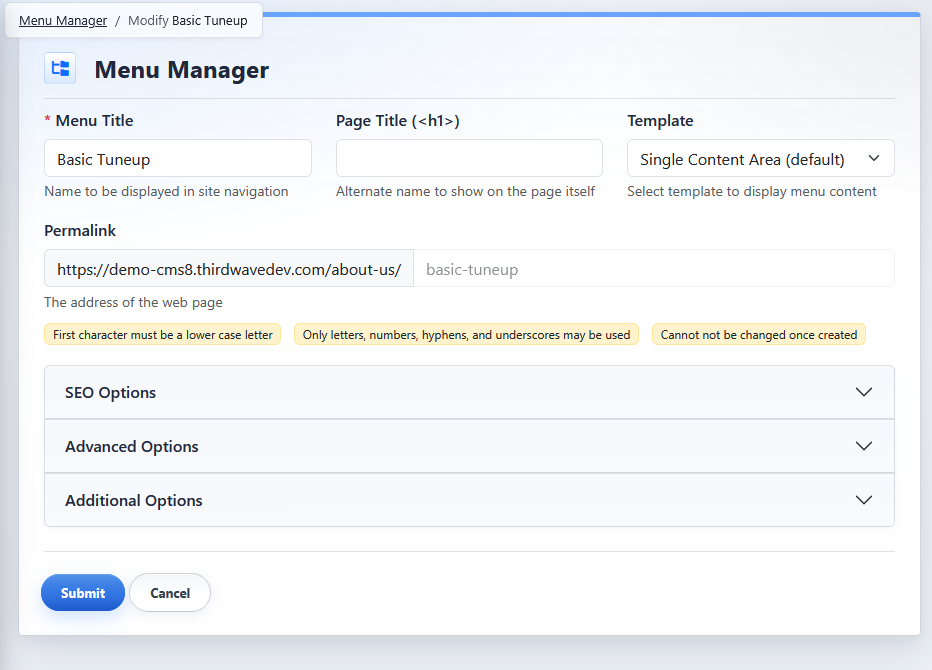
The edit view is used to update an existing page's Menu Manager settings.
Edit View Areas
Core Fields
The edit view includes the page's core fields: Menu Title, Page Title, Template, and Permalink. The Permalink is no longer editable after the page has been created.
For more detail, see Understanding Menu Title, Page Title, Template, and Permalink.

Permalink
The Permalink identifies the page address. In the edit view, the permalink field is locked and cannot be changed from this screen.

Additional Settings
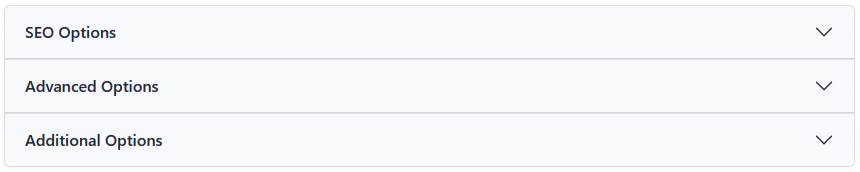
Use SEO Options, Advanced Options, and Additional Options to update page-specific settings. For related settings, see Setting Up SEO Options for a Page, Using Advanced Page Options, and Adding Custom Code to a Page.
Submit or Cancel
Click Submit to save your changes. Click Cancel to return to the Menu Manager without saving changes.