 Ask Alvin (AI Chat)
Using Ask Alvin for CMS Help
Ask Alvin is the Mobi CMS support assistant. It appears as a small Ask Alvin button in the bottom-right corner of the browser window.

The Ask Alvin button appears in the bottom-right corner of the browser window.
Use Ask Alvin when you need quick guidance on CMS tasks, such as finding the right tool, updating content, managing pages, or understanding how a CMS feature works.
Opening Ask Alvin
Click the Ask Alvin button in the bottom-right corner of the browser window.
When the chat window opens, type your question in the message box and submit it. Ask Alvin will respond with guidance based on the question you asked.
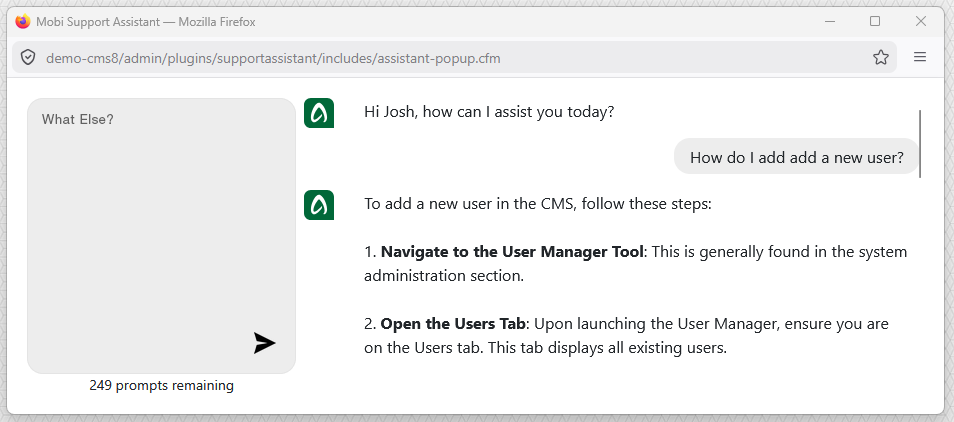
Ask Alvin responds inside the chat window and can provide step-by-step guidance.
Asking Better Questions
Ask Alvin works best when your question includes the tool, page, or task you are working on.
Examples of helpful questions include:
- How do I add a new user?
- Where do I change a page's SEO title?
- How do I upload photos to a gallery?
- How do I add a redirect?
If the first response is not specific enough, ask a follow-up question with more detail.
Ask Alvin is intended for questions about working in Mobi CMS. It can help explain CMS tools, settings, and workflows. It is not designed to provide custom coding assistance for HTML, JavaScript, CSS, or other development work.
Minimizing Ask Alvin
You can close the Ask Alvin window when you are finished. You can also minimize the Ask Alvin button when it's not needed. If you need help again, just click the Ask Alvin button to reopen it.
Review Responses Carefully
Ask Alvin is designed to provide expert CMS guidance, but AI-generated responses can contain mistakes or misunderstand your question.
Before making important changes, review the response carefully and confirm that the instructions match what you see in your CMS. If something does not look right, ask a follow-up question or contact your site administrator.
Learn More
For an overview of the CMS console, see Getting Started with the CMS Console. For help finding tools in the console, see Navigating System, Content, and Plugins in the Console.