 Ask Alvin (AI Chat)
Understanding Page Hierarchy in the Menu Manager
The Menu Manager shows pages as a hierarchy. Top-level pages appear at the left edge of the list. Subpages are indented beneath their parent page.
A page can have child pages, grandchildren, and deeper descendants. This structure helps organize pages in the CMS and controls the structure available to generated site navigation.
Parent Pages and Child Pages
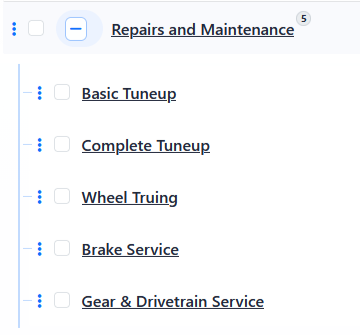
Parent pages can be expanded to show their child pages. In the example below, Repairs and Maintenance is the parent page, and the indented pages beneath it are child pages.
Expand Controls and Count Badges
A parent page has an expand/collapse button. Click the button to show or hide the child pages beneath that parent.
The number badge beside a parent page shows the total number of nested pages under that parent. This count includes all descendants, not just the first level of child pages.

When you expand a parent page, the Menu Manager shows the next level of child pages. Deeper levels remain collapsed until you expand them.
Deep nesting is possible, but very deep navigation can become difficult for site visitors to use. Keep the hierarchy as simple as the site's content allows.
To create one child page, see Creating Subpages in the Menu Manager. To create several child pages at once, see Creating Multiple Pages or Subpages. To move existing pages in the hierarchy, see Moving and Reordering Pages in the Menu Manager.