 Ask Alvin (AI Chat)
Setting Up Two-Factor Authentication
Two-factor authentication adds an extra security step to your CMS login.
After 2FA is enabled, you will use an authenticator app to generate a 6-digit code. The code is entered during login to confirm that you are the actual account owner.
You can begin 2FA setup from a login prompt or from your profile. If 2FA is required for your site, the setup prompt continues to appear until setup is complete. If 2FA is optional, you can dismiss the prompt and continue without setting it up.
Before You Begin
Before you begin, install an authenticator app on your mobile device. Common options include Google Authenticator, Microsoft Authenticator, Twilio Authy, and LastPass Authenticator.
Setup Steps
| Step | What You See |
|---|---|
| Install your preferred authenticator app on your mobile device. | 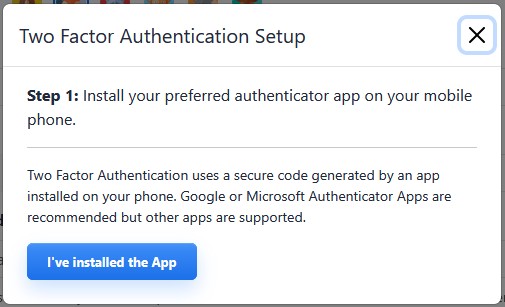 |
| Open your authenticator app and prepare to scan a QR code. | 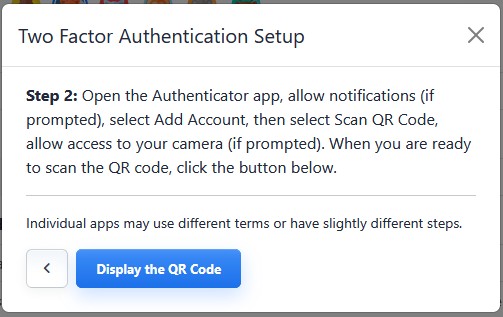 |
| Scan the QR code. If you cannot scan the QR code, use the setup key link shown during setup and follow your authenticator app's instructions for manually entering a setup key. | 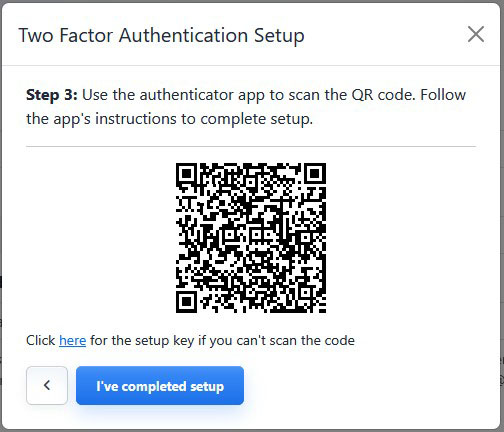 |
| Enter the 6-digit code generated by your authenticator app. | 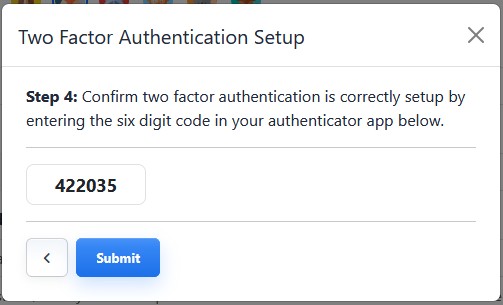 |
| After the code is accepted, close the success message to complete setup. | 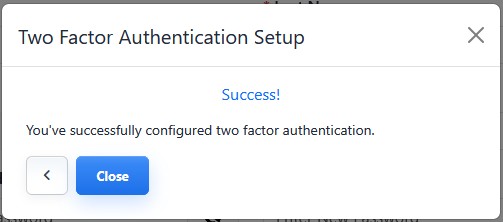 |
Alternative Setup
You can also enable 2FA from your profile by turning on the Enable 2FA toggle and completing the same setup steps.
Learn More
For logging in after setup is complete, see Logging In to Mobi CMS. For opening your profile, see Managing Your Profile, Password, Appearance, and Logout.