 Ask Alvin (AI Chat)
Logging In to Mobi CMS
To log in to Mobi CMS, open your website in a web browser and add /admin to the end of the website address.
For example, if your website is www.yourwebsitename.com, go to www.yourwebsitename.com/admin.
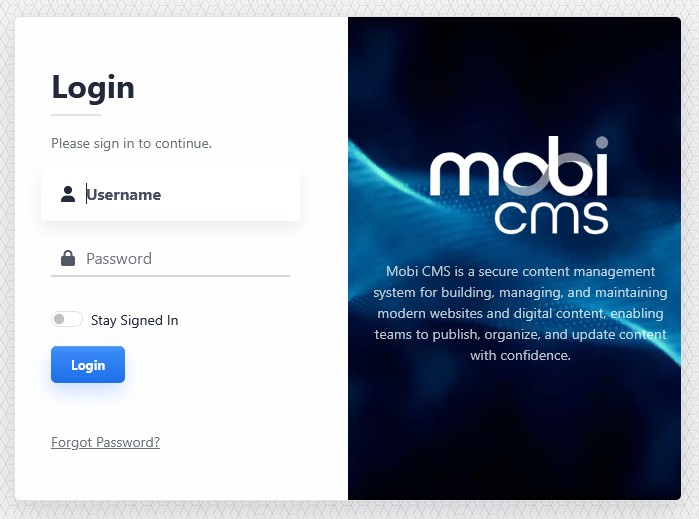
The Mobi CMS login screen includes username, password, Stay Signed In, Login, and Forgot Password controls.
Login Steps
The Mobi CMS login screen includes fields for your username and password.
To log in:
- Enter your username.
- Enter your password.
- Turn on Stay Signed In if you want your session to remain active while you work. This helps prevent lost work due to session timeouts.
- Click Login.
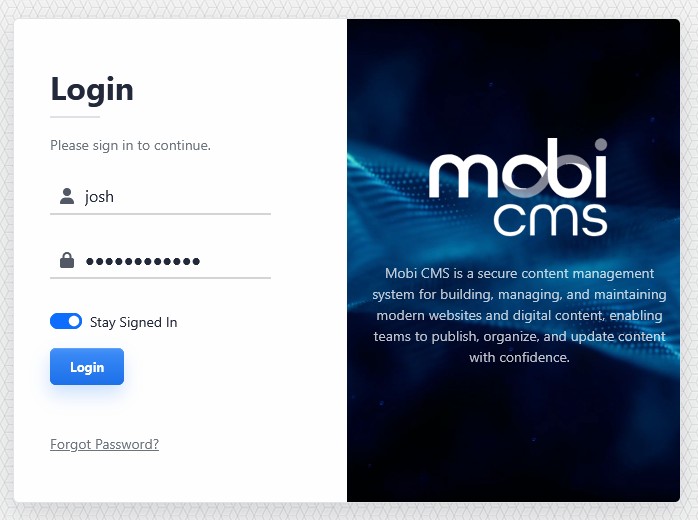
Enter your username and password, then click Login.
After Login
If your site uses two-factor authentication, you may also be asked to enter a verification code or complete 2FA setup before entering the CMS.
After you log in, the CMS console appears on the left side of the browser window.
Learn More
For password reset help, see Resetting a Forgotten Password. For two-factor authentication setup, see Setting Up Two-Factor Authentication. For the main CMS interface, see Getting Started with the CMS Console.