 Ask Alvin (AI Chat)
Getting Started with the CMS Console
After you log in, the Mobi CMS console appears alongside the website or CMS tool you are using.
The console is the main navigation and control area for Mobi CMS. It provides access to administrative tools, content tools, plugins, notifications, profile settings, and logout.
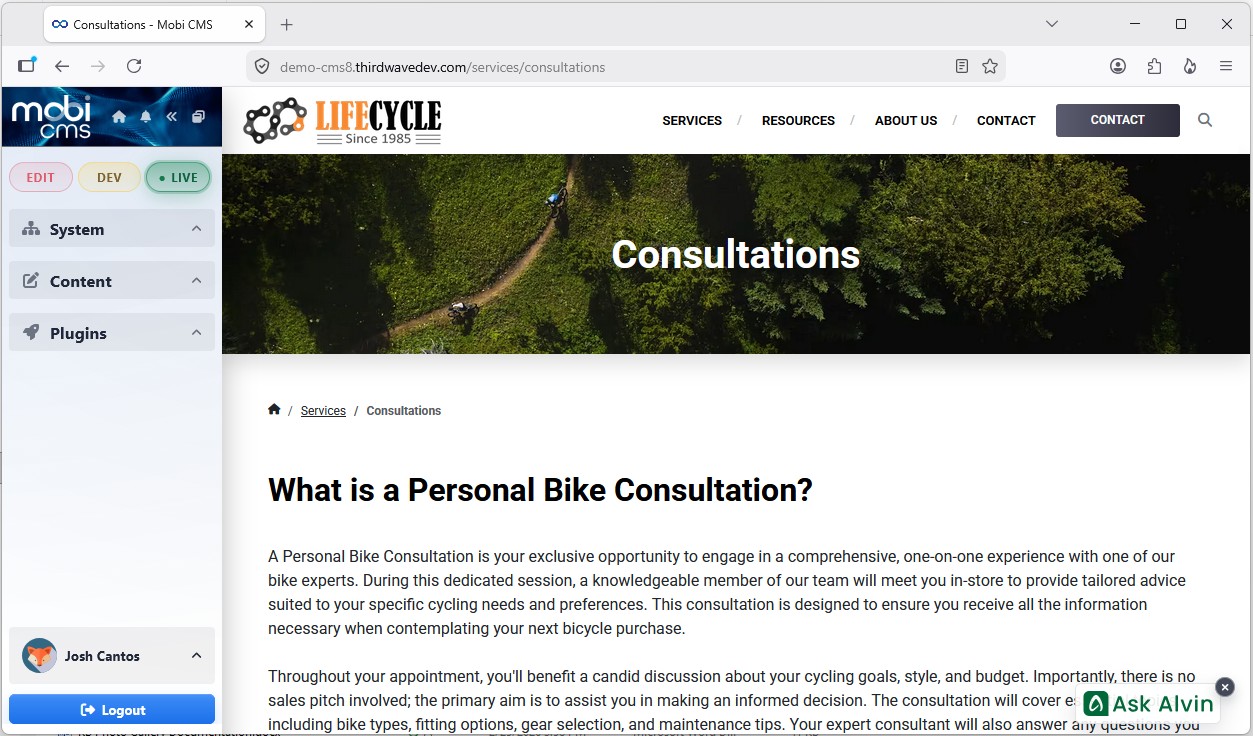
The CMS console appears alongside the website or CMS tool you are using.
Main Console Areas
The console includes three main accordion sections:
- System
- Content
- Plugins
Edit, Dev, And Live Modes
Above the main accordions are the Edit, Dev, and Live mode buttons.
When you're on editable content pages, these buttons control which version of the page you are viewing.
- Edit mode shows page editing tools and unpublished changes.
- Dev mode shows a cleaner preview that still includes unpublished changes.
- Live mode shows the public version of the page as visitors see it.
When you are viewing a system tool or plugin management screen, Edit, Dev, and Live controls are hidden because those modes apply to content-page editing.
Utility Icons
At the top of the console are some utility icons. These provide quick access to common console actions such as returning to the site home page, viewing notifications, collapsing or expanding the console, and undocking or redocking the console.
User Area And Logout
The user area at the bottom of the console shows the current user's profile image and name. Opening the user area provides account-related options, including appearance settings and profile access.
The Logout button is also available at the bottom of the console.
Learn More
For the tools inside each accordion, see Navigating System, Content, and Plugins in the Console. For collapsed and undocked console behavior, see Understanding Console States. For account options, see Managing Your Profile, Password, Appearance, and Logout.