 Ask Alvin (AI Chat)
Generating AI Images
AI image generation lets you create a image from a written prompt. This feature can be used in areas of Mobi CMS that support AI-generated images, including the main content editor, category preview images, and Menu Manager.
AI-generated images should always be reviewed before they are used on a public page. Make sure the image is accurate, appropriate for the site, and suitable for the place where it will appear.
Opening the AI Image Tool
In a supported image field, click the A.I. Image button to open the Generate A.I. Image modal.
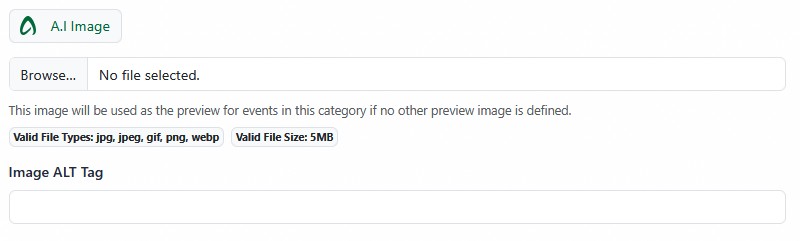
The A.I. Image button appears in supported image fields.
The modal includes a prompt field, an aspect ratio selector, a Generate button, and a Use Image button.
The video shows an AI image being generated, previewed, selected, and applied to an image field.
Writing an Image Prompt
Use the Prompt field to describe the image you want to create.
For best results, include the subject, setting, style, and intended use of the image. For example, instead of entering "bike accessories," enter a more specific prompt such as "Studio image of an assortment of biking accessories on a shop counter, suitable for use as a category placeholder image for Bike Accessories."
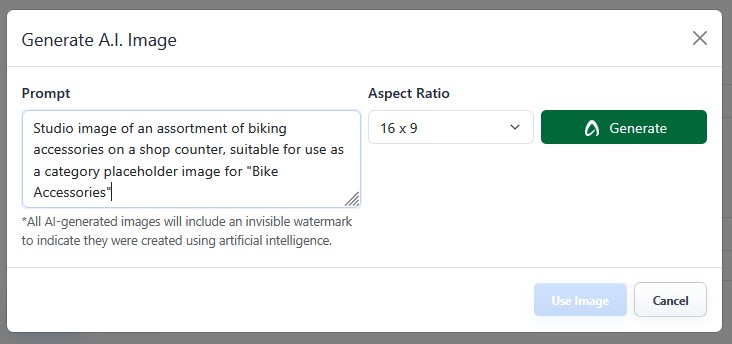
A specific prompt gives the AI image generator more useful direction.
Choosing an Aspect Ratio
Use the Aspect Ratio selector to choose the shape of the generated image.
Choose an aspect ratio that matches where the image will be used. A wide preview area may work better with a 16 x 9 image, while a square preview area may work better with a 1 x 1 image.
Generating and Reviewing Images
Click the Generate button to create an AI-generated image from your prompt and selected aspect ratio.
Generated images appear as thumbnails in the modal. Review the thumbnails before selecting one.
To view a larger version of a generated image, hover over the thumbnail and click Preview. The preview opens the image in a slideshow viewer so you can review the generated image more closely.
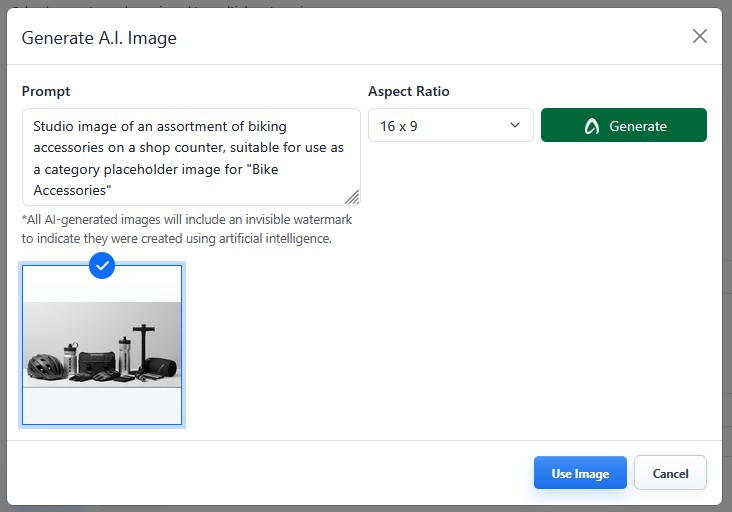
Select a generated image before applying it to the image field.
Selecting an Image
After you find the image you want to use, select it and click Use Image.
The selected image is applied to the image field. When an AI image is selected, an alt tag is automatically generated for the image.
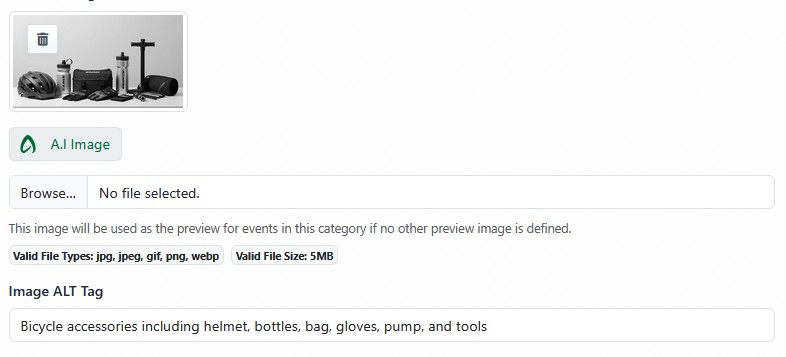
After an AI-generated image is selected, an alt tag is generated for the image field.
Review the generated alt tag before saving. Edit it if needed so it accurately describes the image.
AI Watermark
All AI-generated images include an invisible watermark to indicate that they were created using artificial intelligence.
Review Before Publishing
AI-generated images can be useful starting points, but they can also contain visual mistakes or details that do not fit the site. Review each image carefully before saving or publishing it.