 Ask Alvin (AI Chat)
Using Scribe, the AI Writing Assistant
Scribe is the Mobi CMS AI writing assistant. It is trained on your organization and is designed to help write copy that supports strong SEO, AEO, and GEO results for your site.
Use Scribe to draft or refine website copy, including headlines, page content, calls to action, summaries, and SEO-friendly text.
AI-generated writing should be reviewed before it is published. Make sure the copy is accurate, appropriate for the organization, and consistent with the page's purpose.
Opening Scribe
Open Scribe from the content editor of Mobi CMS.

The Scribe button can be found in the Editor ribbon.
When the Scribe window opens, enter a prompt that explains what you want Scribe to write or revise.
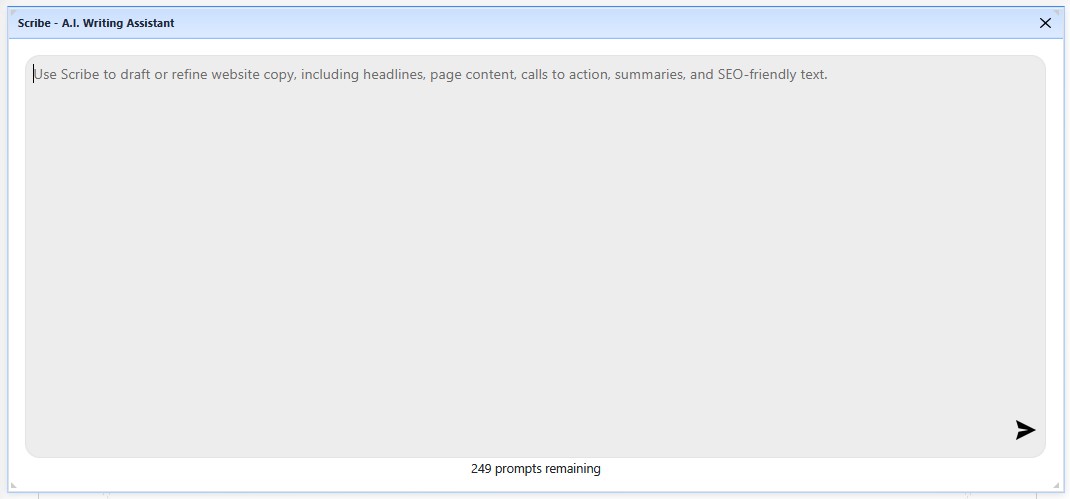
The Scribe window lets you ask for help drafting or refining website copy.
Writing a Useful Prompt
Scribe works best when your prompt includes the goal, audience, tone, and any existing copy you want revised.
For example, you can ask Scribe to:
- Draft a headline for a service page.
- Rewrite existing copy to make it clearer.
- Improve copy for SEO, AEO, or GEO performance.
- Create a short summary from longer page content.
- Suggest stronger calls to action.
If you are revising existing content, paste the current copy into the prompt and explain what should change.
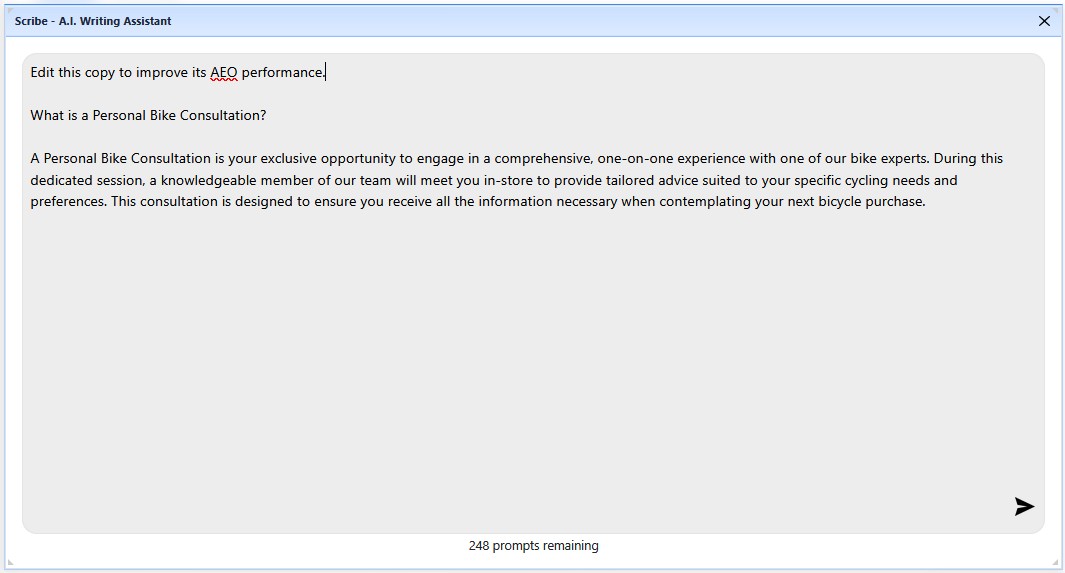
A useful Scribe prompt can include the existing copy and the goal for the revision.
Reviewing Scribe's Response
After you submit your prompt, Scribe responds in the chat window.
Review the response carefully. Scribe can help improve structure, clarity, and search-friendly language, but you should still confirm that the copy is factually accurate and appropriate for the client.
If the response is not quite right, ask a follow-up question or provide more specific direction.
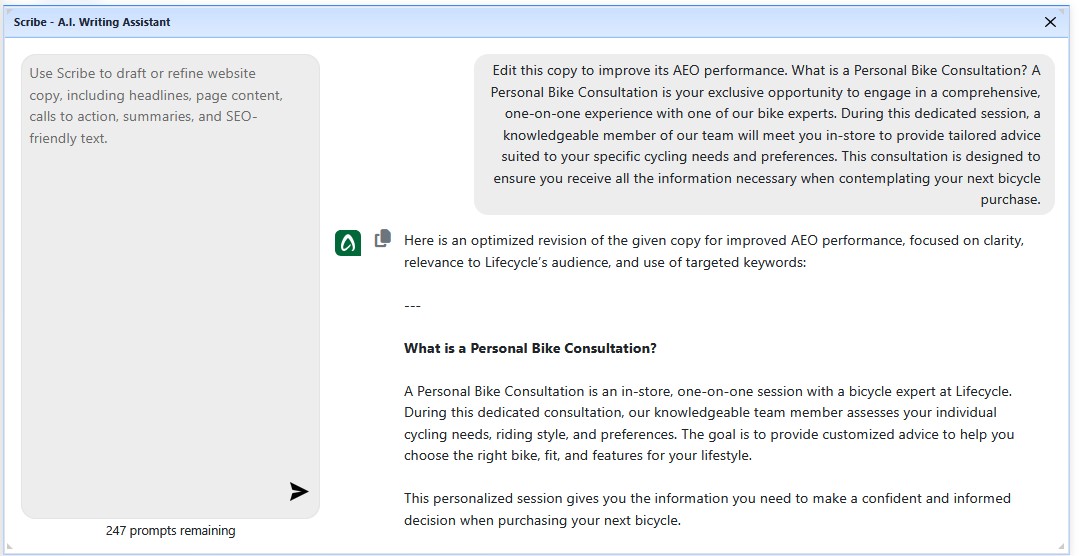
Scribe responds in the chat window with suggested copy or revisions.
Copying Scribe's Response
Use the copy icon to copy Scribe's response.
After copying the response, paste it into the appropriate content field or editor and make any final edits before saving.
Review Before Publishing
Scribe can make mistakes, misunderstand the request, or produce copy that needs additional editing. Always review AI-generated copy before publishing it to the website.