 Ask Alvin (AI Chat)
Getting Started with the Menu Manager
The Menu Manager is a system tool used to create, edit, organize, and manage site pages. You can use it to add new pages, create subpages, reorder navigation, update page settings, and control whether pages appear in public navigation.
Access the Menu Manager
- Open the CMS console.
- Open the System accordion.
- Select Menu Manager.
The Menu Manager opens to the page list for the selected site section. The list shows pages in the order and hierarchy used by the site navigation.
The controls available to you depend on your CMS permissions. Users with restricted permissions may not be able to access all features described in this article.
Menu Manager Controls
| Control | What it does |
|---|---|
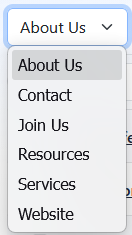 |
Section selector Switches between site sections. See Understanding Menu Manager Sections. |
 |
New Menu Item Creates one new top-level page in the selected section. See Adding a New Top-Level Page. |
 |
Add Multiple Opens Quick Add so you can create several pages at once. See Creating Multiple Pages or Subpages. |
 |
Search Finds pages by title within the selected section. See Searching for Pages in the Menu Manager. |
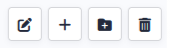 |
Row action buttons Use Edit, Add New Sub Menu, Add Multiple Submenus, or Delete to manage an individual page. See Understanding Menu Manager Action Icons and Statuses. |
 |
Select All and Bulk Actions Applies the same action to several selected pages. See Selecting Pages and Using Bulk Actions. |
Users with restricted CMS permissions may not see every control described in this article.