 Ask Alvin (AI Chat)
Adding a New Top-Level Page
Use the Menu Manager to create new top-level pages for the selected site section.
Your ability to create new pages depends on your CMS permissions. Users with restricted permissions may not be able to access the New Menu Item button.
Add the Page
To add a new top-level page, follow these steps. The detail view shown below highlights the fields and settings referenced in the instructions.
- Open the Menu Manager from the System accordion.
- Use the section selector to choose the section where the page should be created.
- Click the New Menu Item button.
- Enter a Menu Title.
- Select a Template if the default template is not the correct choice.
- Review the generated Permalink before saving.
- Click Submit.
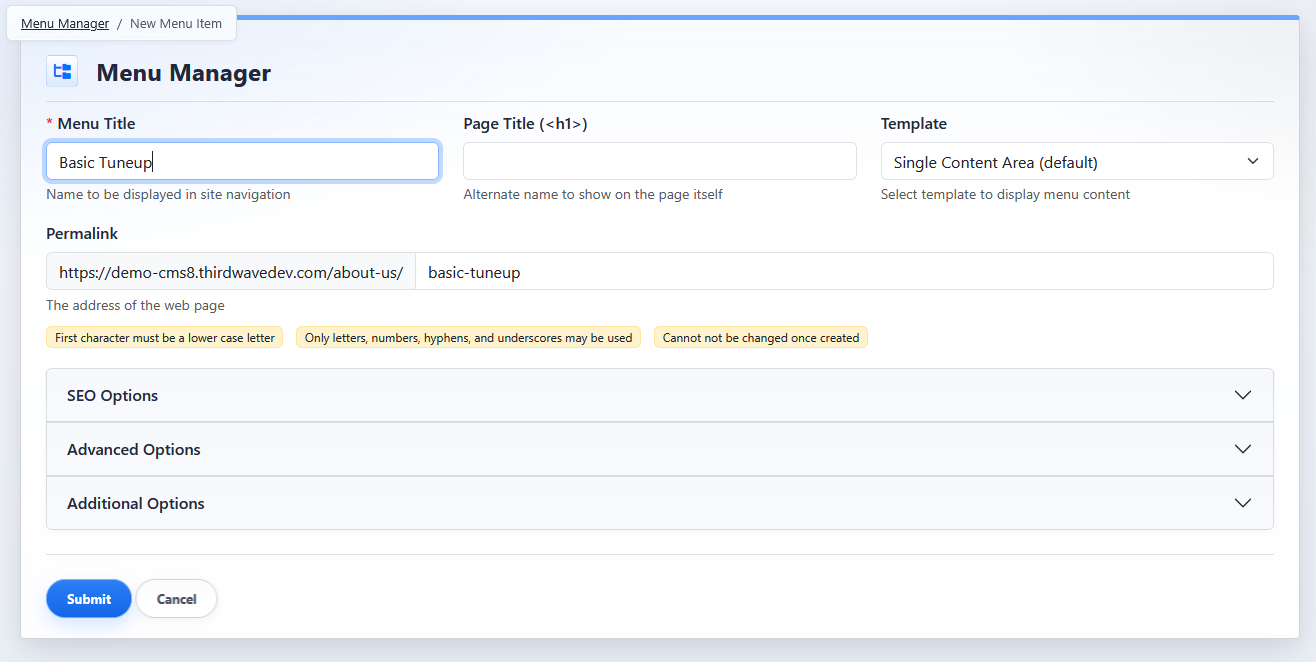
The New Menu Item view is used to create a new top-level page in the selected section.
New Page Fields
Core Fields
Menu Title is required and controls the name displayed in site navigation. Page Title controls the page's visible heading when provided. Template controls how the page content is displayed.
For more detail, see Understanding Menu Title, Page Title, Template, and Permalink.

Permalink
The system generates the Permalink from the Menu Title. Review the generated value before saving the page. After the page is created, the permalink cannot be changed from this screen.

Additional Settings
SEO Options, Advanced Options, and Additional Options can be configured before or after the page is created. For related settings, see Setting Up SEO Options for a Page, Using Advanced Page Options, and Adding Custom Code to a Page.

Submit or Cancel
Click Submit to create the page. Click Cancel to return to the Menu Manager without creating the page.

The new page is added to the bottom of the top-level page list for the selected section. For more about sections, see Understanding Menu Manager Sections.