 Ask Alvin (AI Chat)
Using Advanced Page Options
Use Advanced Options in the Menu Manager edit view to manage page behavior that goes beyond the main page title, template, and permalink fields.
The controls you see depend on your CMS permissions. Users with restricted permissions may not be able to access all features.
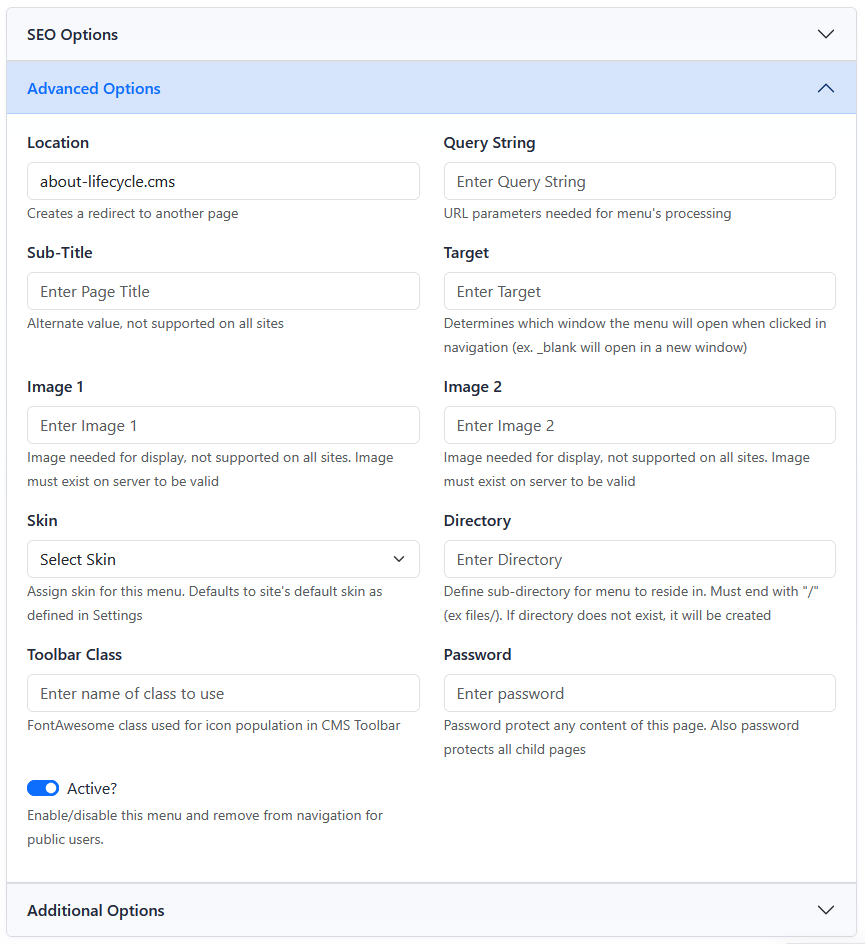
The Advanced Options section contains redirect-style behavior, target, password, visibility, and other site-specific page settings.
Open Advanced Options
- Open the Menu Manager from the System accordion.
- Find the page you want to update.
- Click the page's Edit button.
- Open the Advanced Options accordion.
- Update the needed fields.
- Click Submit.
Location and Target
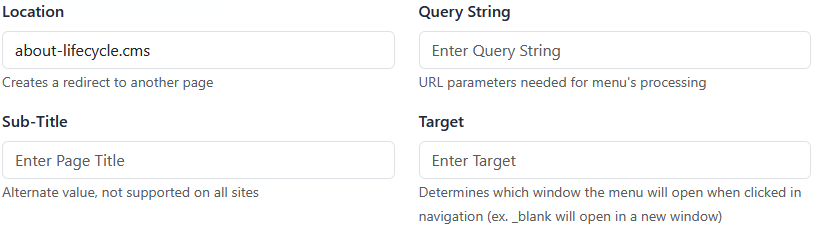
Location creates a redirect-style behavior for the menu item. The preferred way to manage redirects is the Redirect Manager in System Tools.
Target determines which window the menu item opens in when clicked in navigation. For example, _blank opens the page in a new window or tab.
Password
Password password protects the page for public visitors. It also password protects child pages under that page.
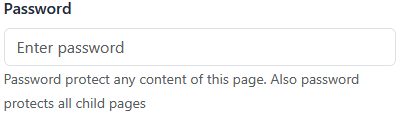
For full instructions, see Password Protecting a Page.
Active?
Active? controls whether the page is included in generated public navigation.

For a deeper explanation of navigation visibility and indexing, see Setting Page Visibility and Indexing.
Other Advanced Fields
Additional fields such as Query String, Sub-Title, Image 1, Image 2, Skin, Directory, and Toolbar Class support site-specific display or processing needs.
Learn More
For page-level code insertion fields, see Adding Custom Code to a Page.