 Ask Alvin (AI Chat)
Checking Content Accessibility in the Editor
The Accessibility Checker helps identify common accessibility issues in the current editor content. It can flag problems that affect visitors using screen readers, keyboard navigation, or other assistive technologies.

Click the Accessibility Checker icon to review common accessibility issues in the current editor content.
The checker is a review tool. It helps find issues, but it does not guarantee full accessibility compliance.
Running the Accessibility Checker
Click the Accessibility Checker icon in the editor toolbar.
The checker scans the current editor content and presents detected issues one at a time. It can highlight the affected content, describe the issue, explain why it matters, and suggest a correction.
Common Issues
The Accessibility Checker can flag issues such as:
- Missing alternative text on images.
- Improper heading structure.
- Empty links.
- Tables without headers.
- Insufficient structural markup.
- Other content issues related to accessibility best practices.
The exact checks depend on the configured rule set.
Reviewing and Fixing Issues
For each issue, review the description and suggested correction. When a quick correction is available, use Quick Fix to apply it. Use Next to move to the next issue. Use Ignore only when you have confirmed the flagged item does not need to be changed.
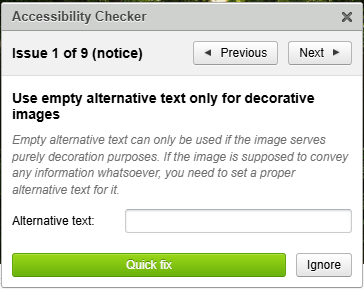
The Accessibility Checker presents issues one at a time and provides controls for moving through the review or applying a suggested fix.
Ignored issues remain in the content unless you manually correct them.
Completing the Review
When all issues have been reviewed, the checker displays a completion message. Re-run the Accessibility Checker after making significant edits, adding images, inserting tables, or changing headings.
Learn More
For image alternative text, see Adding Images in the Content Editor. For heading structure and formatting, see Basic Editing Tools. For table structure, see Adding Tables and Other Inserted Elements.