 Ask Alvin (AI Chat)
Editing an Existing User Profile
Use the User Profile tab to update basic information for an existing CMS user.
The controls you see depend on your CMS permissions. Users with restricted permissions may not be able to access all features.
To edit a user profile:
- Open the User Manager from the System accordion.
- Find the user on the Users tab.
- Click the user's Edit button.
- Open the User Profile tab.
- Update the needed profile fields.
- Click Save.
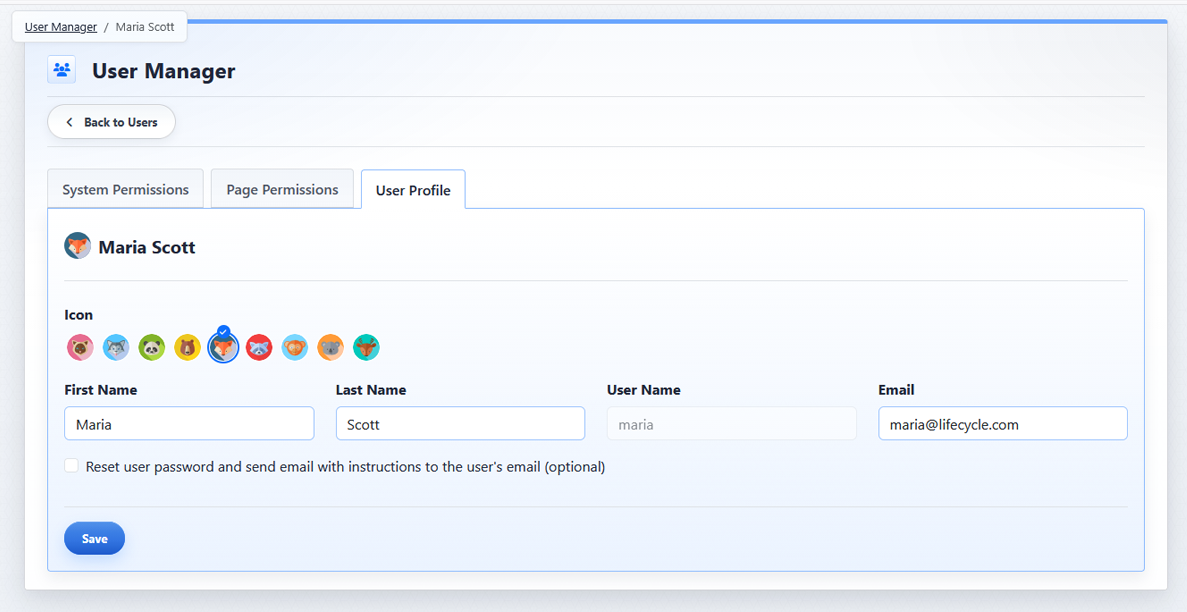
The User Profile tab is used to update an existing CMS user.
The User Profile tab includes:
- Icon
- First Name
- Last Name
- User Name
- Reset user password and send email with instructions to the user's email
The User Name field is read-only when editing an existing user and cannot be changed.
Use the password reset option if the user needs a new password setup.
Learn More
For permissions, see Understanding System Permissions and Understanding Page Permissions.