 Ask Alvin (AI Chat)
Adding a New User
Use Add New User to create a new CMS user account.
The controls you see depend on your CMS permissions. Users with restricted permissions may not be able to access all features.
To add a new user:
- Open the User Manager from the System accordion in the console.
- Click the Add New User button.
- Select an Icon for the user.
- Enter the user's First Name and Last Name.
- Enter a User Name.
- Enter the user's Email address.
- Check Send invite to new user if the user should receive an email with instructions for setting up a password.
- Click Save.
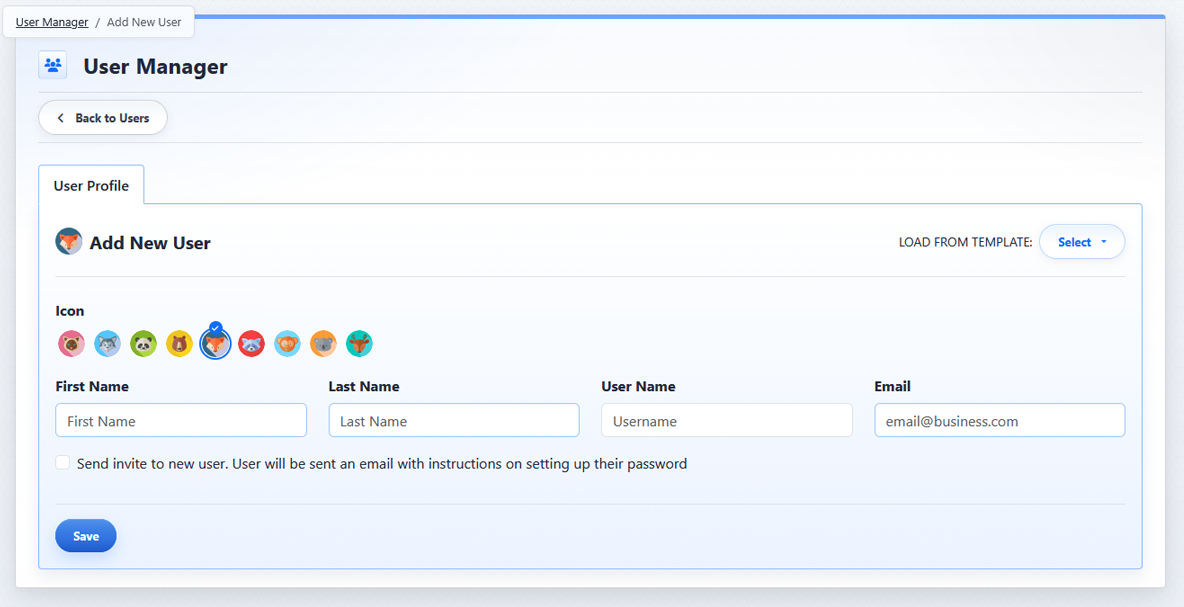
The Add New User view contains the profile fields required to create a CMS user.
When creating a new user, the initial form shows the User Profile tab. System Permissions and Page Permissions are configured after the user exists, unless you create the user from a permission template.
If you create the user without a template, save the profile first. Then reopen the user to assign permissions.
If you select a permission template before saving, the new user is created with the permissions from that template.
The User Name and Email fields must be unique.
Learn More
For template-based setup, see Using Permission Templates for Users. For editing a saved profile, see Editing an Existing User Profile.