 Ask Alvin (AI Chat)
Accessing the Content Editor
Pages in Mobi are built from content areas. A content area might be a regular content block, a photo gallery, a slideshow, a form block, or a code block.
Every page has at least one content zone where content areas can be added and managed. Two menus are especially important when building page content: the Add Content menu and the Content Options menu.
Add Content Menu
Use the Add Content menu when you want to add a new content area to a page.
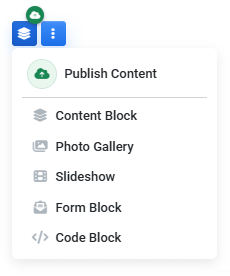
The Add Content menu lets you add new content areas and publish pending content changes.
Add Content to a Page
The Add Content menu can include options such as:
- Content Block
- Photo Gallery
- Slideshow
- Form Block
- Code Block
Choose the type of content area you want to add. The option you choose determines what kind of content or settings you will work with next.
For example, choose Content Block when you want to add text, images, links, or other editor-based content. Choose Photo Gallery, Slideshow, or Form Block when the page should include one of those plugin-based content areas.
Publish Content Changes
When a page has changes that need to be published, the Add Content menu can show a green cloud icon and a Publish Content option.
Use Publish Content when you are ready to publish the page's content changes. This option appears when there are changes that require publishing and when your user account has permission to publish.
If the page has unpublished changes, public visitors will continue to see the previously published version until the update is published.
Submit Content for Review
If your user account does not have permission to publish the page, the publish option is replaced by Submit for Review.
Use Submit for Review when the page changes are ready for someone with publish access to review.
The Submit for Review window shows a list of users who have publish access to the page. Select a publisher, add a note if needed, and click Submit.
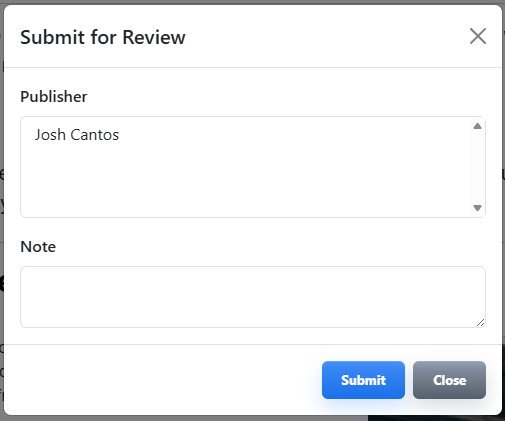
Submit for Review sends a request to a user who has permission to publish the page.
The selected publisher receives an email notification with the review request.
Content Options Menu
Use the Content Options menu to manage an existing content area on the page.
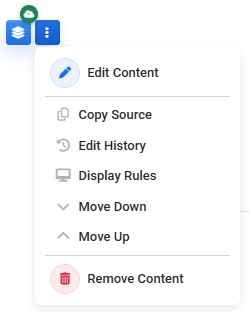
The Content Options menu changes depending on the type of content area you are managing.
Open Content Options
The options in this menu can vary depending on the type of content area. A regular content block has different editing options than a slideshow, gallery, form block, or code block.
Edit a Content Block
For regular content blocks, the Content Options menu includes Edit Content. Use Edit Content to open the Content Editor for that block.
The Content Editor is where you can update text, images, links, tables, modules, and other editor-based content inside the block.
Copy Source
Regular content blocks also include Copy Source.
Use Copy Source when you need to copy the HTML source of the content block without opening the editor and switching to source view.
Copy Source is useful when you need to reuse or inspect the HTML from a block, but it does not replace normal editing in the Content Editor.
Review History and Display Rules
The Content Options menu can include tools for reviewing the block's history and managing how the block displays.
Use Display Rules when you want to hide a content area from public visitors or schedule when it should appear. Display Rules apply to the selected content area, not the entire page.
Changing Display Rules is still considered a content change. After updating Display Rules, publish the page update so public visitors see the change.
Move Content Areas
Use Move Up and Move Down to change the order of content areas on the page.
Both options may not always appear. For example, a content area at the top of the page may not show Move Up, and a content area at the bottom of the page may not show Move Down.
After moving content areas, publish the page update so the new order is visible to public visitors.
Remove a Content Area
Use Remove Content when a content area should no longer appear on the page.
Removing content is different from hiding it with Display Rules. Display Rules keep the content area on the page but hide or schedule its public visibility. Remove Content takes the content area off the page.
If you remove content by mistake, it may be available from the Recycle Bin, depending on the content type and site settings.
What to Remember
Use Add Content to place new content areas on a page.
Use Content Options to manage content areas that are already on the page.
The Content Options menu changes depending on the content type, so you may not see the exact same options for every content area.
Many changes made through these menus are page content edits. Publish the page update when you are ready for public visitors to see the changes.
Learn More
For editing regular content blocks, see Getting Started with the Content Editor. For adding pre-built content sections, see Understanding CMS Modules. For hiding or scheduling a content block, see Using Display Rules to Show or Hide Content Blocks. For finding pages with unpublished changes, see Getting Started with the Publish Tool. For recovering removed content, see Accessing and Reviewing Recycled Items.