 Ask Alvin (AI Chat)
Accessing and Reviewing Recycled Items
The Recycle tool is where CMS users can review deleted page-level content blocks before deciding whether to restore them, preview them, copy source code from them, or permanently delete them.
Open Recycle from the Content section of the CMS console. Access to this tool depends on user permissions. Users without view permission will not see the tool and cannot open its list or detail views directly.
The Recycle tool can store deleted content blocks, code blocks, form blocks, photo gallery blocks, and slideshow blocks. Recycled items remain available until a CMS user restores them or permanently deletes them.
List View
The Recycle List View is the default screen when the tool opens. It lists currently recycled items and provides controls for finding, filtering, sorting, and reviewing deleted blocks.
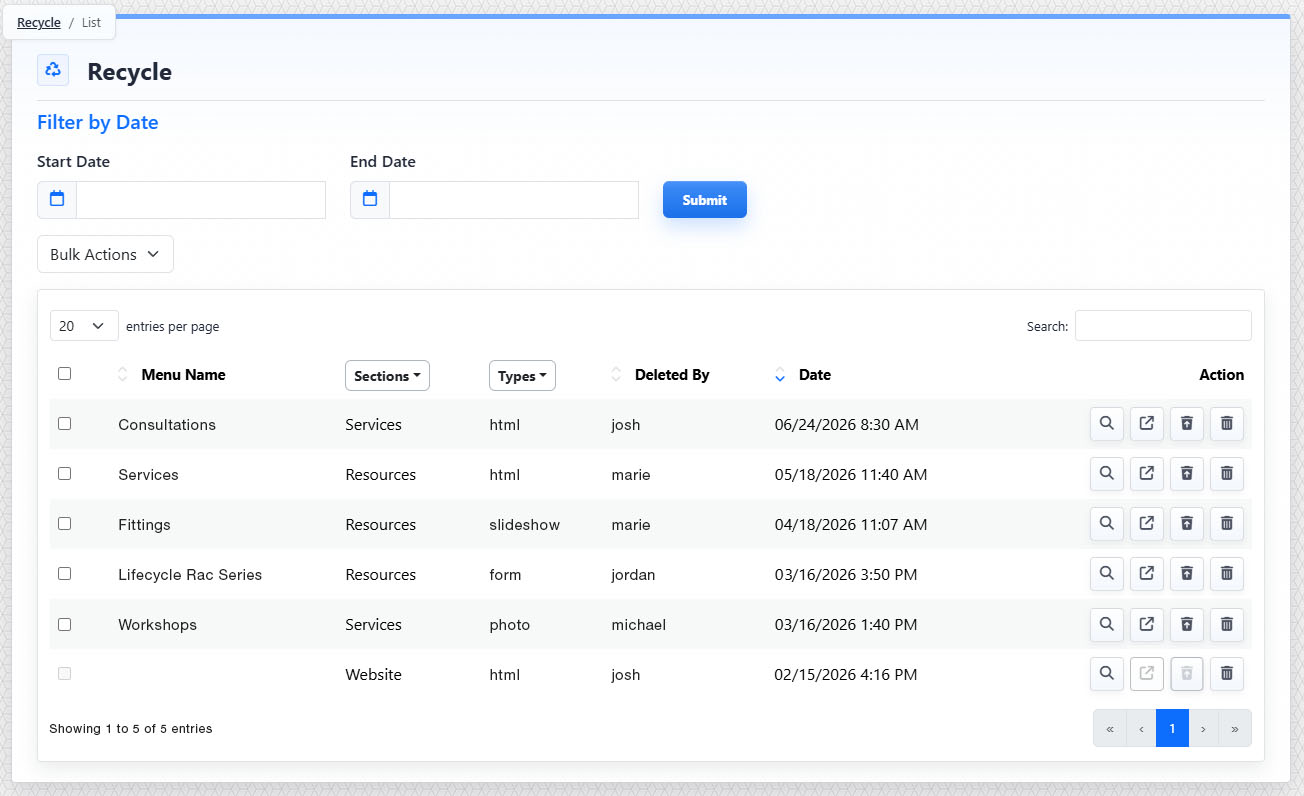
The Recycle List View shows date filters, bulk actions, table filters, search, pagination, and row actions for recycled items.
Filter and Search Recycled Items
Use Filter by Date to narrow the list by the date an item was deleted. Enter a Start Date, an End Date, or both, then click Submit. If both date fields are blank when you submit, the date filter clears.
Use the Search field to filter the table contents.
Review the Recycle Table
Each row in the table represents one deleted content block. The table is sorted by Date Deleted in descending order by default, so the most recently deleted items appear first.
| Column | What it shows |
|---|---|
| Bulk Select | Selects eligible rows for bulk restore or bulk delete actions. |
| Menu Name | The page title or menu name where the deleted block originally lived. |
| Section | The site section or application area associated with the deleted block. Use the column filter to narrow the list by section. |
| Type | The deleted block type, such as content, code, form, gallery, or slideshow. Use the column filter to narrow the list by block type. |
| Deleted By | The CMS username of the user who deleted the block. |
| Date | The date and time the block was deleted. |
| Action | Buttons for viewing details, previewing, restoring, or permanently deleting an item when those actions are available. |
Row Actions
Available row actions depend on the block type, restore eligibility, and the current user's permissions.
| Button | Action |
|---|---|
 |
View opens the Detail View for the selected recycled item. |
 |
Preview opens a preview in a new browser tab when preview is supported for that block type. |
 |
Restore returns the item to its original page when the item is eligible and the user has restore permission. |
 |
Delete permanently removes the recycled item when the user has delete permission. |
Disabled buttons and checkboxes may still be visible. For example, restore controls are disabled when the original page no longer exists or when the user does not have restore permission.
Detail View
The Recycle Detail View shows read-only information for one recycled item. Use it to confirm that you are working with the correct block before previewing, restoring, copying source, or permanently deleting the item.
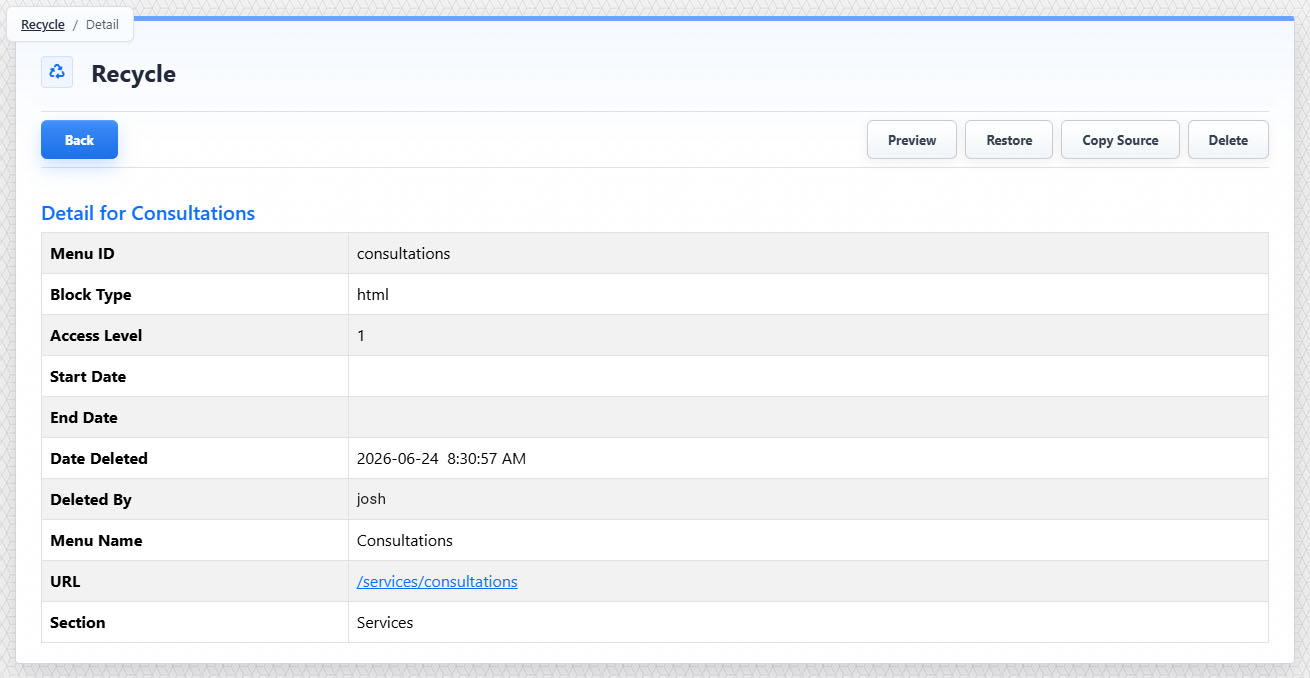
The Detail View shows item metadata and item-level actions. The content and metadata cannot be edited from this view.
Click Back to return to the List View. Search, filters, pagination, and sort state remain in place while moving between the List View and Detail View.
Detail Metadata
The metadata table can include values such as Menu ID, Block Type, Start Date, End Date, Date Deleted, Deleted By, Menu Name, URL, and Section. Blank scheduling fields remain blank if no start or end date was assigned before deletion.
Learn More
For preview and source-copy options, see Previewing and Copying Recycled Content. For restore and permanent delete rules, see Restoring and Permanently Deleting Recycled Items. For permission settings that control access to Recycle, see Setting Content Permissions.