 Ask Alvin (AI Chat)
Basic Editing Tools
The Content Editor includes standard editing tools for writing, formatting, revising, and organizing text. These tools are useful for everyday page edits and small content updates.

The editor ribbon groups standard editing tools with CMS-specific controls.
Clipboard, Undo, and Redo
| Tool | Button | Use |
|---|---|---|
| Cut |  |
Removes selected content and places it on your clipboard. |
| Copy |  |
Copies selected content to your clipboard without removing it. |
| Undo |  |
Reverses the most recent change. |
| Redo |  |
Reapplies the most recent undone change. |
Find and Replace
Use Find and Replace to search the current editor content and optionally replace matching text.

Click the Find and Replace icon to search the current editor content and optionally replace matching text.
The Find tab searches for matching text without changing it. Enter the text in Find what, then click Find to move through each match.
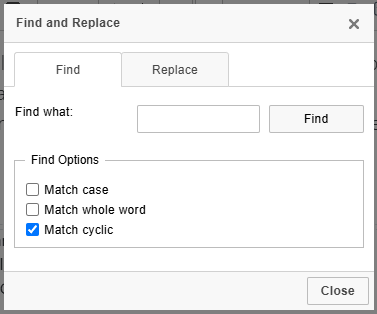
The Find tab searches for matching text without changing the content.
The Replace tab lets you enter replacement text in Replace with. Use Replace to update the current match or Replace All to update every matching instance at once.
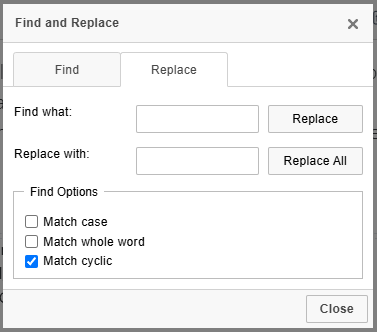
The Replace tab can replace the current match or every matching instance.
Find options include:
- Match case: matches uppercase and lowercase letters exactly.
- Match whole word: matches only complete words.
- Match cyclic: continues searching from the beginning after reaching the end.
Use Replace All carefully, especially with short or common words.
Headings and Text Formatting
| Tool | Button | Use |
|---|---|---|
| Heading Format |  |
Applies paragraph and heading structure. |
| Remove Format |  |
Clears formatting from selected text. |
| Font Color |  |
Changes selected text color. |
| Text Highlight Color |  |
Applies a background highlight to selected text. |
Use the format dropdown to apply structural formatting such as Normal text or heading levels. Headings help organize content and improve accessibility.
Common text formatting tools include:
- Bold: emphasizes selected text.
- Italic: italicizes selected text.
- Underline: underlines selected text.
- Strikethrough: places a line through selected text.
- Subscript: lowers selected text below the baseline.
- Superscript: raises selected text above the baseline.
- Remove Format: clears formatting from selected text while keeping the text itself.
Use headings for structure rather than for visual size alone.
Color and Highlight
Use Font Color to change the color of selected text. Use Text Highlight Color to apply a background highlight behind selected text.
Both tools include preset color swatches and a More Colors option. Choose Automatic to return selected text to the default color or highlight behavior.
Use color and highlight sparingly so content remains readable and accessible.
Lists and Indentation
| Tool | Button | Use |
|---|---|---|
| Numbered List |  |
Creates an ordered list. |
| Bulleted List |  |
Creates an unordered list. |
| Decrease Indent |  |
Moves content closer to the left margin. |
| Increase Indent |  |
Moves content farther from the left margin. |
Use Numbered List when the order of the items matters.
Use Bulleted List when the items do not need to appear in a specific order.
Use Decrease Indent and Increase Indent to move selected content closer to or farther from the left margin.
Quotes and Alignment
| Tool | Button | Use |
|---|---|---|
| Block Quote |  |
Formats selected content as a quotation block. |
| Align Left |  |
Aligns content to the left. |
| Center |  |
Centers content. |
| Justify |  |
Distributes text across the content width. |
Use Block Quote to format selected content as quoted or callout-style text. The final appearance depends on the site's styles.
Use Align Left, Center, Align Right, and Justify to control horizontal text alignment. Left alignment is usually the best default for longer body copy.
Learn More
For accessibility checks after editing, see Checking Content Accessibility in the Editor. For site-approved styling options, see Applying CMS Styles. For AI writing help, see Using Scribe, the AI Writing Assistant.