 Ask Alvin (AI Chat)
Getting Started with the Content Editor
The Content Editor is the main visual editing area used to add and update page content in Mobi CMS. It includes the editing toolbar, the content area, the status bar, and the primary Save and Cancel controls.
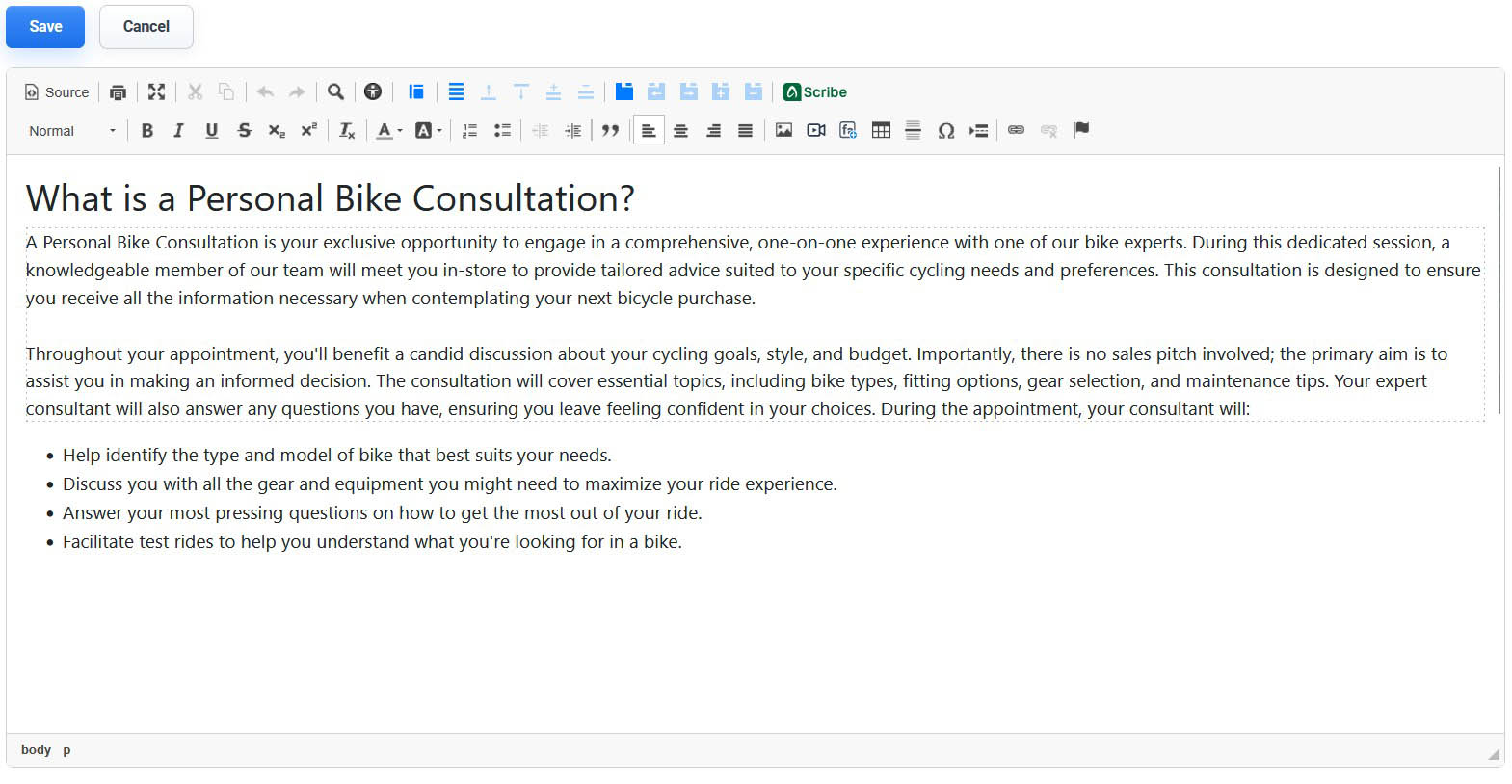
The Content Editor includes Save and Cancel controls, the toolbar, the visual editing area, and the status bar.

The toolbar includes standard editing controls, insert tools, CMS-specific tools, accordion and tab tools, and Scribe.
Use the Content Editor to write page copy, format text, insert links, add images and videos, build tables, apply CMS Styles, and insert structured CMS Modules such as grids, cards, accordions, and tabs.
Editor Layout
The editor window includes three main areas:
- Toolbar: contains standard editing tools, insert tools, CMS-specific tools, and the Scribe writing assistant.
- Visual Editing Area: the main workspace where content is entered, selected, formatted, and arranged.
- Status Bar: appears at the bottom of the editor and shows the current HTML element path, such as
body.
Toolbar
The toolbar is organized into rows. The top row includes tools such as Source, Print, Full Screen, Cut, Copy, Undo, Redo, Find and Replace, Accessibility Checker, Mobi Workspace, Accordion tools, Tabs tools, and Scribe. The bottom row includes common formatting and insert tools such as heading format, bold, italic, lists, alignment, images, video, icons, tables, links, and anchors.

Scribe is available from the editor toolbar on select Mobi CMS tiers when AI writing assistance is needed.
Visual Editing Area
The Visual Editing Area shows the content as it will generally appear while editing. Text, images, tables, modules, accordions, and tabs can be selected and edited directly in this area.
Some structured content, such as grids, modules, accordions, and tabs, displays editor-only controls while you are working. These controls help you configure the layout but are removed from the saved public output.
Source Mode
Use Source to switch between visual editing and HTML source mode.
Click Source to switch from visual editing mode to HTML source mode. Source mode is useful when you need to review raw HTML, troubleshoot formatting, or paste structured markup.
Click Source again to return to visual editing mode.
Status Bar
The Status Bar appears at the bottom of the editor and shows where your cursor is positioned within the page's HTML structure.
For example, when your cursor is inside a paragraph, the Status Bar can show an element path such as body > p. This is useful when you need to confirm whether you are editing a paragraph, list item, table cell, heading, link, or another content element.
The Status Bar is especially helpful when troubleshooting formatting, selecting structured content, or checking where an inserted element sits inside the page.
Save and Cancel
Click Save to save the changes made in the editor.
Click Cancel to discard unsaved changes and exit the editor.
Users with restricted permissions may not be able to access all features.
Learn More
For common toolbar controls, see Basic Editing Tools. For applying design styles, see Applying CMS Styles. For inserting structured layouts, see Using Modules to Build Pages.