 Ask Alvin (AI Chat)
Using Modules to Build Pages
Modules are pre-built layout and content sections that can be inserted into a page from the Content Editor. Modules help editors build more complex page sections without manually creating the full structure from scratch.
Modules are now available in Mobi Workspace, the editor workspace used for styles, modules, grids, and icons.
Open Mobi Workspace

Click the Mobi Workspace button in the editor toolbar to open the shared workspace.
Mobi Workspace opens to Styles by default. Click Modules on the left side of the workspace to browse and insert modules.
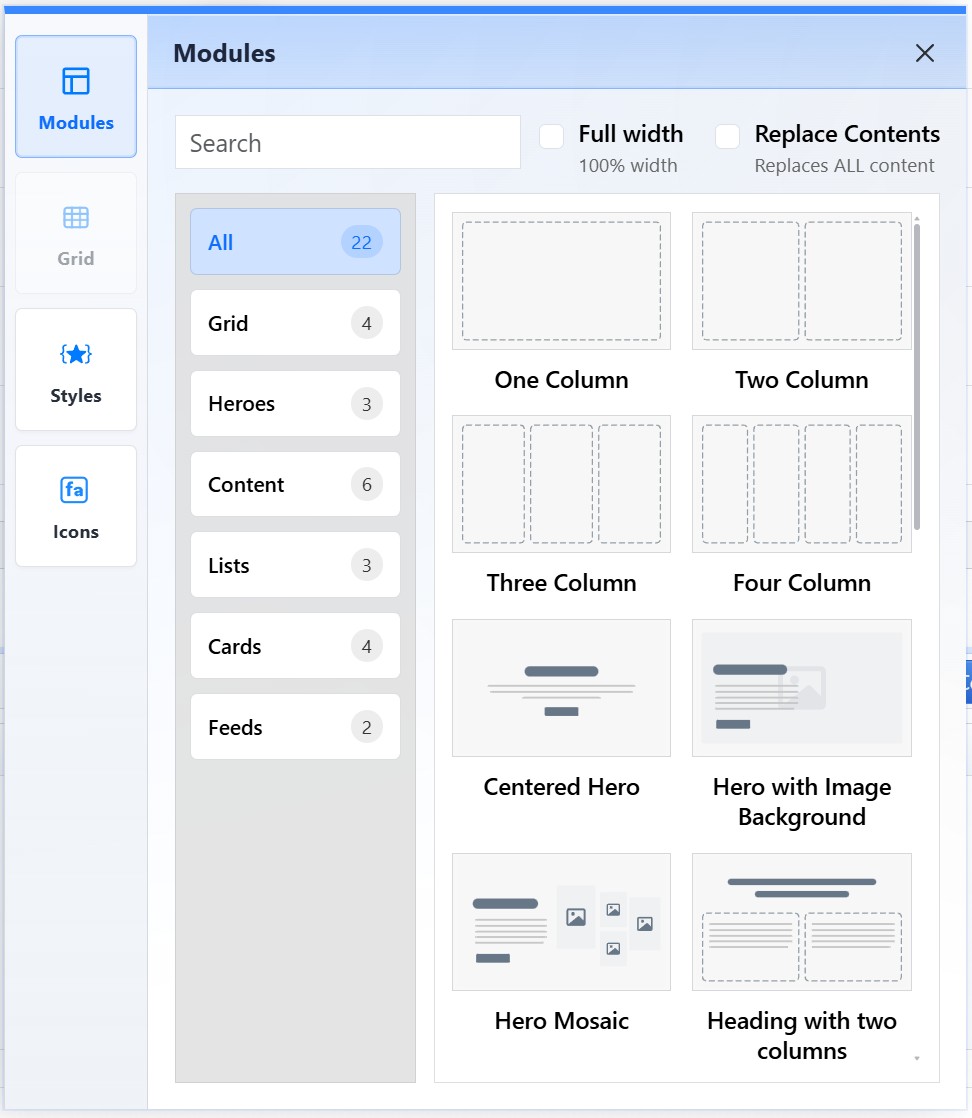
The Modules view provides searchable, categorized layout and content sections that can be inserted into editor content.
Browse Module Categories
The Modules view includes a search field, category filters, module tiles, and insertion options.
Categories can include:
- All
- Grid
- Heroes
- Content
- Lists
- Cards
- Feeds
Each category displays the modules available in that group. The number beside each category shows how many modules are available.
Search and Select a Module
Use Search to find a module by name.
Each module tile includes a visual preview and module title. Select the module that best matches the section you want to add to the page.
Full Width and Replace Contents
Use Full width when the module should span the full browser width. The page must use a 100% width template for this to work as intended.
Use Replace Contents only when the selected module should replace all existing content in the editor. When Replace Contents is not checked, the module is inserted at the current cursor position.
Use Replace Contents carefully because it overwrites the current editor content.
Insert and Configure a Module
Choose a module, then click Insert. The module is added to the page at the cursor position unless Replace Contents is enabled.
Some modules include configuration options before insertion. These options can control rows, columns, mobile slideshow behavior, image cropping, animation, or other module-specific settings.
After insertion, modules appear as structured content in the editor. They can include editor-only controls for editing, configuring, or removing the module.
When to Use Modules
Use modules for repeatable page sections such as grids, hero sections, card layouts, timelines, feature lists, steps, and feed-style layouts.
Modules are especially useful when the page needs a polished structure that should remain consistent with the site's design system.
Learn More
For configuring module rows and columns, see Adding and Configuring Grid Layouts. For modules with repeated items, see Working with Multi-Item Modules. For site-approved styling after insertion, see Applying CMS Styles.