 Ask Alvin (AI Chat)
Password Protecting a Page
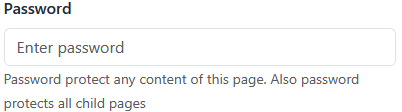
Use the Password field in Advanced Options to require a password before public visitors can view a page.
The controls you see depend on your CMS permissions. Users with restricted permissions may not be able to access all features.
Add Password Protection
- Open the Menu Manager from the System accordion.
- Find the page you want to protect.
- Click the page's Edit button.
- Open the Advanced Options accordion.
- Enter the password in the Password field.
- Click Submit.
Remove Password Protection
To remove password protection, clear the Password field and click Submit.
Understand the Lock Icon
After a page is password protected, the Menu Manager list view shows a lock icon for that page.

Password protection affects public visitors. It does not prevent authorized CMS users from opening the page in the CMS.
Child Pages
Password protection also applies to child pages under the protected page. This inherited behavior can affect child pages even when the child page's own Password field is empty.
Learn More
For more about parent and child behavior, see Understanding Inherited Page Settings for Subpages.