 Ask Alvin (AI Chat)
Selecting Pages and Using Bulk Actions
Use page selection and Bulk Actions to apply the same change to more than one page in the Menu Manager.
The selection and bulk action controls you see depend on your CMS permissions. Users with restricted permissions may not be able to access all features.
Select Individual Pages
To select specific pages, click the checkbox beside each page name.
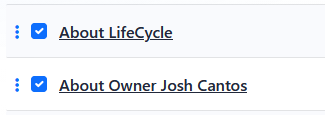
If a page has child pages, selecting the parent page also selects its child pages. Review the selected rows before applying a bulk action, especially when working with expanded page groups. For more about parent and child pages, see Understanding Page Hierarchy in the Menu Manager.
Select All Pages in the Current Section
Use Select All to select the pages shown in the current section.
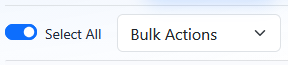
Use Select All again to clear the current selection.
Choose a Bulk Action
After selecting one or more pages, open the Bulk Actions menu and choose the action to apply. The available bulk actions are:
- Delete
- Set to Inactive
- Set to Active
- Set to No-Index
- Set to Indexable
What Each Bulk Action Does
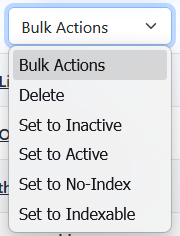 |
Delete removes the selected pages. For more about deleting pages, see Deleting Pages from the Menu Manager. Set to Inactive hides the selected pages from generated public navigation. Set to Active includes the selected pages in generated public navigation. Set to No-Index marks the selected pages as not indexable. Set to Indexable marks the selected pages as indexable. |
Learn More
For more about visibility and indexing behavior, see Setting Page Visibility and Indexing.