 Ask Alvin (AI Chat)
Deleting Pages from the Menu Manager
Use Delete in the Menu Manager to remove pages that should no longer exist in the CMS.
The delete controls you see depend on your CMS permissions. Users with restricted permissions may not be able to access all features.
Deleting a page is permanent. If a page should remain available but should not appear in generated public navigation, use Active? or the Set to Inactive bulk action instead. See Setting Page Visibility and Indexing.
Delete One Page
To delete a single page, follow these steps.
- Open the Menu Manager from the System accordion.
- Select the section that contains the page.
- Find the page you want to delete.
- Click the page's Delete button.

Pages with Child Pages
A page with child pages cannot be deleted individually. The Delete button is disabled for that page until its child pages are moved or deleted.

To delete a parent page, first decide what should happen to its child pages. Move the child pages elsewhere, delete the child pages first, or use a complete branch selection with Bulk Actions.
For more about parent and child pages, see Understanding Page Hierarchy in the Menu Manager. For moving pages, see Moving and Reordering Pages in the Menu Manager.
Delete Multiple Pages
To delete more than one page, select the page checkboxes and choose Delete from Bulk Actions. See Selecting Pages and Using Bulk Actions.
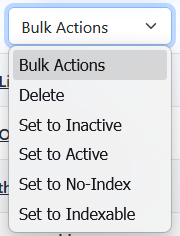
Bulk delete requires a complete branch selection. If a selected parent page has child pages that are not selected, the delete action does not complete. This prevents accidentally deleting only part of a page branch.
Before using bulk delete, review the selected rows carefully. Selecting a parent page also selects its child pages, but child pages can be deselected before the action is applied.