 Ask Alvin (AI Chat)
Managing Your Profile, Password, Appearance, and Logout
The user area at the bottom of the console provides access to account-related options.
Open the user area to view available options. These can include Appearance, Profile, Help Center, and Logout.
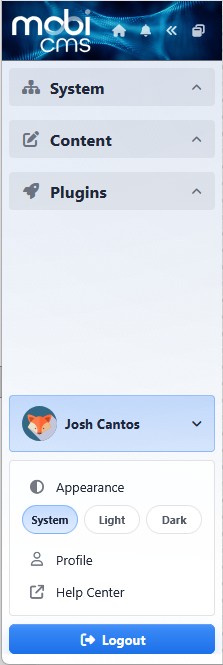
The user area opens account-related options such as Appearance, Profile, Help Center, and Logout.
Appearance
Appearance controls the visual mode used by the CMS interface.
Appearance options include:
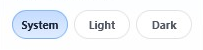
- System: uses the appearance setting from your operating system or browser.
- Light: displays the CMS using the light interface.
- Dark: displays the CMS using the dark interface.
Profile
Use Profile to update your personal account information.
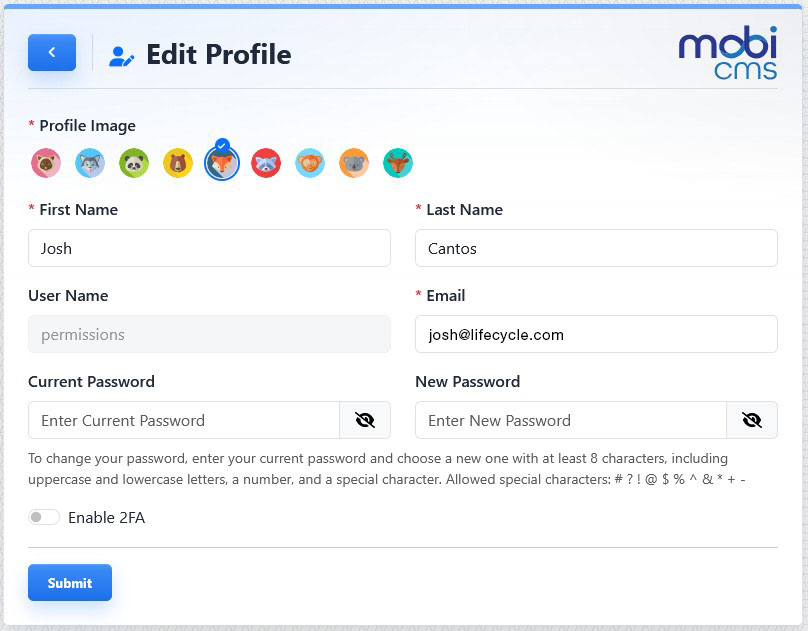
The profile screen lets you update profile information, change your password, and enable 2FA.
The profile screen can include:
- Profile Image
- First Name
- Last Name
- User Name
- Current Password
- New Password
- Enable 2FA
User Name cannot be edited from the profile screen.
To update your profile details:
- Open your user area from the bottom of the console.
- Click Profile.
- Update the needed profile fields.
- Click Submit.
Password Management
To change your password:
- Open your profile.
- Enter your current password.
- Enter your new password.
- Click Submit.
Passwords must be at least 8 characters and include uppercase and lowercase letters, at least one number, and one special character.
Two-Factor Authentication
Use the Enable 2FA toggle to begin two-factor authentication setup from your profile.
Logout

Use Logout when you are finished working in the CMS.
Learn More
For full 2FA setup instructions, see Setting Up Two-Factor Authentication. For logging back in after logout, see Logging In to Mobi CMS.