 Ask Alvin (AI Chat)
Getting Started with the Calendar Tool
The Calendar tool is used to create, publish, organize, and manage events that appear on public calendar pages.
To access it, open the Calendar tool from the Plugins accordion in the Mobi Console.
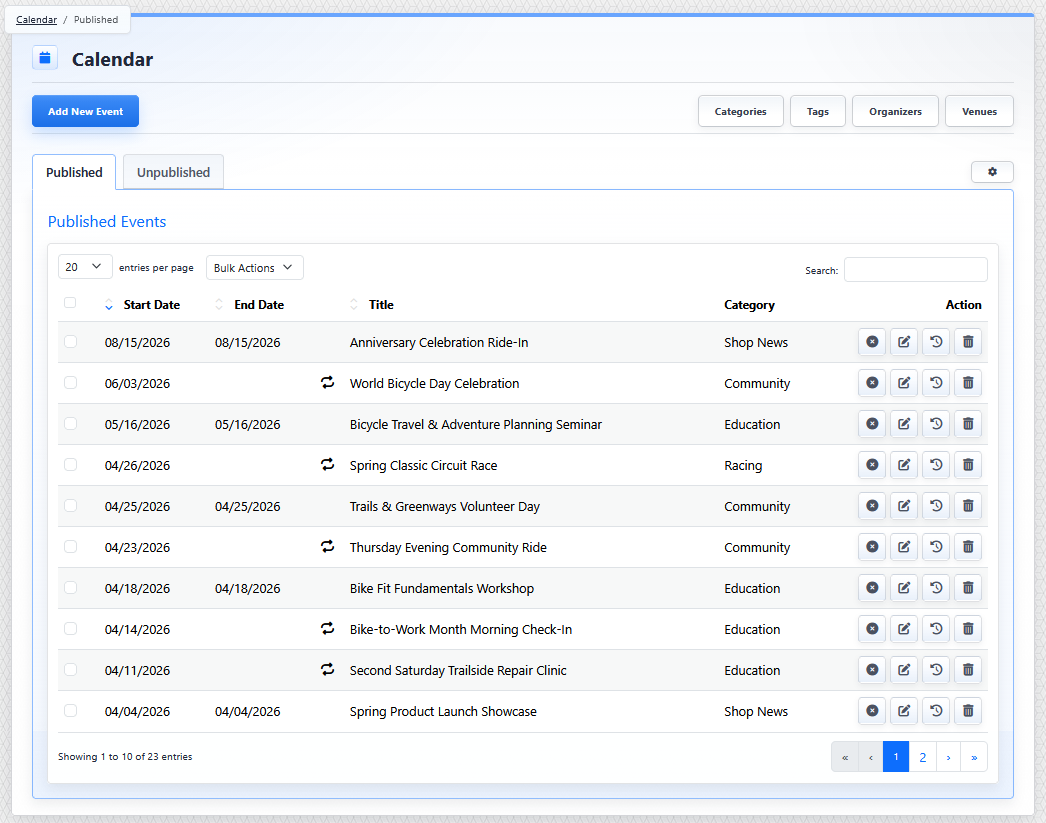
The Calendar list view shows published events, event actions, module buttons, and event management controls.
Event Tabs
The Calendar list view opens to the event table. Events are organized into two tabs:
- Published: shows events currently available to the public.
- Unpublished: shows events that are saved in the CMS but not currently public.
Both tabs use the same general table layout.
Event Table
The event table includes:
- Start and End Dates identify when the event occurs. A repeating event indicator appears when an event uses a repeating schedule.
- Title shows the event name.
- Category shows the event's assigned category.
- Action buttons let you publish or unpublish, edit, review history, or delete an event.
Add a New Event

Use Add New Event to create a new calendar event.
Related Modules

Use the module buttons near the top of the Calendar tool to open related management areas:
- Categories
- Tags
- Organizers
- Venues
Categories and tags are shared content-organization tools covered in separate articles. In the Calendar tool, they are used to organize and filter events.
Organizers and venues are Calendar-specific reusable records. They can be created once and selected on any event where they apply.
Import and Export
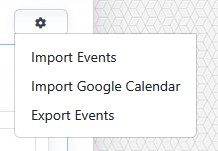
The import/export menu is used to export calendar data or import events from supported files.
The controls you see depend on your CMS permissions. Users with restricted permissions may not be able to access all features.
Learn More
For row actions and bulk actions, see Understanding Calendar Event Actions and Bulk Actions. For creating an event, see Adding or Editing a Calendar Event. For reusable organizer and venue records, see Managing Calendar Organizers and Managing Calendar Venues.