 Ask Alvin (AI Chat)
Adding or Editing a Calendar Event
The event detail view is used to create new events and edit existing events.
The controls you see depend on your CMS permissions. Users with restricted permissions may not be able to access all features.
The event detail view includes the main event content, scheduling controls, reusable organizer and venue selections, categories, tags, and preview image options.
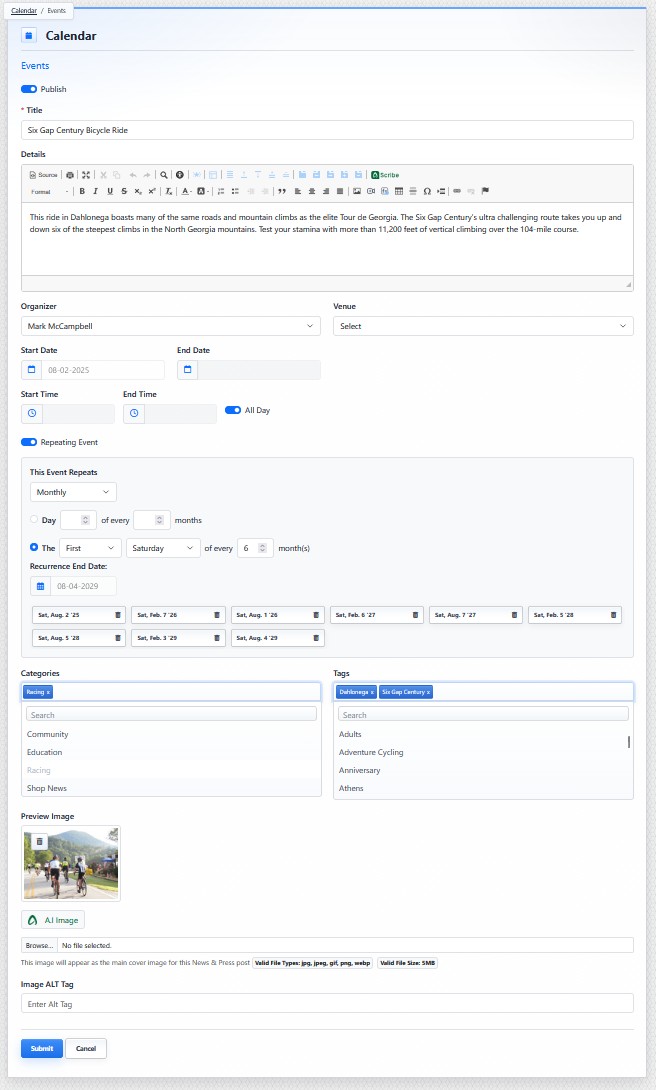
The event detail view is where event content, schedule, categories, tags, and preview image settings are managed.
Core Event Fields
- Publish: controls whether the event is public. The Publish toggle is on by default for new events. Turn it off when an event should be saved but not shown publicly.
- Title: the required event name shown on public calendar pages.
- Details: the main public-facing event description. This field uses a rich text editor.
- Organizer: a reusable organizer record selected from the Calendar tool's Organizer records.
- Venue: a reusable venue record selected from the Calendar tool's Venue records.
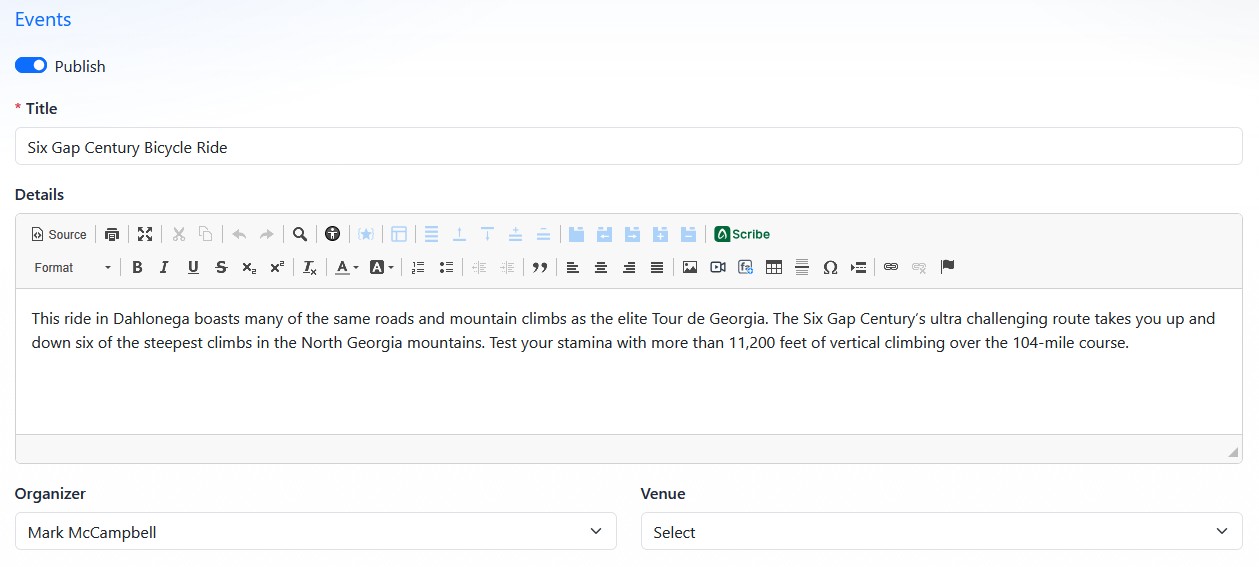
The upper portion of the event detail view includes publish status, title, event details, organizer, and venue.
Use Organizer and Venue when the event should display contact or location information. These records are managed separately so the same organizer or venue can be reused across multiple events.
Categories and Tags
Calendar events can also include categories and tags.
Categories help organize and filter events. Tags add descriptive terms that can support filtering and discovery. Use the category and tag fields to select existing values or create new values inline when needed.
For more detailed explanation of category and tag management, see the shared Categories and Tags articles.
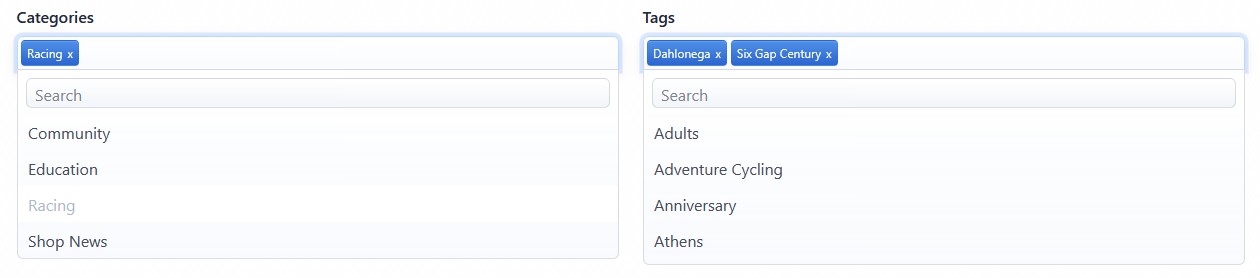
The category and tag fields let you select existing values or add new values inline when needed.
Preview Image
The Preview Image field adds a main image for the event. You can upload an image or use the AI image option when available. Image Alt Tag should describe the image for accessibility.
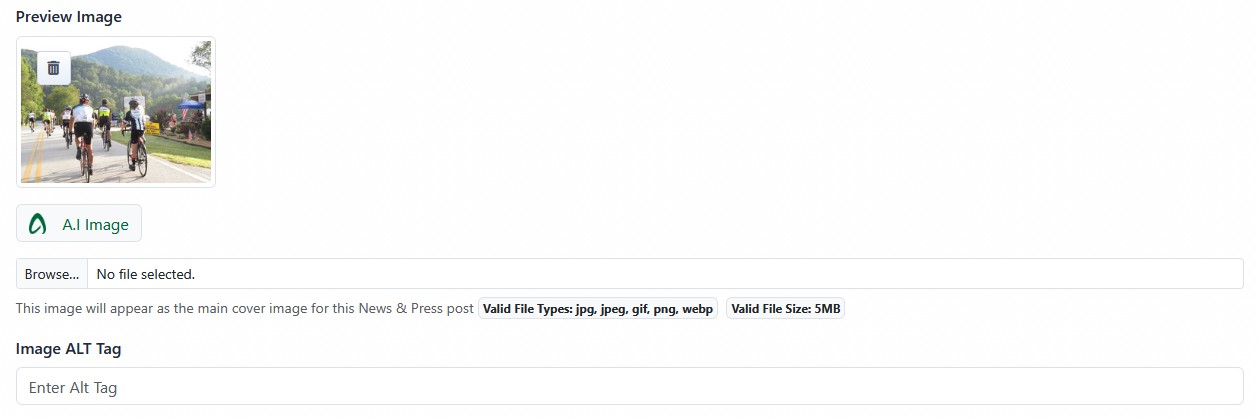
The Preview Image area lets you upload an image, generate an AI image, and add image alt text.
Adding a New Event
To add a new calendar event:
- Open the Calendar tool from the Plugins accordion.
- Click Add New Event.
- Enter the event title.
- Add event details.
- Select an organizer and venue when needed.
- Set the event date and time.
- Add categories, tags, and a preview image when needed.
- Confirm the Publish setting.
- Click Submit.
Editing an Existing Event
To edit an existing event:
- Open the Calendar tool from the Plugins accordion.
- Find the event in the Published or Unpublished tab.
- Click the event's Edit button.
- Update the needed fields.
- Click Submit.
Learn More
For date and time settings, see Setting Event Dates, Times, and All-Day Events. For repeating schedules, see Creating Repeating Events. For AI-generated preview images, see Generating AI Images.