 Ask Alvin (AI Chat)
Creating Repeating Events
Repeating events are used when the same event occurs more than once. This is useful for creating multiple events without having to enter each individually.
The Repeating Event toggle appears in the event detail view.
When Repeating Event is on, recurrence controls appear below the standard date and time fields.
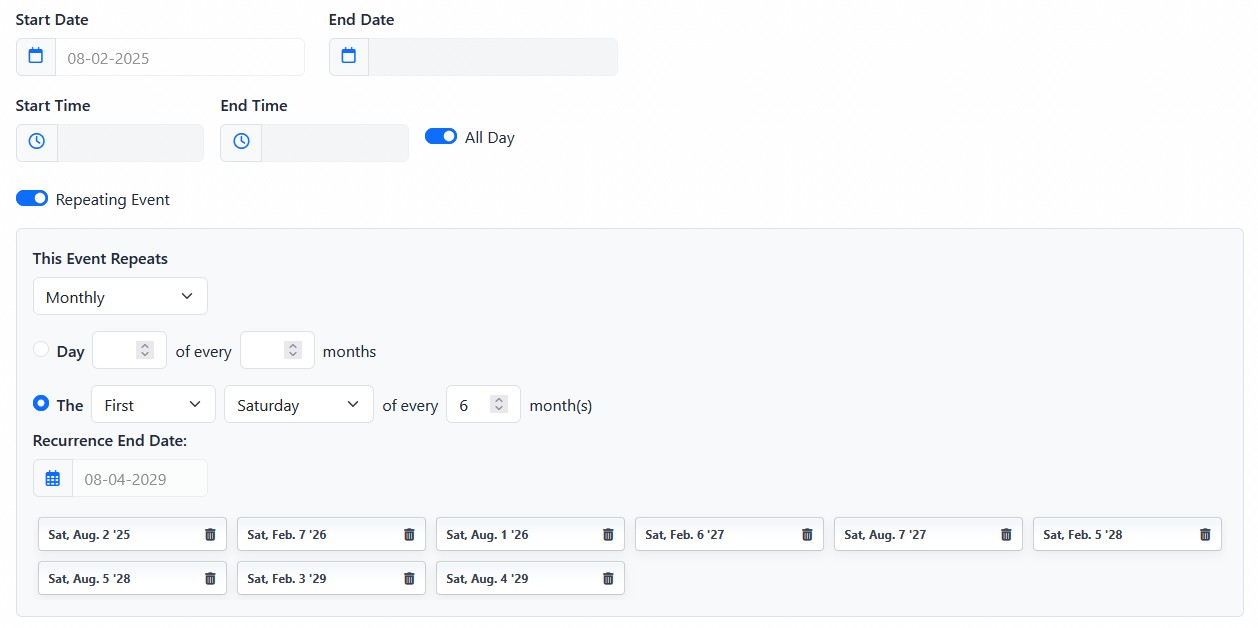
Repeating event settings generate multiple event dates from a recurring schedule.
Repeating events are different from multi-day events. A repeating event creates multiple event occurrences based on a pattern. A multi-day event is one event that spans more than one day.
When Repeating Event is enabled, the standard End Date is hidden and the event is treated as a repeating single-date occurrence pattern.
Repeating frequency options can include:
- Daily: used for events that repeat every set number of days or every weekday.
- Weekly: used for events that repeat every set number of weeks on selected weekdays.
- Monthly: used for events that repeat by a specific day of the month or by a pattern such as the first Saturday of every month.
- Yearly: used for events that repeat every set number of years on a specific date or by a yearly pattern.
Each frequency displays its own recurrence settings.
Repeating Schedule Types
| Schedule Type | How It Works |
|---|---|
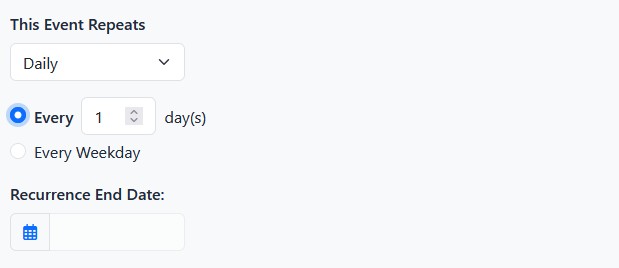 |
Daily is used when an event should repeat every set number of days or every weekday. The Every [number] day(s) option repeats the event based on the number entered. For example, entering 1 repeats the event every day. Entering 2 repeats the event every other day. The Every Weekday option repeats the event Monday through Friday. |
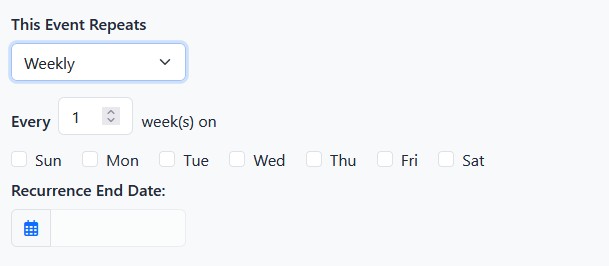 |
Weekly is used when an event should repeat on one or more selected weekdays. The week interval controls how often the weekly pattern repeats. For example, entering 1 repeats the event every week. Entering 2 repeats it every other week. Select the weekday checkboxes for the days when the event should occur. |
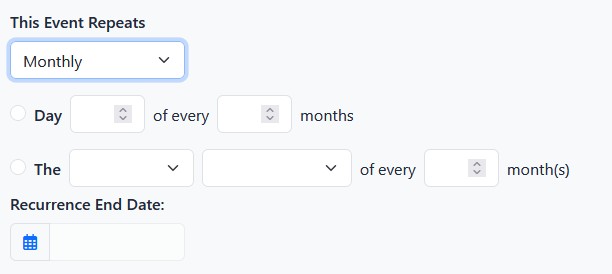 |
Monthly is used when an event should repeat by month. Monthly events can repeat by a specific day number, such as day 15 of every month, or by a pattern such as the first Saturday of every month. Use the day-number option when the event should always fall on a specific calendar date. Use the pattern option when the event should follow a position in the month, such as the second Tuesday or last Friday. |
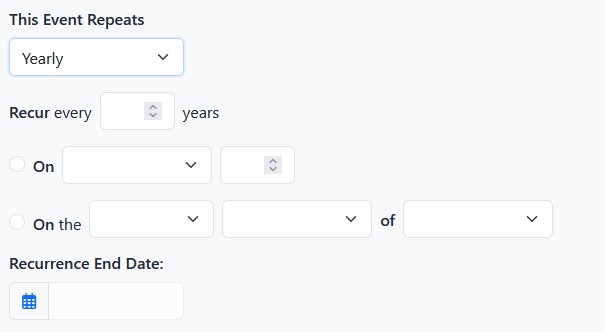 |
Yearly is used when an event should repeat by year. The year interval controls how often the yearly pattern repeats. Yearly events can repeat on a specific month and day, or by a pattern such as the first Saturday of August. Use the specific-date option when the event should always fall on the same calendar date each year. Use the pattern option when the event should fall on a weekday position within a month. |
Recurrence End Date controls when the repeating schedule stops.
The recurrence table shows the dates generated from the recurrence settings.
Individual dates in the recurrence table can be removed before the event is saved. Removed dates can be restored before submitting the record.
Create a Repeating Event
To create a repeating event:
- Open the event detail view.
- Turn on Repeating Event.
- Choose the repeating frequency.
- Complete the recurrence settings for that frequency.
- Set the Recurrence End Date.
- Review the generated recurrence dates.
- Remove any individual dates that should not occur.
- Click Submit.
Note: Imported events are created as single events. If an imported event should repeat, add the recurrence settings manually after import.
The controls you see depend on your CMS permissions. Users with restricted permissions may not be able to access all features.
Learn More
For non-repeating date and time settings, see Setting Event Dates, Times, and All-Day Events. For creating the rest of the event record, see Adding or Editing a Calendar Event.