 Ask Alvin (AI Chat)
Understanding Category Management
Categories are descriptive labels used to group content records. In plugins that support categories, categories can help determine which records display in specific public-facing lists or sections of the website.
For example, a site might use categories such as Community, Education, Racing, or Shop News to organize records by topic. A public page can then be configured to display records from the appropriate category.
Opening Category Management
Open Category Management from the list view of the plugin or tool you are working in.
The exact button label may vary slightly by tool, but the workflow is the same: open the category manager, review existing categories, and add or edit categories as needed.
Category List View
The Category List View shows the categories that already exist.
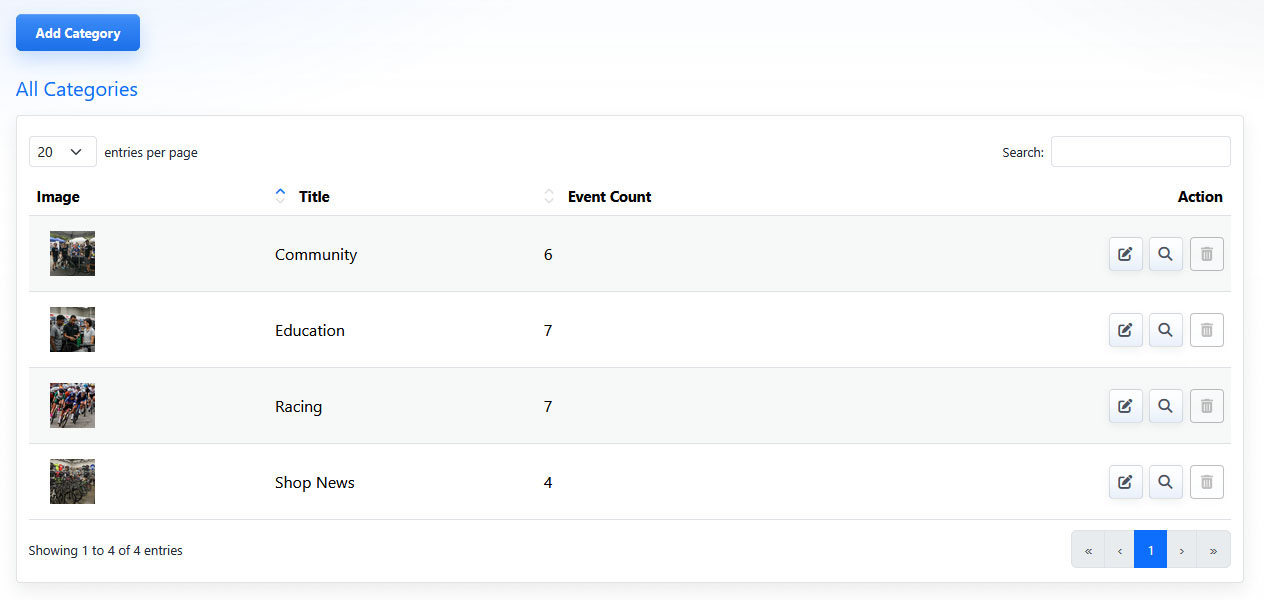
The Category List View shows existing categories, usage counts, and available row actions.
The list can include:
- Image Preview: Shows the category preview image when one has been assigned.
- Title: Shows the category name.
- Usage Count: Shows how many records are assigned to the category.
- Actions: Provides controls to edit the category, view where it is used, or delete it when deletion is allowed.
Use the Search field when you need to find a category quickly.
List items can also be sorted by available columns such as Title or Usage Count.
Category Actions
Use Edit to open the Category Detail View and update the category.
Use View Usage to open the related list view filtered to records that use that category. This is useful when you need to understand where a category is being used before editing or deleting it.
Use Delete to remove a category when deletion is allowed.
Delete is disabled when the category is currently assigned to one or more records. Remove the category from those records before deleting it.
Practical Example
If a site has separate public pages for Press Releases and Student Stories, you could create categories named Press Releases and Student Stories.
When creating or editing a record, assign it to the appropriate category. Then configure the public-facing page to display records from that category.
Learn More
For category fields and preview images, see Creating and Editing Categories. For inline category workflows, see Managing Categories Inline. For tag-based organization, see Understanding Tag Management.