 Ask Alvin (AI Chat)
Understanding Tag Management
Tags are descriptive keywords that can be attached to content records. Tags are generally used for filtering, search, and discovery rather than determining which public page a record appears on.
A record can usually have multiple tags when the plugin supports tagging.
Opening Tag Management
Open Tag Management from the list view of the plugin or tool you are working in.
The Tag Manager includes a form for adding a new tag and a table of existing tags.
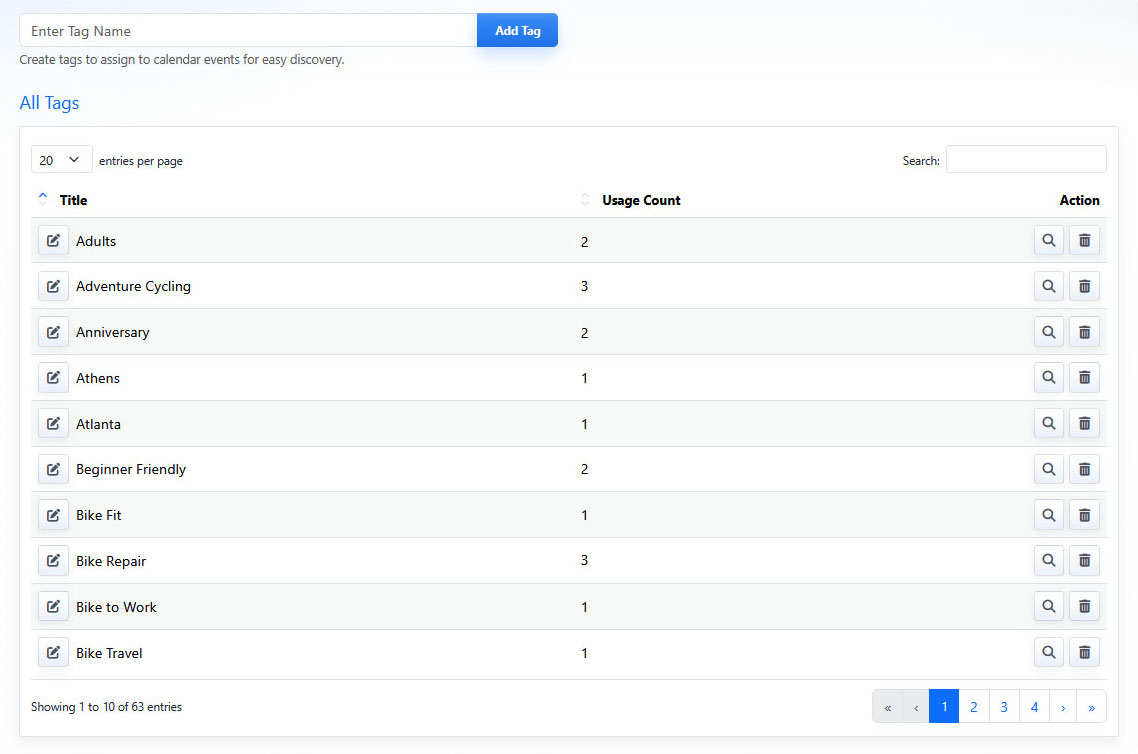
The Tag Manager includes an add tag form, existing tags, usage counts, and row actions.
Adding a Tag
Enter the tag title and click Add Tag.
A tag title cannot be blank and must be unique.
Tag List View
The Tag List View shows existing tags.
The list can include:
- Title: Shows the tag name.
- Usage Count: Shows how many records use the tag.
- Actions: Provides controls to edit the tag, view where it is used, or delete it.
Use Search when you need to find a tag quickly.
Editing Tags Inline
Use Edit to update a tag name directly in the table.
The same validation rules apply when editing a tag: the title cannot be blank and cannot duplicate another tag.

Inline editing lets you rename a tag directly from the Tag List View.
Viewing Tag Usage
Use View Usage to open the related list view filtered to records that use the tag.
This is useful when you need to understand how a tag is being used before renaming or deleting it.
Deleting Tags
Use Delete to remove a tag.
Deleting a tag removes the tag itself and unlinks it from records that used it. Review tag usage before deleting a tag.
Practical Example
If several records are related to a STEM program, you might tag each record with STEM. Visitors can then filter or search by that tag to find related content.
Learn More
For category-based organization, see Understanding Category Management. For inline tag workflows, see Managing Tags Inline.