 Ask Alvin (AI Chat)
Understanding Alert Display Rules and Scheduling
Display rules control where alerts appear on the public site.
Display rules are used by both masthead alerts and takeover alerts.
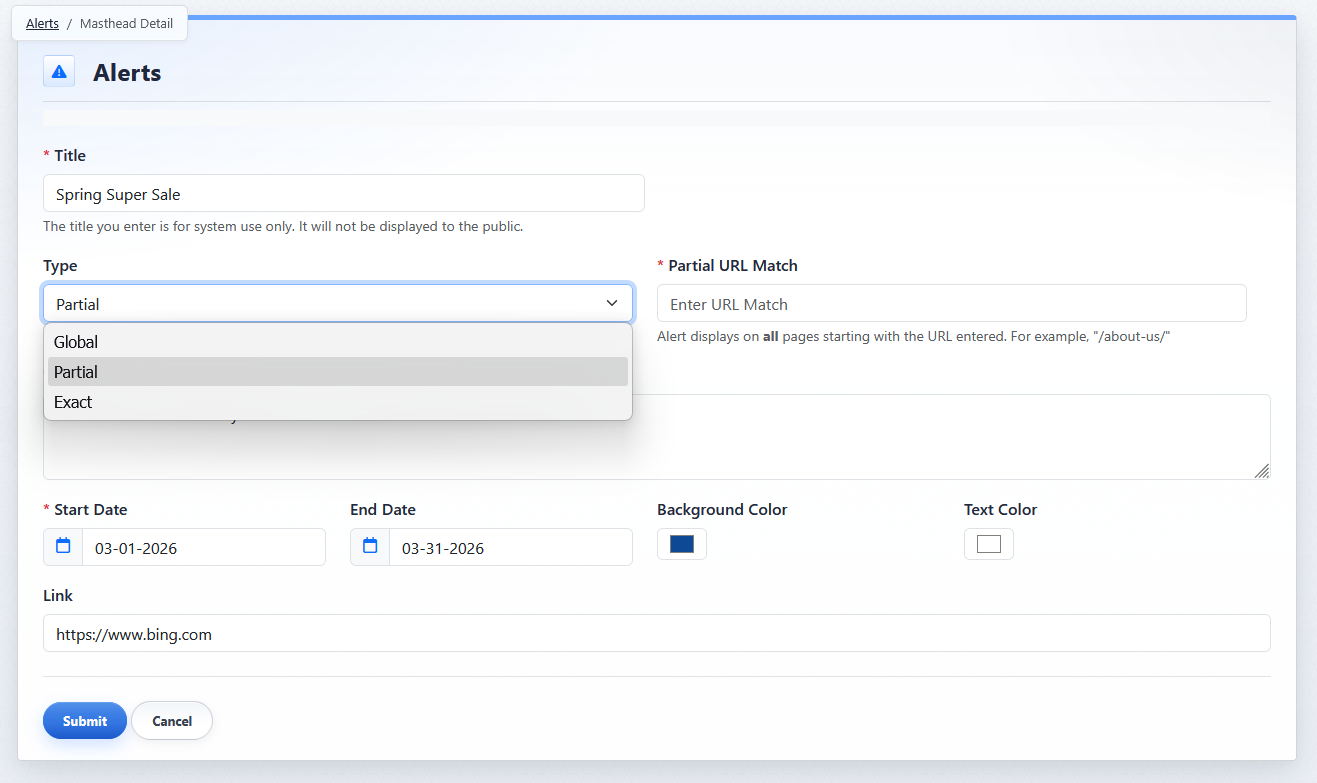
The alert detail view uses Type and URL matching fields to control where an alert displays.
Display Rule Types
The Type field determines the display rule:
- Global: the alert appears across the site.
- Partial: the alert appears on pages that match the specified URL path and related subpages.
- Exact: the alert appears only on the specified URL.
Use Global when the alert should apply broadly across the website.
Use Partial when the alert should apply to a section of the site.
Use Exact when the alert should apply to one specific page.
The URL field is used for Partial and Exact alerts.
For Partial alerts, enter the relevant path for the section of the site. A partial rule can apply to the matching page and related pages below it.
For Exact alerts, enter the specific path where the alert should appear.
Global alerts take priority over URL-based alerts when both apply.
Takeover Alert Priority
Takeover alerts have additional priority behavior because only one takeover alert can appear on a page at a time. If more than one takeover alert could apply to a page, the system determines which one displays based on the alert rules and dates.
Scheduling
Start Date controls when an alert begins displaying.
End Date controls when an alert stops displaying. If no End Date is entered, the alert can continue displaying until it is edited, deleted, or no longer meets its display rules.
Use scheduling carefully when multiple alerts are active at the same time.
Learn More
For masthead alert setup, see Creating and Editing Masthead Alerts. For takeover alert setup, see Creating and Editing Takeover Alerts. For masthead display order, see Configuring Masthead Alert Display and Order.