 Ask Alvin (AI Chat)
Configuring Masthead Alert Display and Order
Masthead alerts can display in different ways when more than one active masthead alert applies to the site.
The controls you see depend on your CMS permissions. Users with restricted permissions may not be able to access all features.
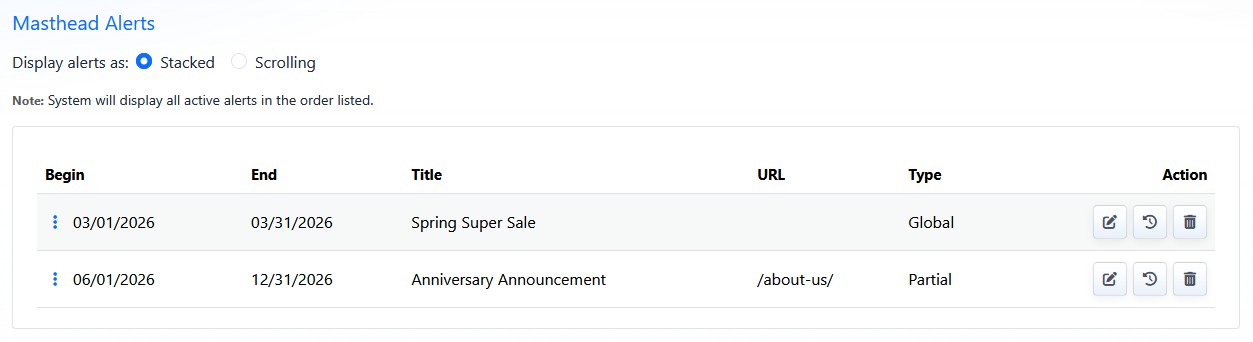
The Masthead Alerts section includes the display setting and the ordered list of masthead alerts.
Stacked Or Scrolling
The Masthead Alerts section includes a Display alerts as setting.
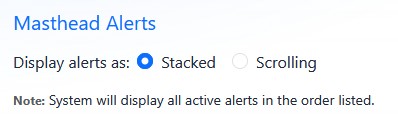
Use the Display alerts as setting to choose whether active masthead alerts are stacked or scrolling.
Use Stacked when all active masthead alerts should appear together.
Use Scrolling when active masthead alerts should rotate instead of appearing all at once.
Changing Masthead Alert Order
The system displays active masthead alerts in the order listed.
To change masthead alert order:
- Open the Alerts Manager from the Plugins accordion.
- Find the Masthead Alerts list.
- Drag masthead alerts into the desired order.
Ordering applies to masthead alerts only. Takeover alerts do not use drag-and-drop ordering because only one takeover alert can appear on a page at a time.
When reviewing masthead order, consider which alerts should be seen first and whether visitors need to see all active alerts at once or one at a time.
Learn More
For creating masthead alerts, see Creating and Editing Masthead Alerts. For display rules and scheduling, see Understanding Alert Display Rules and Scheduling.