 Ask Alvin (AI Chat)
Creating and Editing Masthead Alerts
Masthead alerts appear at the top of the site. They are commonly used for short public messages that can remain visible while visitors use the site.
The controls you see depend on your CMS permissions. Users with restricted permissions may not be able to access all features.
Masthead Alert Fields
- The Title is required and is used only inside the CMS. It is not displayed to the public.
- Type controls where the alert displays. Use Global for a sitewide alert. Use Partial or Exact when the alert should display only for specific pages.
- Text is the public masthead alert message.
- Start Date is required. The alert begins displaying on the start date.
- End Date is optional. Use it when the alert should automatically stop displaying after a specific date.
- Background Color and Text Color control the visual appearance of the masthead alert.
- Link is optional. Use it when visitors should be able to click the masthead alert to open a related page or URL.
Keep masthead alert text concise. Masthead alerts appear in a limited space at the top of the page.
Creating A Masthead Alert
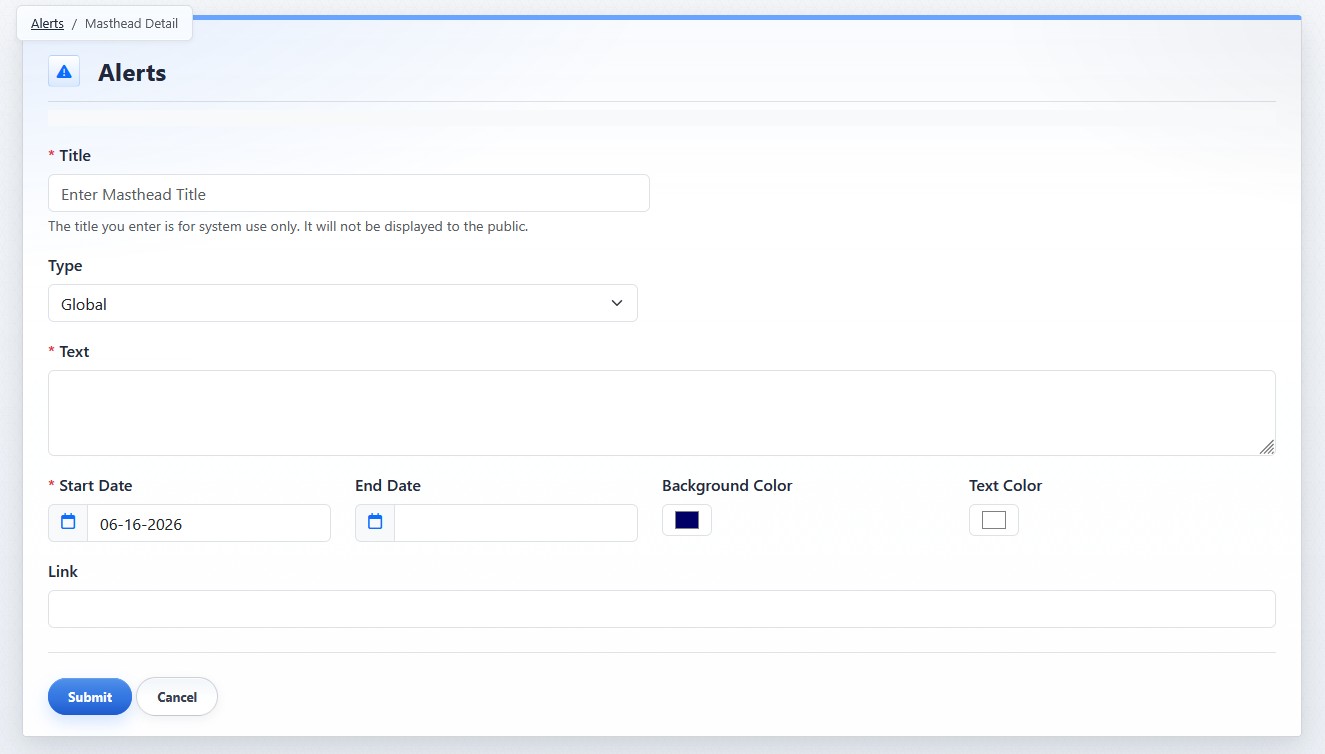
The masthead alert detail view is used to create a new masthead alert.
To create a masthead alert:
- Open the Alerts Manager from the Plugins accordion.
- Click Add Masthead Alert.
- Enter a Title.
- Choose the Type.
- Enter the alert Text.
- Set the Start Date.
- Set an End Date if the alert should stop displaying on a specific date.
- Choose the Background Color and Text Color.
- Enter a Link if the masthead alert should link to a page or URL.
- Click Submit.
Editing A Masthead Alert
To edit an existing masthead alert:
- Open the Alerts Manager from the Plugins accordion.
- Find the alert in the Masthead Alerts list.
- Click the alert's Edit button.
- Update the needed fields.
- Click Submit.
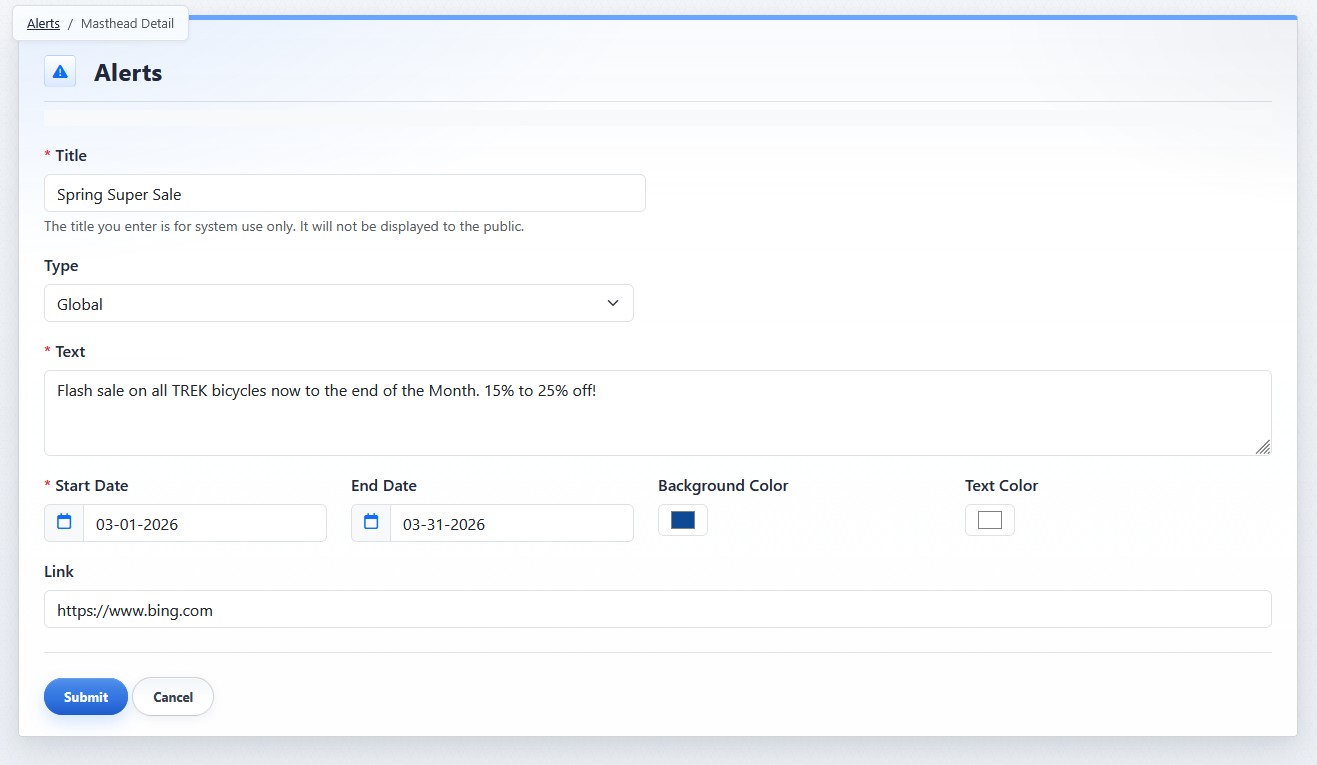
The masthead alert edit view shows the saved settings for an existing masthead alert.
Learn More
For choosing an alert type, see Choosing Between Masthead Alerts and Takeover Alerts. For display rules and URL targeting, see Understanding Alert Display Rules and Scheduling. For masthead ordering and stacked or scrolling display, see Configuring Masthead Alert Display and Order.