 Ask Alvin (AI Chat)
Managing Slides in a Slideshow
The slide list view is used to manage the slides inside a slideshow.
The controls you see depend on your CMS permissions. Users with restricted permissions may not be able to access all features.
To open the slide list view:
- Open the Slideshow tool from the Plugins accordion.
- Find the slideshow in the show list view.
- Click the slideshow's Slides button.
The slide list view shows the slides for the selected slideshow.
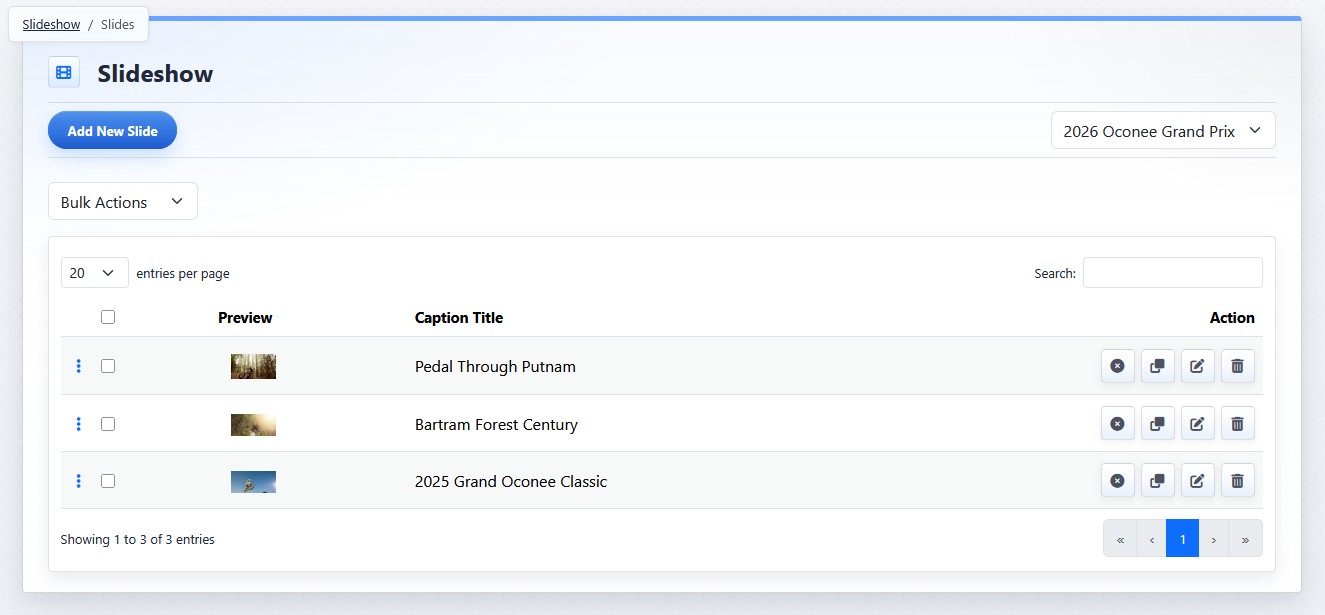
The slide list view shows the slides for the selected slideshow.
Use the show selector to switch to another slideshow without returning to the main show list.
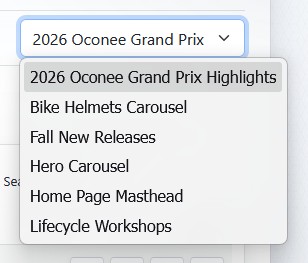
The show selector lets you switch between slideshows from the slide list view.
Each slide row includes a selection checkbox, preview image, caption title, and action buttons.
Click a preview image to view a larger preview of the slide.
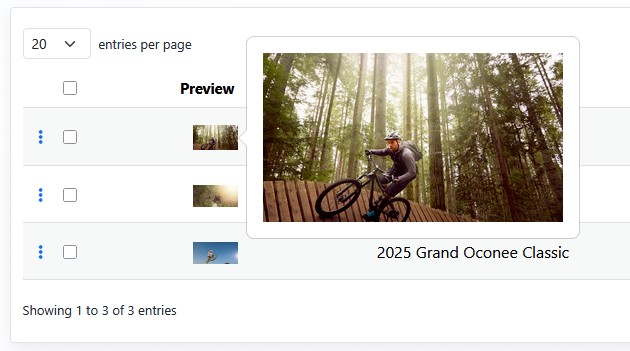
Clicking a slide preview shows a larger preview of the slide.
The Caption Title column shows the slide's main caption title. It can be blank if no caption title has been entered for that slide.
Use Add New Slide to create a new slide in the selected slideshow.
The order of slides in the list controls the order in which slides appear publicly.
Learn More
For creating or editing a slide, see Adding and Editing Slide Media. For slide row actions and bulk actions, see Using Slide Actions and Bulk Actions. For changing slide order, see Reordering Slides.