 Ask Alvin (AI Chat)
Adding and Editing Slide Media
Use the slide detail view to create a new slide or edit an existing slide.
The controls you see depend on your CMS permissions. Users with restricted permissions may not be able to access all features.
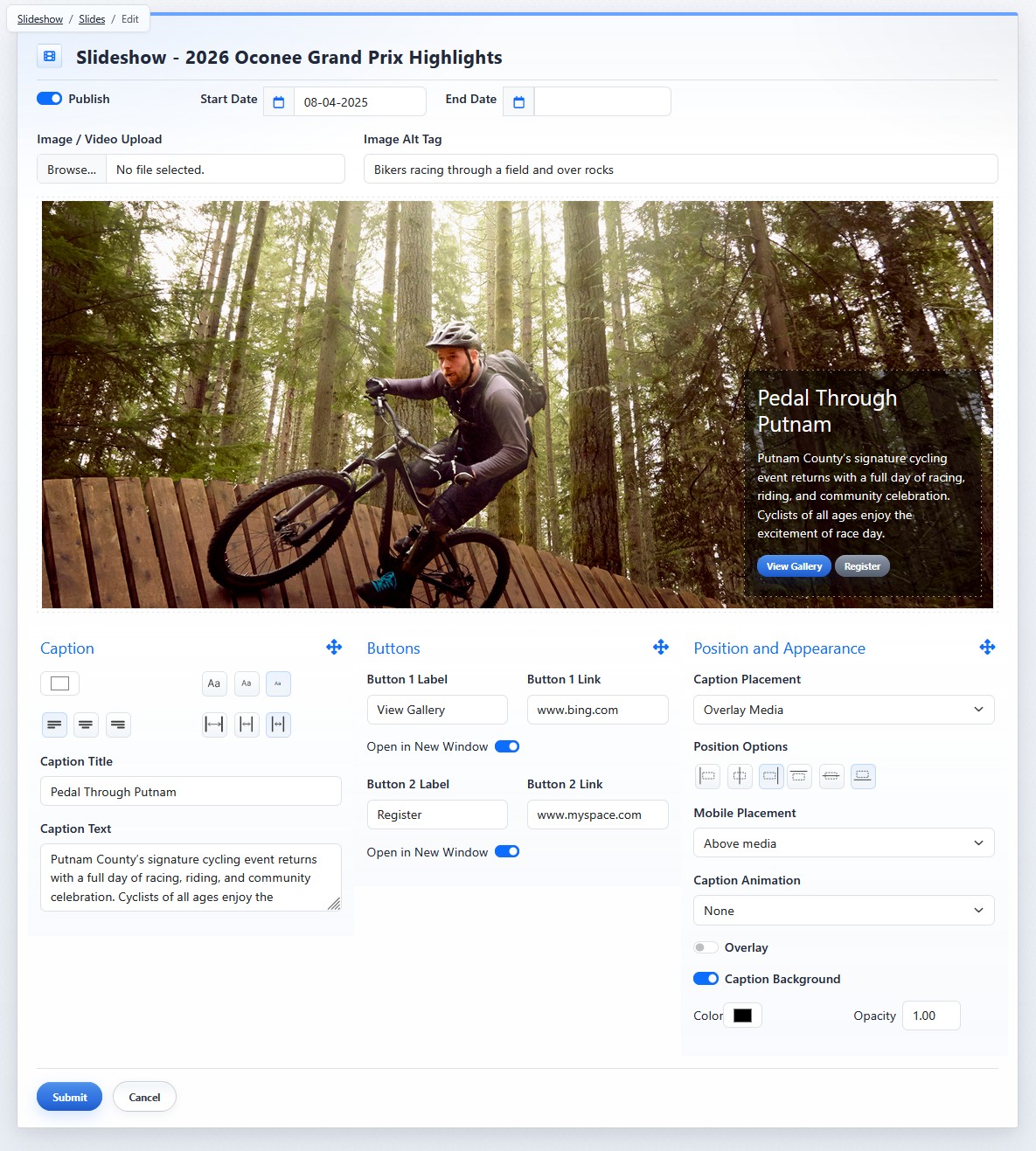
The slide detail view contains slide visibility, media, caption, button, and appearance settings.
The Publish toggle controls whether the slide can appear publicly.
Start Date and End Date can be used to schedule when the slide is eligible to appear.
A slide appears publicly only when it is published and falls within its date range.
Use Image / Video Upload to select the media file for the slide.
Use Image Alt Tag to describe image content for accessibility and SEO.
The slide preview shows an approximate representation of the slide with caption, button, and placement settings. The final public display can vary based on slideshow settings, browser size, and device.
Adding A Slide
To add a slide:
- Open the Slideshow tool from the Plugins accordion.
- Open the slide list for the slideshow.
- Click Add New Slide.
- Set the slide visibility and schedule.
- Select the slide media.
- Enter alt text when appropriate.
- Configure any needed caption, button, position, or appearance settings.
- Click Submit.
Editing A Slide
To edit an existing slide:
- Open the slide list for the slideshow.
- Click the slide's Edit button.
- Update the needed fields.
- Click Submit.
Learn More
For caption and button content, see Adding Slide Captions and Buttons. For placement and appearance settings, see Positioning and Styling Slide Captions. For slide list actions, see Using Slide Actions and Bulk Actions.