 Ask Alvin (AI Chat)
Positioning and Styling Slide Captions
Position and appearance settings control where captions and buttons appear and how they display over or around slide media.
The controls you see depend on your CMS permissions. Users with restricted permissions may not be able to access all features.
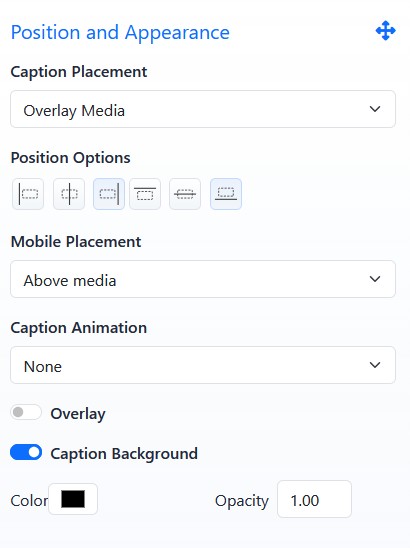
Position and Appearance settings control caption placement, animation, overlay, and caption background.
Caption Placement
Caption Placement controls where the caption appears relative to the media.
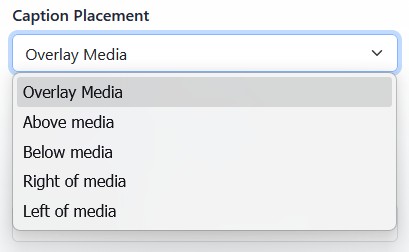
Caption Placement options include overlaying media or placing text outside the media area.
Placement options can include:
- Overlay Media
- Above media
- Below media
- Right of media
- Left of media
Understanding Placement Options
Overlay Media places the caption and buttons on top of the image or video. The other placement options position the caption and buttons outside the media area: above, below, to the right, or to the left. Use Overlay Media when the caption should appear as part of the visual slide composition, and use the other options when the text should remain separate from the media.
Position Options control desktop placement. The first group controls horizontal position and the second group controls vertical position.
Horizontal position does not change text justification. For example, a caption can be positioned on the right side of a slide while the caption text remains left justified.
Mobile Placement Options
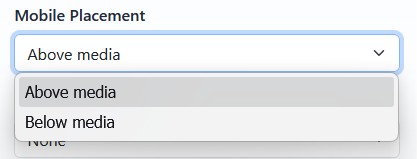
Mobile Placement controls whether caption content appears above or below the media on mobile devices.
Caption Animations
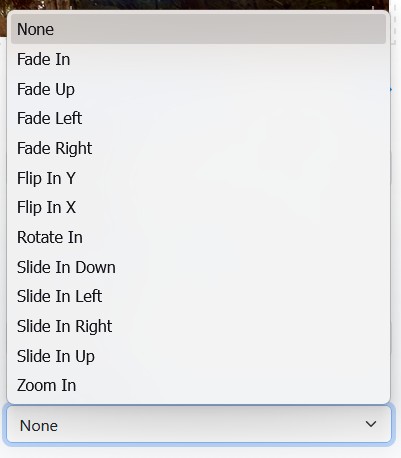
Caption Animation controls how caption content appears when the slide loads. You can choose from a variety of animation styles.
Overlays and Backgrounds
Overlay adds a colored overlay to the slide media. This can improve caption readability.
Caption Background adds a background behind the caption area only. This can also improve readability.
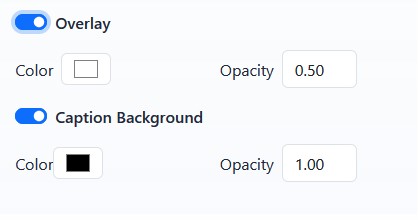
Color and opacity settings appear when Overlay or Caption Background are enabled.
Learn More
For caption text and buttons, see Adding Slide Captions and Buttons. For slide media and scheduling, see Adding and Editing Slide Media.