 Ask Alvin (AI Chat)
Creating and Setting Up a Form
Creating a new form begins in the Form Setup view. This is the first screen you see after clicking Add Form, and it is where you define the form's main settings before building the form fields.
To create a new form, open Form Builder from the Plugins accordion and click Add Form.
To edit the setup for an existing form, find the form in the Form Builder list view and click its Form Setup button.
The Form Setup view controls the form name, public availability, spam protection, notification behavior, messages, redirects, and automatic replies.
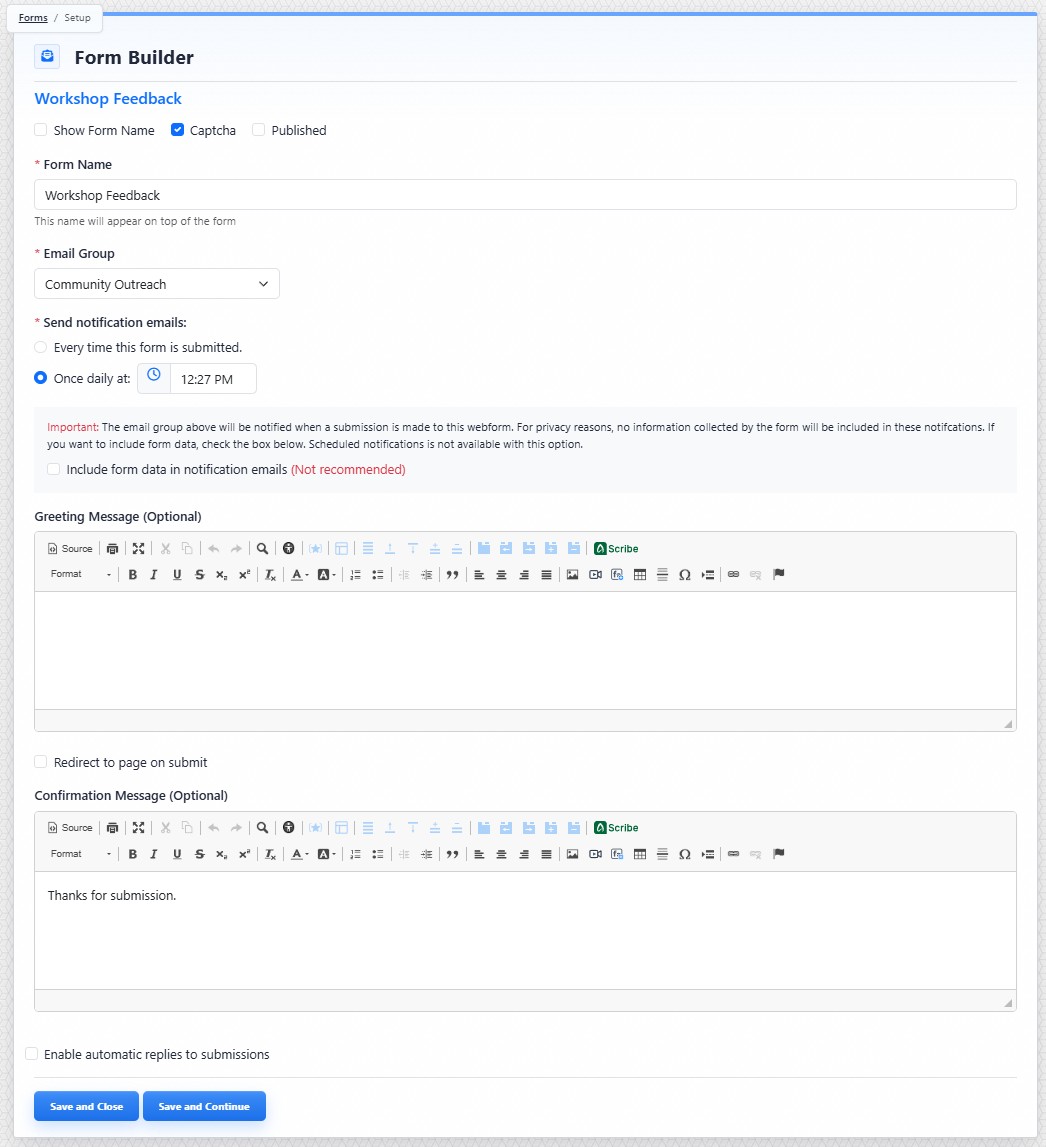
The Form Setup view is where the form's main settings are configured before or while building form fields.
Form Setup Controls
The Form Setup view includes the following controls and fields:
- Show Form Name controls whether the form name appears above the form on public pages.
- Captcha adds spam protection to the form. When Captcha is enabled, public users must complete a verification step before submitting the form.
- Published controls whether the form is available for public use. If Published is off, the form is hidden even if it has been added to a public page.
- Form Name is the internal and public-facing name of the form. Form names must be unique.
- Email Group determines which recipient group receives form notification emails.
- Send notification emails controls when notification emails are sent.
- Greeting Message is optional text that appears above the form on public pages.
- Redirect to page on submit sends users to another page after submission instead of showing the confirmation message.
- Confirmation Message is shown after submission when a redirect is not used.
- Enable automatic replies to submissions sends an email response to the person who submitted the form when the form includes an email address field.
Use Save and Close to save changes and return to the Form Builder list view.
Use Save and Continue to save changes and continue to Field Management so you can build or edit the form fields.
The controls you see depend on your CMS permissions. Users with restricted permissions may not be able to access all features.
Learn More
For notification settings, see Configuring Form Notifications and Email Behavior. For confirmation messages, redirects, and automatic replies, see Configuring Confirmation Messages, Redirects, and Automatic Replies. For adding fields, see Building a Form with Field Management.