 Ask Alvin (AI Chat)
Building a Form with Field Management
Field Management is where you add, arrange, and configure the fields that make up a form.
Open Field Management from the Form Builder list view by clicking the form's Field Management button. You can also reach it by clicking Save and Continue from Form Setup.
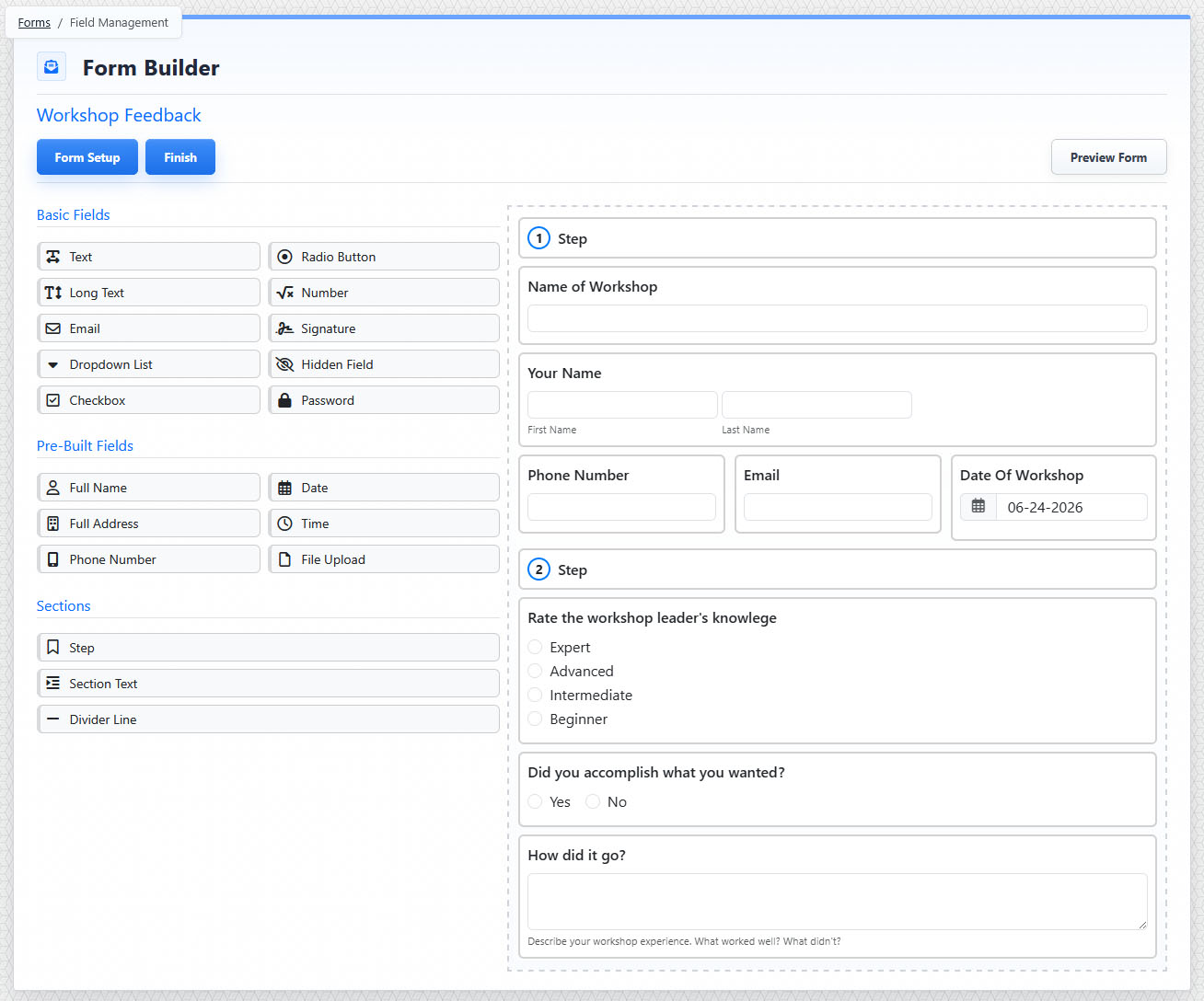
Field Management includes the field list, selected form workspace, setup controls, finish control, and preview control.
The Field Management view has two main areas:
- Fields and configuration panel
- Builder workspace
Adding and Arranging Fields
The left panel shows field types you can add to the form. Field types are grouped into Basic Fields, Pre-Built Fields, and Sections.
The right workspace shows the current form layout.
- To add a field, drag a field type from the left panel into the builder workspace.
- To move a field, drag it to a new position in the builder workspace.
- To configure a field, click the field in the builder workspace. The left panel changes from the field list to that field's settings.
Changes in Field Management are saved in real time.
Field Management Controls
The Field Management view also includes buttons for:
- Form Setup
- Finish
- Preview Form
Use Form Setup to return to the form's setup settings.
Use Finish to leave Field Management and return to the Form Builder list view.
Use Preview Form to open a test version of the form in a new tab. The preview is useful for testing form flow, but final public appearance can vary based on site-specific template settings.
If you attempt to edit a form that is currently visible on a public page, the CMS can unpublish the form while it is being edited. This prevents public users from submitting the form while the field structure is changing. When you finish editing, you will be prompted to republish the form.
The controls you see depend on your CMS permissions. Users with restricted permissions may not be able to access all features.
Learn More
For the available field types, see Understanding Form Field Types. For selected-field settings, see Configuring Form Fields and Layout. For form setup options, see Creating and Setting Up a Form.