 Ask Alvin (AI Chat)
Getting Started with the Photo Gallery
The Photo Gallery plugin is used to create photo albums, upload images, manage photo details, and display albums on public website pages.
The Photo Gallery has two main areas:
- Album management in the Photo Gallery plugin.
- Page-level gallery configuration in a Photo Gallery content block.
Album management controls the source albums and photos. This is where you create albums, upload photos, edit photo metadata, set album covers, and manage the order of images inside an album.
Page-level gallery configuration controls how one or more albums appear on a specific public page. These settings do not change the album itself. They only affect that instance of the gallery on that page.
Open the Photo Gallery from the Plugins accordion in the CMS Console.
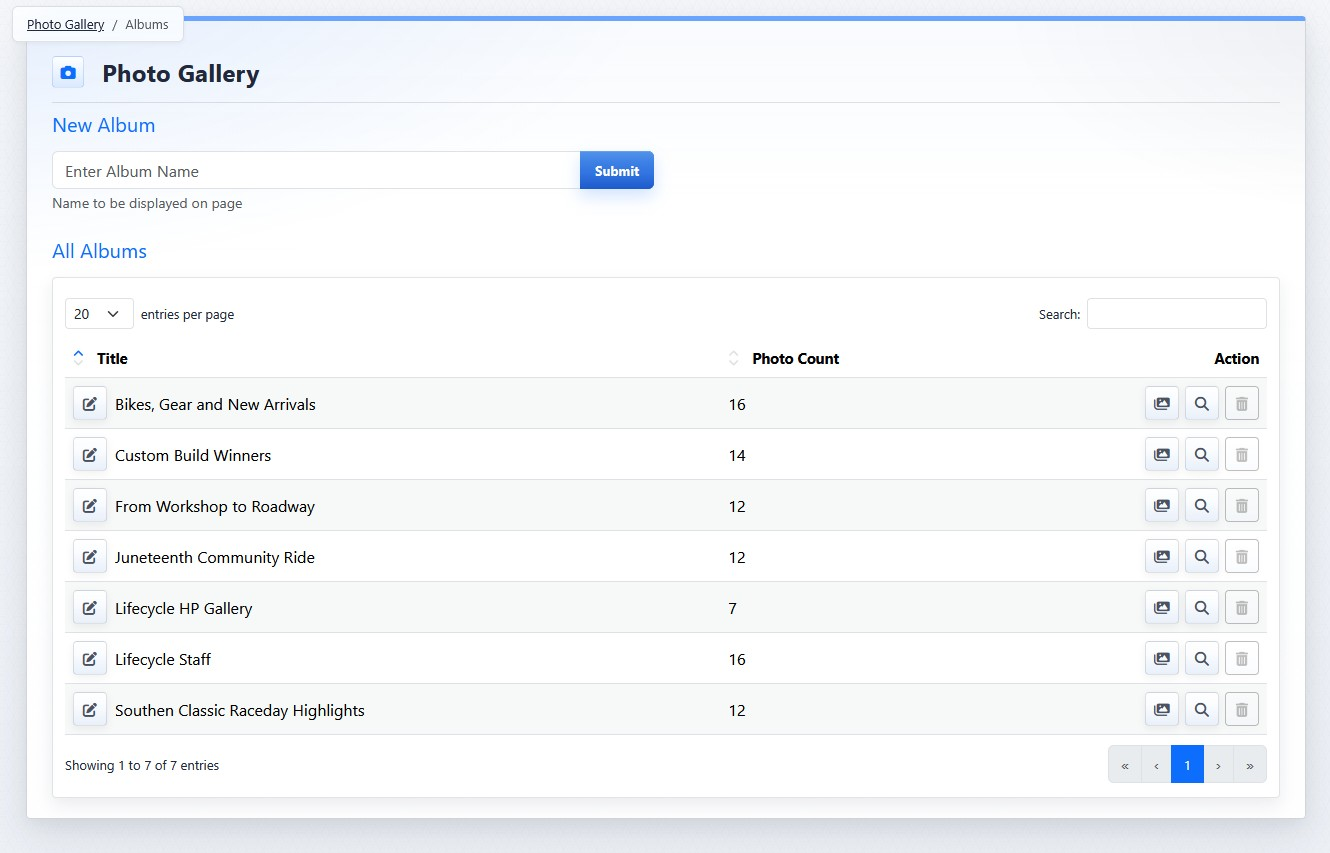
The Photo Gallery opens to the album list view, where albums can be created and managed.
When you open the Photo Gallery plugin, the album list view shows existing albums in a list table and a New Album form.
The album list view includes:
- List of existing albums
- Photo count in each album
- Search
- Action buttons
Use the New Album form to create a new album. Use the album action buttons to rename an album, manage its photos, view where it is used, or delete it when deletion is allowed.
The controls you see depend on your CMS permissions. Users with restricted permissions may not be able to access all features.
Learn More
For more information on creating albums, see Creating and Managing Photo Albums. For working with photos inside an album, see Adding and Uploading Photos to an Album. For page display settings, see Adding and Selecting Albums for a Page Gallery.