 Ask Alvin (AI Chat)
Adding and Uploading Photos to an Album
Use the photo management view to add images to an album.
The controls you see depend on your CMS permissions. Users with restricted permissions may not be able to access all features.
To open the photo management view:
- Open the Photo Gallery from the Plugins accordion.
- Find the album in the All Albums list.
- Click the album's Photos action.
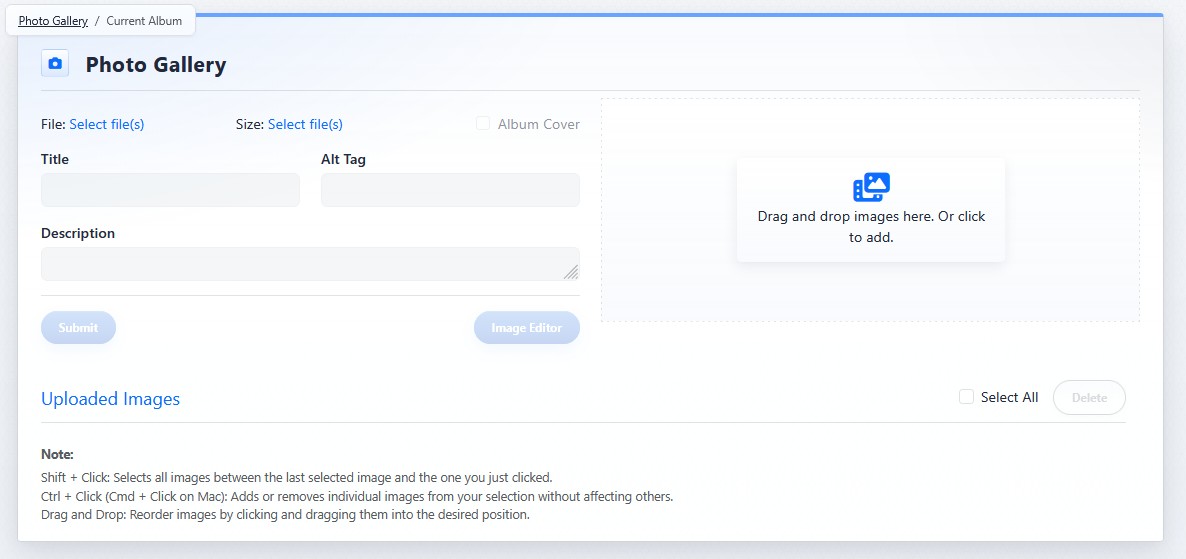
An empty album shows the upload area where images can be dragged and dropped or selected from your computer.
You can add images by dragging files into the upload area or by using the file browser to select images from your computer.
Pending Images And Uploaded Images
Adding images is not the same as uploading images.
When images are first added, they appear as pending images. Pending images have not been saved to the server and are not yet part of the album.
To finish adding pending images to the album, select the pending images and click Upload.
After upload, the images move into the uploaded images area. Uploaded images are saved to the server, belong to the album, and can be edited, selected, deleted, or reordered.
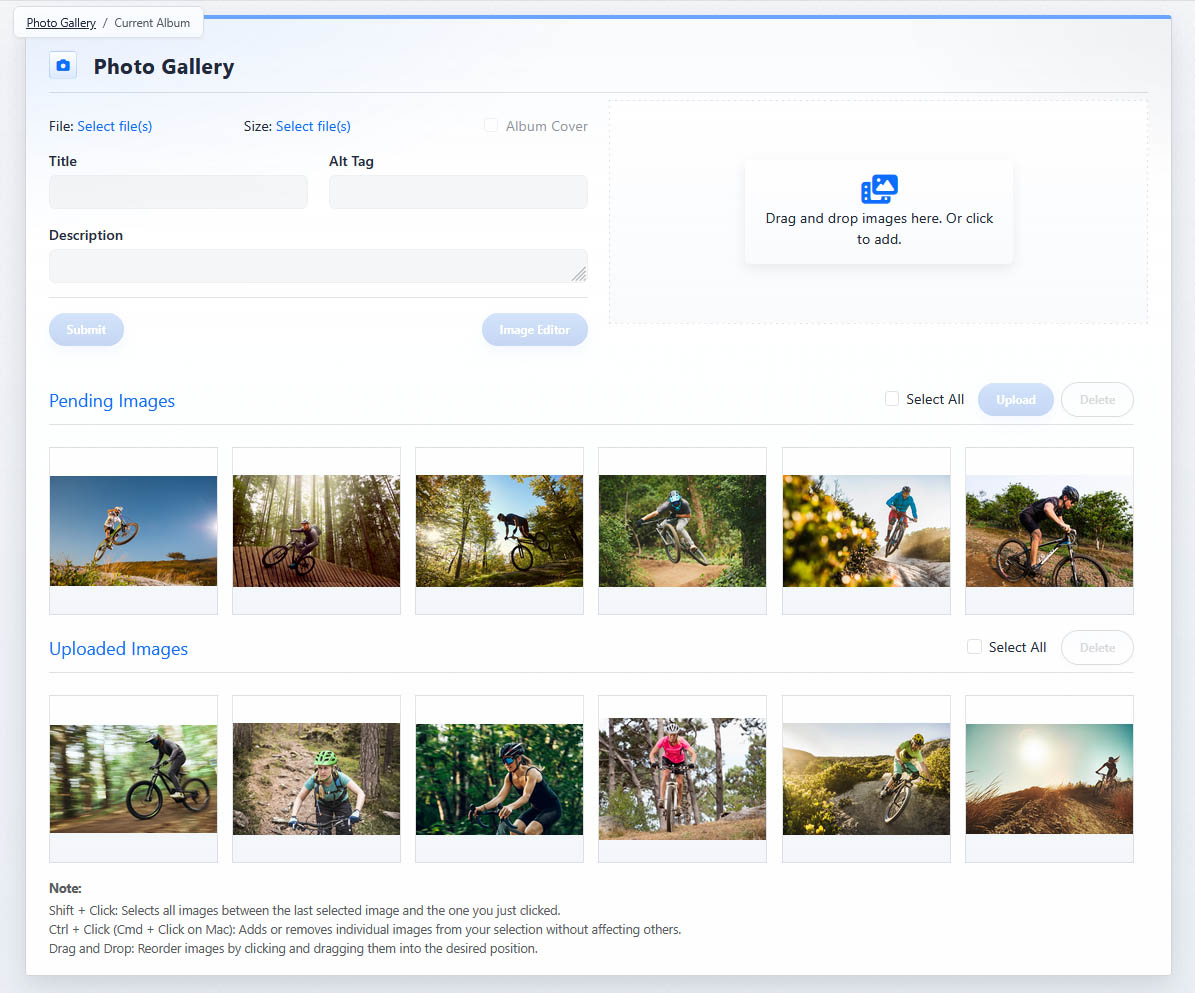
Pending images have been added but not uploaded. Uploaded images are saved to the album and can be selected, edited, deleted, or reordered.
If you leave the photo management view before uploading pending images, those pending images are lost.
Supported image types can include jpg, jpeg, png, gif, svg, webp, and other server-supported image formats.
During upload, the system optimizes images and generates thumbnails for display.
Learn More
For editing and managing uploaded images, see Managing Photos, Metadata, Covers, and Deletions. For image order, see Reordering Photos in an Album.