 Ask Alvin (AI Chat)
Managing Photos, Metadata, Covers, and Deletions
Use the photo management view to update photo details, set the album cover, edit images, and delete uploaded photos.
The controls you see depend on your CMS permissions. Users with restricted permissions may not be able to access all features.
Click an uploaded image to select it.
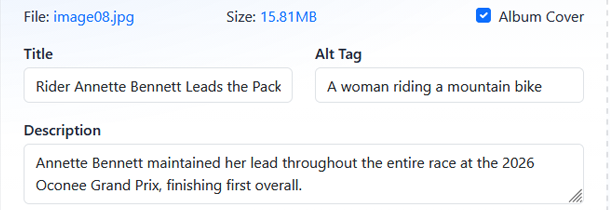
When one uploaded image is selected, the metadata fields show details for that image.
When one image is selected, the detail fields show information for that image:
- File
- Size
- Title
- Alt Tag
- Description
- Album Cover
Use Title to enter the title shown for the photo when titles are displayed.
Use Alt Tag to describe the image for accessibility and search context.
Use Description to enter supporting text for the image. Depending on gallery settings, this can appear in the modal display.
Check Album Cover to use the selected image as the album's cover image. The cover image is used when the album is represented by a single album tile on a public page.

Album cover selection does not change the order of images in the album.
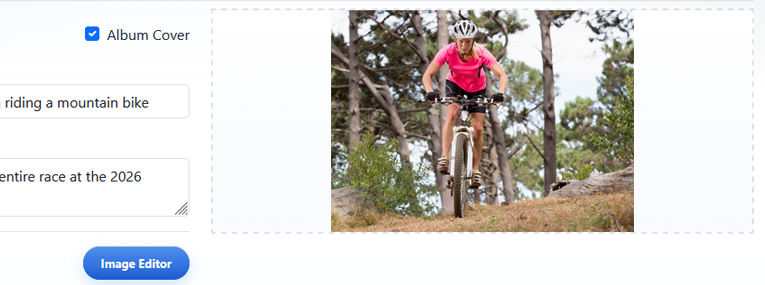
Use Image Editor when one uploaded image is selected and the image itself needs to be edited. Within the editor you can resize, crop, rotate, and make other adjustments to your image.
Use Delete to remove selected uploaded images from the album.

You can select multiple uploaded images when you need to apply the same metadata change or delete multiple photos. When multiple images are selected, shared metadata can be edited in bulk. If selected images have different values for a field, the field can appear blank. Entering a new value applies that value to all selected images.
The Album Cover option is only used for a single selected image.
Learn More
For reordering uploaded images, see Reordering Photos in an Album.