 Ask Alvin (AI Chat)
Adding and Selecting Albums for a Page Gallery
Use a Photo Gallery content block to display one or more albums on a public website page.
Page-level gallery settings affect only that content block on that page. They do not change the album or its photos in the Photo Gallery plugin.
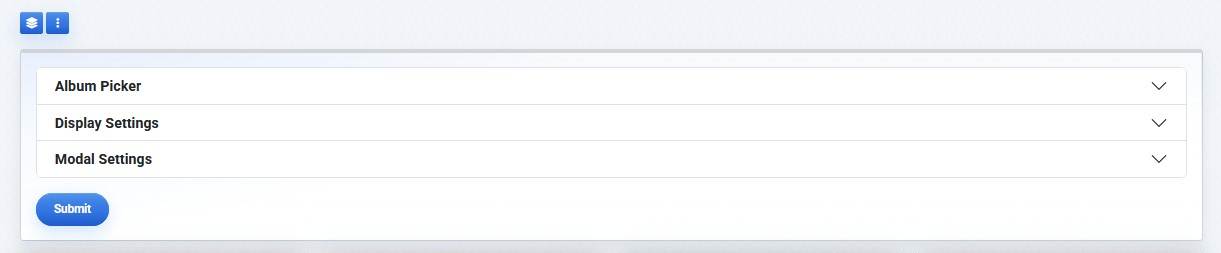
A Photo Gallery content block controls how selected albums display on a specific page.
To add and configure a gallery on a page:
- Open the page in edit mode.
- Add a Photo Gallery content block.
- Open the Album Picker.
- Choose the display mode.
- Select the albums to add to the page.
- Arrange the selected albums in the desired order.
- Click Submit to save the page changes.
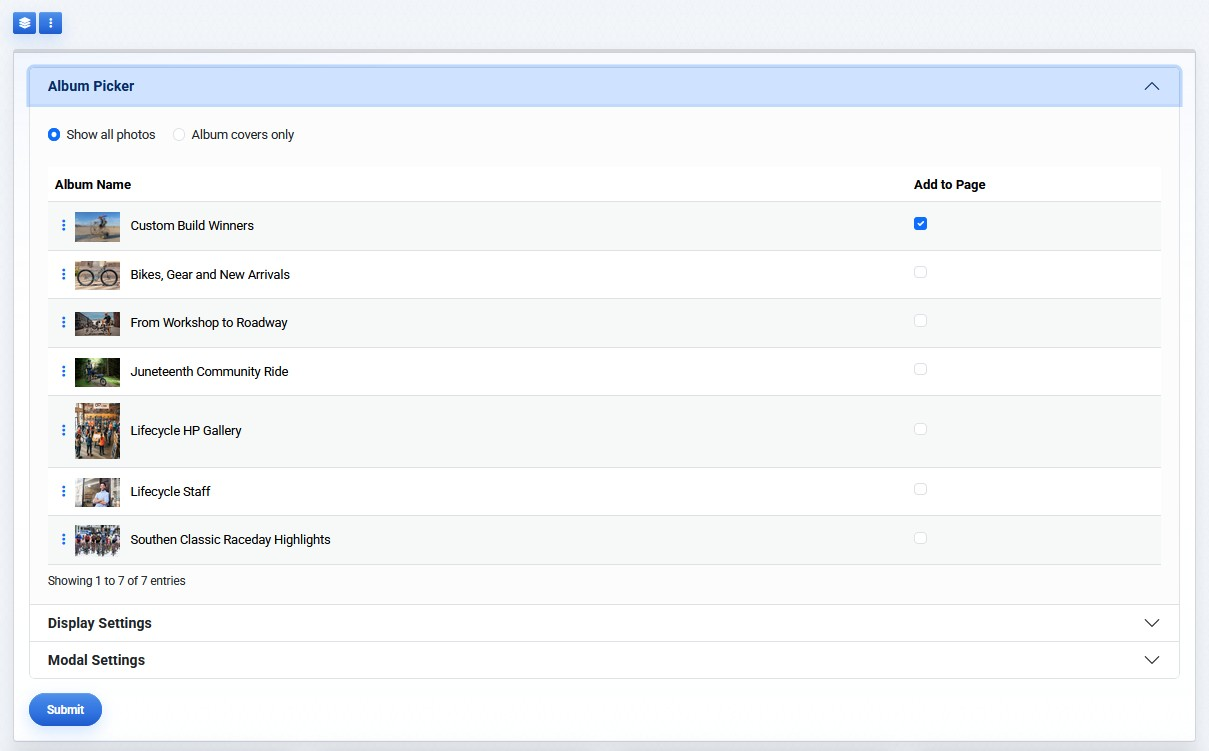
The Album Picker controls which albums are used by this gallery instance.
Display Modes

The Album Picker includes two display modes:
- Show all photos
- Album covers only
Show all photos displays all photos from the selected albums in a single gallery.
Album covers only displays one tile for each selected album. Each tile uses the album's cover image. Visitors open an album from its cover tile.
Selecting And Ordering Albums
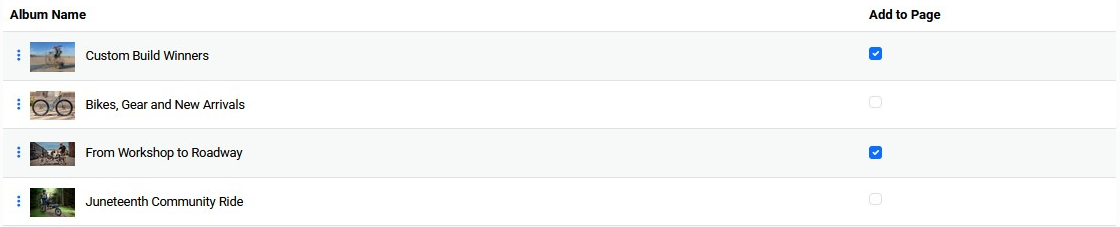
Use Add to Page to choose which albums appear in the gallery.
When multiple albums are selected, album order controls how albums are displayed. Drag albums into the desired order in the Album Picker.
If Show all photos is selected, image display order follows the selected album order and then the image order inside each album, unless Randomize Order is enabled in the Display Settings.
If Album covers only is selected, the page shows album cover tiles in the order set in the Album Picker.
Learn More
For additional layout and display options, see Configuring Photo Gallery Display Settings. For modal behavior, see Configuring Photo Gallery Modal Settings.