 Ask Alvin (AI Chat)
Creating and Managing Photo Albums
Photo albums are containers for related images. An album can be displayed on one or more public website pages through a Photo Gallery content block.
The controls you see depend on your CMS permissions. Users with restricted permissions may not be able to access all features.
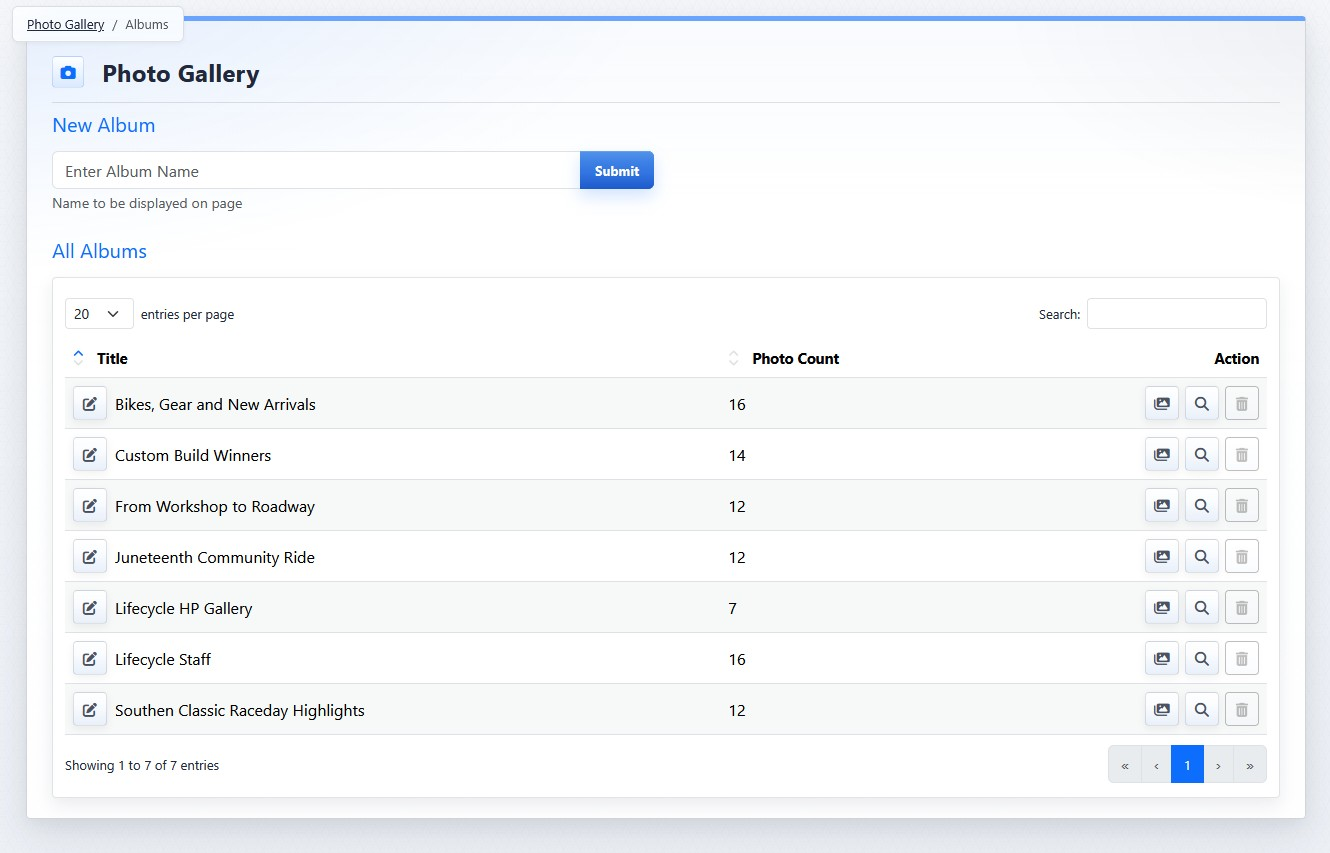
The album list view contains the New Album form and the list of existing albums.
Creating Albums
To create a new album:
- Open the Photo Gallery from the Plugins accordion.
- Enter the album name in the New Album field.
- Click Submit.

Album names cannot be blank and must be unique.
After the album is created, the CMS opens the photo management view for that album. The album exists even if no photos have been uploaded yet. For more information on getting started with album management, see Adding and Uploading Photos to an Album.
Managing Existing Albums
Existing albums are listed under All Albums. Each row shows the album title, the number of photos in the album, and action buttons for managing that album.
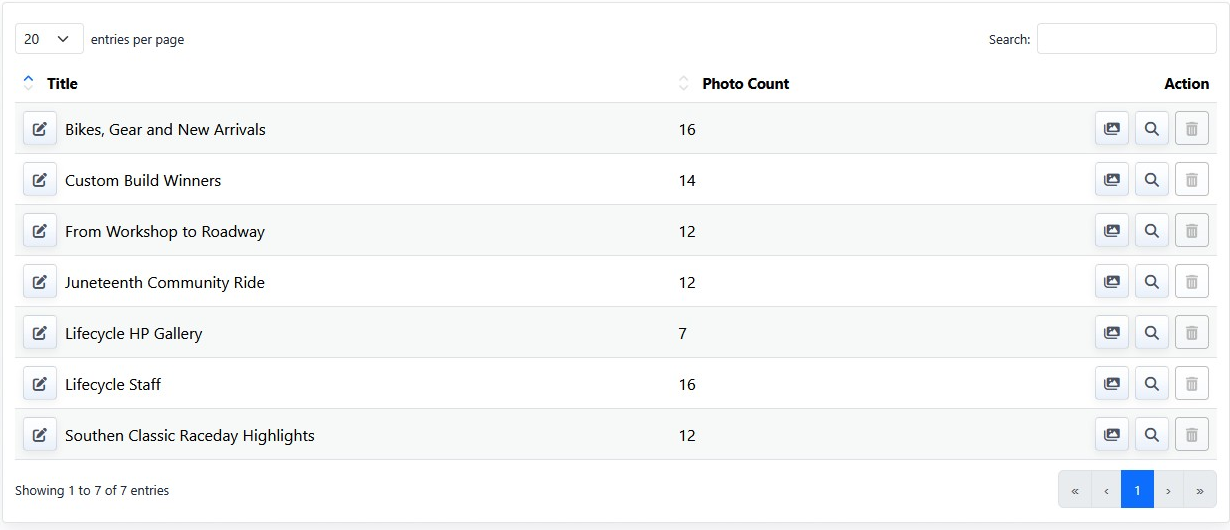
Use the Edit Title button beside an album name to rename the album. The same name rules apply when renaming: the title cannot be blank and cannot duplicate another album title.
| Action | What It Does |
|---|---|
 |
Photos opens the photo management view for that album. Use this view to upload images, edit photo details, set the album cover, delete photos, and reorder photos. |
 |
Locations opens a list of public pages where the album is used. Each listed location includes a link that opens the page where the gallery appears. This is useful when you need to understand whether an album is safe to remove, or when you want to find which public page needs display setting changes (see screen capture below). |
 |
Delete removes the album when deletion is allowed. Delete is disabled when the album is currently used on a page. If the album is listed in one or more locations, remove or replace it on those pages before deleting the album. |
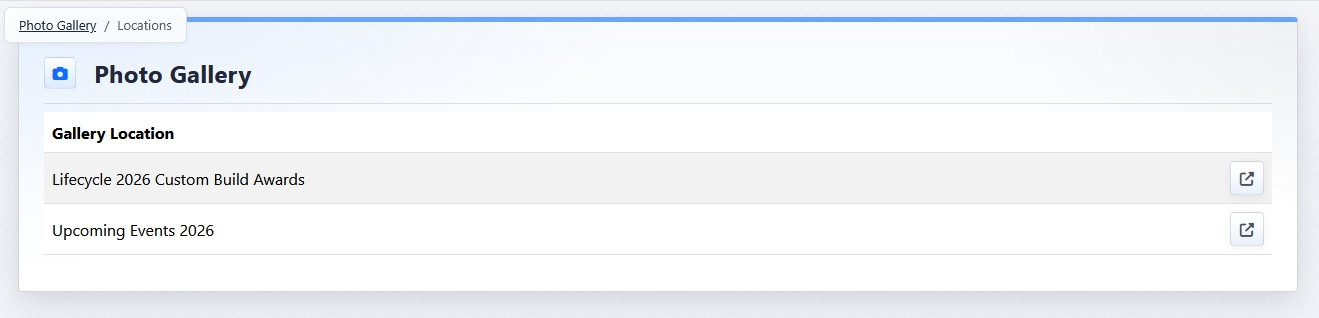
The Locations view lists public pages where an album is used.
Learn More
For more information on getting started with album management, see Adding and Uploading Photos to an Album. For page-level configuration, see Adding and Selecting Albums for a Page Gallery.