 Ask Alvin (AI Chat)
Getting Started with the Form Builder
The Form Builder tool is used to create, publish, organize, and manage forms that can be placed on public pages of your site.
To access it, open the Form Builder tool from the Plugins accordion in the Mobi Console.
The Form Builder list view opens to the All Forms table. This table shows each form that has been created in the CMS.
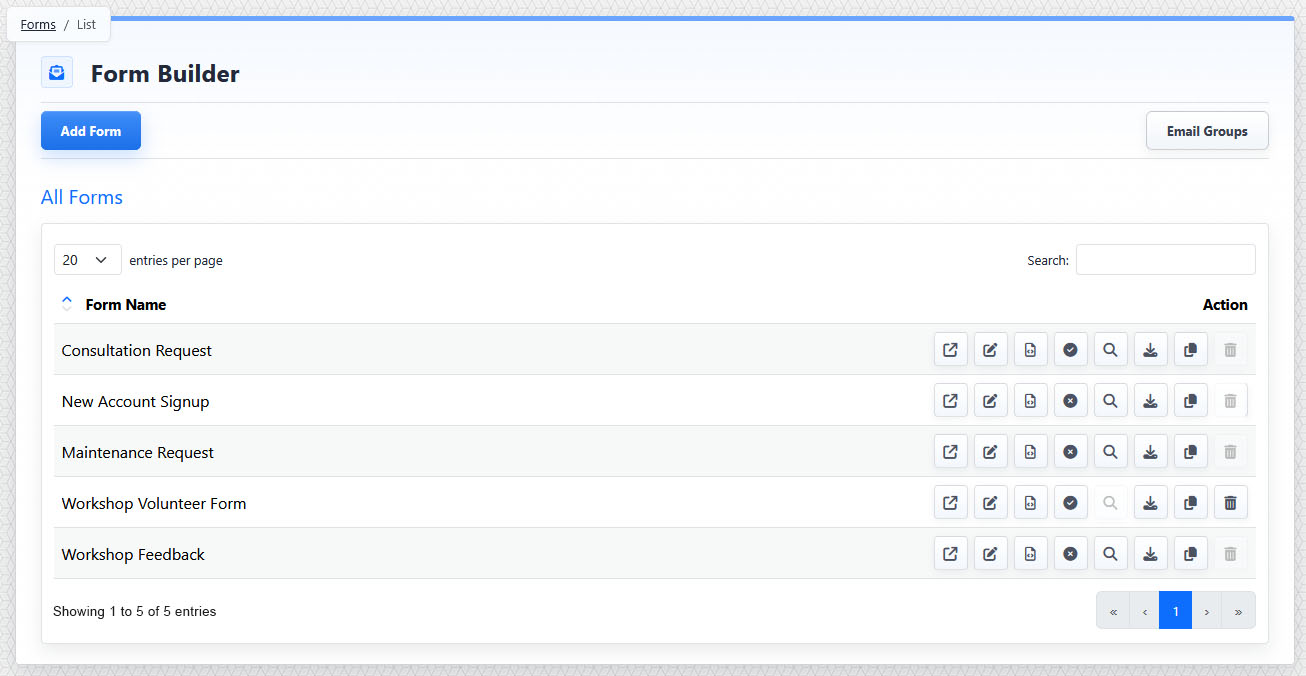
The Form Builder list view shows existing forms, the Add Form button, the Email Groups button, search, and row action buttons.
List View Controls
The list view includes:
- Add Form
- Email Groups
- Search
- Form Name
- Action buttons
Use Add Form to create a new form.
Use Email Groups to manage the reusable email recipient groups that can receive form submission notifications.
The Form Name column lists each existing form. The list can be sorted by form name.
Use Search to filter the list by form name.
Form Actions
Action buttons let you preview, configure, publish or unpublish, locate, review submissions for, clone, or delete a form.
The controls you see depend on your CMS permissions. Users with restricted permissions may not be able to access all features.
Learn More
For form row actions, see Understanding Form Builder Action Buttons. For notification recipient groups, see Managing Email Groups for Form Notifications. For creating a new form, see Creating and Setting Up a Form.