 Ask Alvin (AI Chat)
Using Calendar Event History
Event history lets you review earlier saved versions of a calendar event.
The History button appears in the Calendar list view as one of the event row actions.
Each time an event is saved, the system stores a history record for that version.
Use event history when you need to:
- Review previous changes to an event.
- Compare an earlier version with the current version.
- Load an earlier version for review.
- Restore an earlier version if needed.
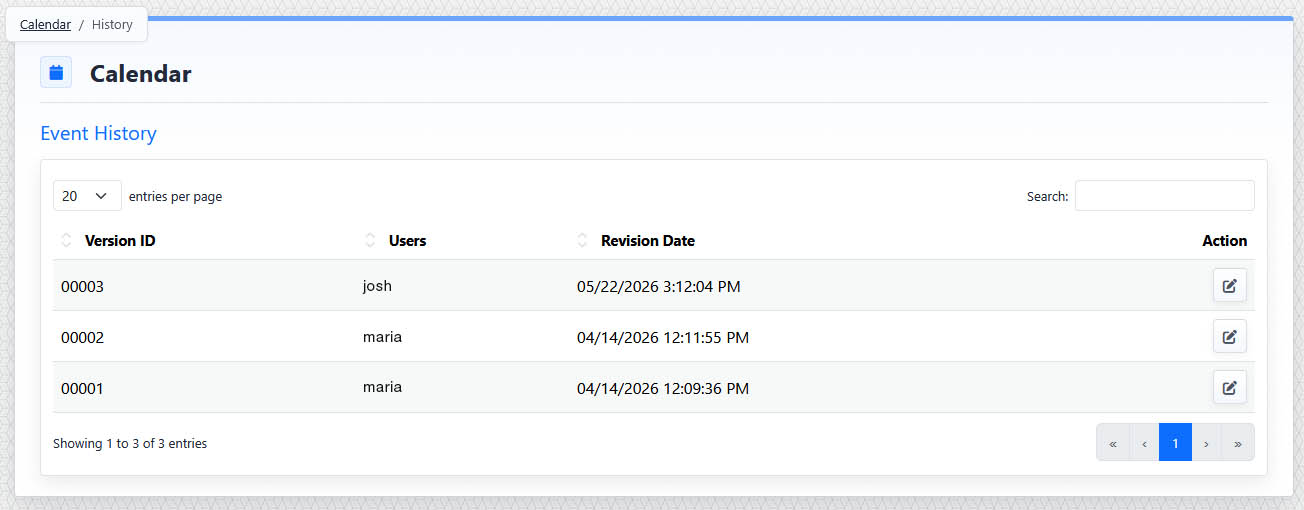
Event History lists saved versions of an event, including the version ID, user, revision date, and action button used to load a previous version.
To open event history:
- Open the Calendar tool from the Plugins accordion.
- Find the event in the Published or Unpublished tab.
- Click the event's History button.
The history view shows saved versions of the event. Each version includes information about when the change was saved and who saved it.
Opening a saved version loads that version into the event detail view for review.
After a previous version is loaded, review the event carefully before saving. Restoring an older version updates the current event and creates a new history record.
The controls you see depend on your CMS permissions. Users with restricted permissions may not be able to access all features.
Learn More
For event row actions, see Understanding Calendar Event Actions and Bulk Actions. For editing the event after reviewing history, see Adding or Editing a Calendar Event.