 Ask Alvin (AI Chat)
Understanding News Article Actions and Bulk Actions
The News & Press list view includes row actions for individual articles and bulk actions for selected articles.
The controls you see depend on your CMS permissions. Users with restricted permissions may not be able to access all features.
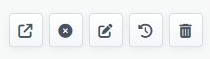
News article row actions let you preview, publish or unpublish, edit, review history, or delete an article.
Article Row Actions
Article row actions include:
- Preview: opens the article preview in a new browser tab.
- Publish or Unpublish: changes whether the article is public. In the Published tab, this action unpublishes the article. In the Unpublished tab, this action publishes the article.
- Edit: opens the article detail view so you can update the article.
- History: opens saved versions of the article so you can review or restore earlier changes.
- Delete: permanently removes the article after confirmation.
Use the Featured control when an article should be treated as featured content. Featured status affects how the article is prioritized on public News & Press pages when the page layout supports featured articles.
Bulk Actions
Bulk actions apply to selected articles.
To use bulk actions:
- Open the News & Press tool from the Plugins accordion.
- Select the Published or Unpublished tab.
- Select one or more articles.
- Open the Bulk Actions menu.
- Choose the action you want to apply.
The available bulk action options depend on the tab you are viewing.
In the Published tab, bulk actions can include:
- Unpublish
- Delete
In the Unpublished tab, bulk actions can include:
- Publish
- Delete
Review selected articles carefully before using bulk actions, especially bulk delete.
Learn More
For article history, see Using News Article History. For editing article details, see Adding or Editing a News Article.