 Ask Alvin (AI Chat)
Adding or Editing a News Article
The article detail view is used to create new News & Press articles and edit existing articles.
The controls you see depend on your CMS permissions. Users with restricted permissions may not be able to access all features.
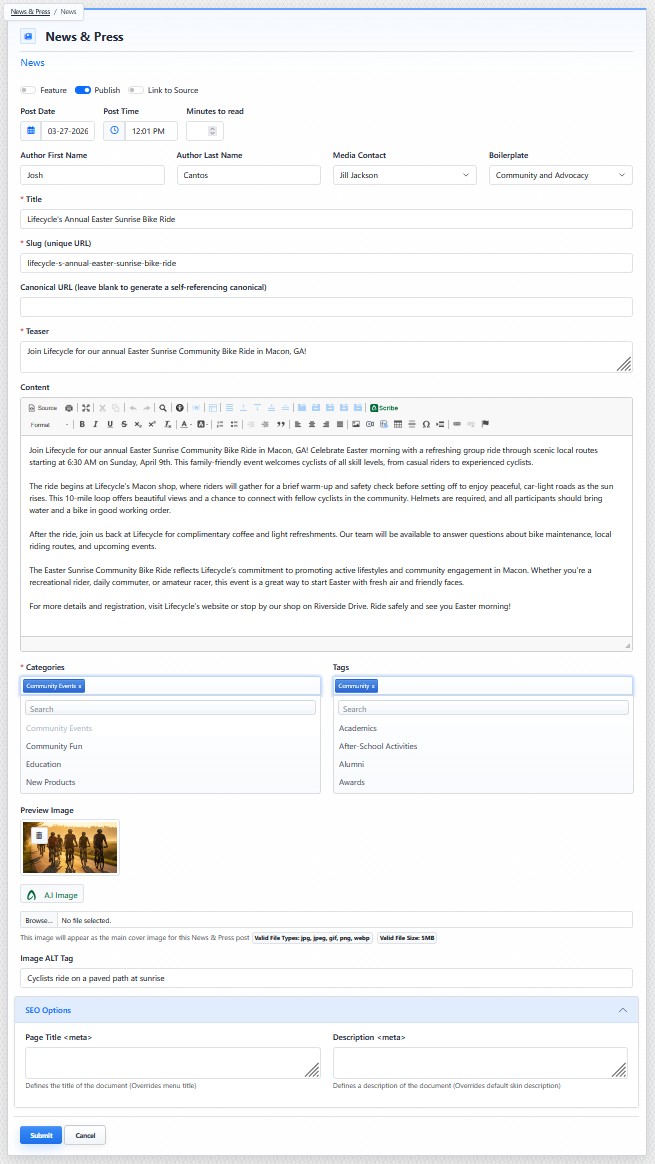
The article detail view contains publication controls, article content fields, organization fields, preview image options, and SEO options.
The article detail view includes publication controls, article identity fields, article content, categories, tags, preview image options, and SEO options.
Use this view when you need to create a new article, update article content, change publication settings, assign categories or tags, update the preview image, or revise article metadata.
Add a News Article
To add a news article:
- Open the News & Press tool from the Plugins accordion.
- Click Add News.
- Set the article details.
- Write the article content.
- Add categories, tags, preview image, and SEO options when needed.
- Confirm the Publish setting.
- Click Submit.
Edit an Existing Article
To edit an existing news article:
- Open the News & Press tool from the Plugins accordion.
- Find the article in the Published or Unpublished tab.
- Click the article's Edit button.
- Update the needed fields.
- Click Submit.
The article detail view includes several specialized fields. Some fields affect how the article appears to visitors. Other fields support SEO, organization, or reuse of information across multiple articles.
There are other support articles in this section that explain the main parts of the article detail view in more depth.
Learn More
For publication settings and article details, see Setting News Article Details. For article copy and content fields, see Writing News Article Content. For categories, tags, preview images, and SEO options, see Organizing and Optimizing News Articles.