 Ask Alvin (AI Chat)
Replying to Blog Comments
The Reply view lets CMS users respond to visitor comments.
Open the Reply view from the Comments Manager by clicking a comment's Reply button.
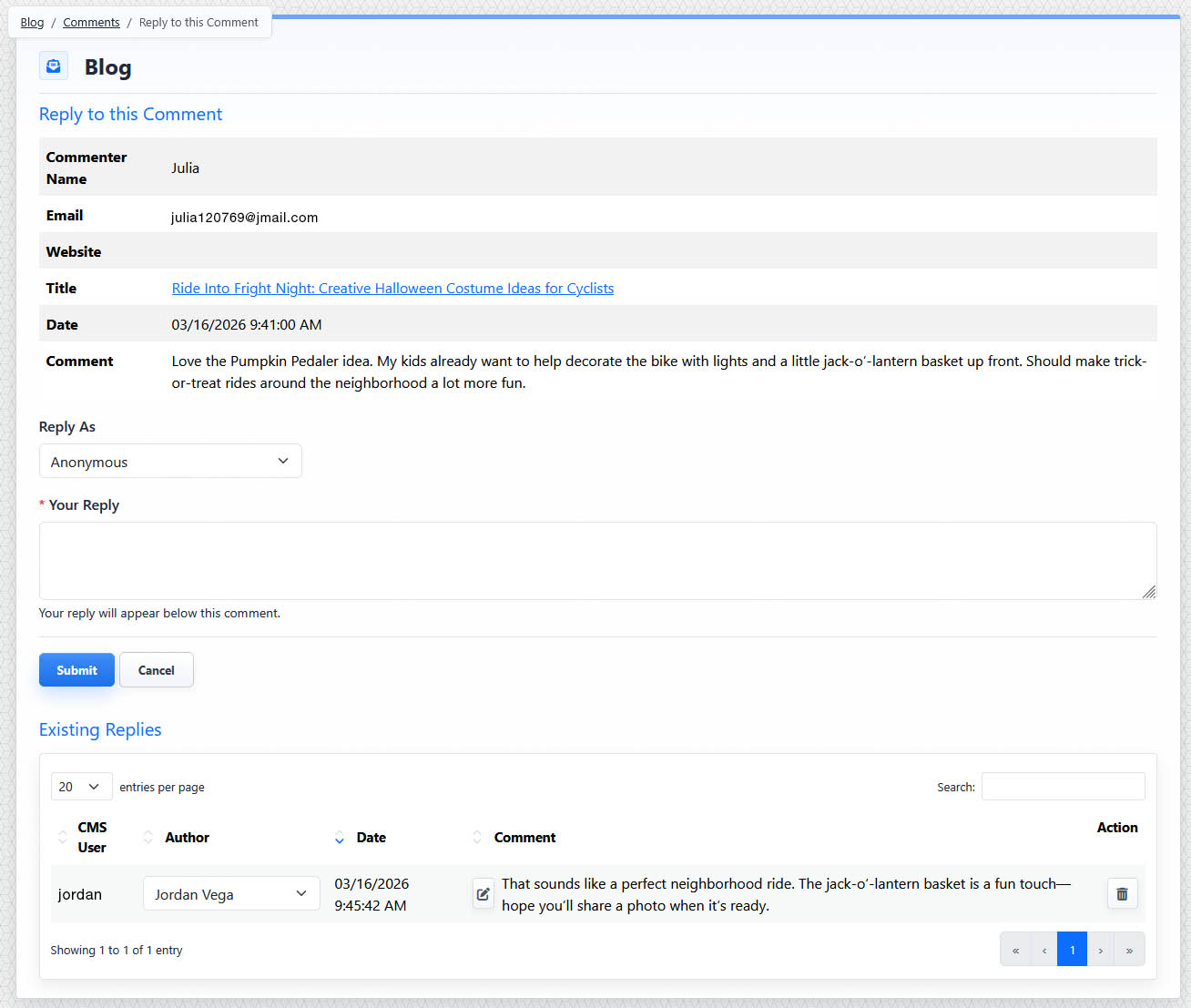
The Reply view shows the original visitor comment and lets a CMS user add or manage CMS replies.
Add a Reply
The Reply view shows the original comment details, including the commenter, email address, website when provided, post title, comment date, and comment text.
Use the Reply As menu to choose the identity that should appear with the reply. This can be a blog author or Anonymous. The CMS user making the reply is logged, regardless of the author selected.
Use the Your Reply field to enter the response.
Click Submit to save the reply.
CMS replies can be added to top-level comments or to their replies. This is different from public visitor replies, which are limited so the public comment area remains easier to read.
Existing Replies
Existing Replies shows CMS replies that have already been added for the selected comment.
Existing replies information includes:
- CMS user
- Author identity
- Date
- Comment
- Action buttons
The CMS user identifies who created the reply inside the CMS.
The Author identity controls how the reply appears publicly.
Date displays the day and time the reply was entered.
Comment shows the text of the reply.
An edit button to the left of the Comment field allows CMS users to edit the reply in-line.
Deleting a reply removes that CMS reply from the conversation.
The controls you see depend on your CMS permissions. Users with restricted permissions may not be able to access all features.
Learn More
For managing comments in the list view, see Moderating Blog Comments. For author records used in replies, see Managing Blog Authors.