 Ask Alvin (AI Chat)
Moderating Blog Comments
The Comments Manager is where CMS users review and manage comments submitted to blog posts.
Open the Comments Manager from the Blog list view by clicking Comments.
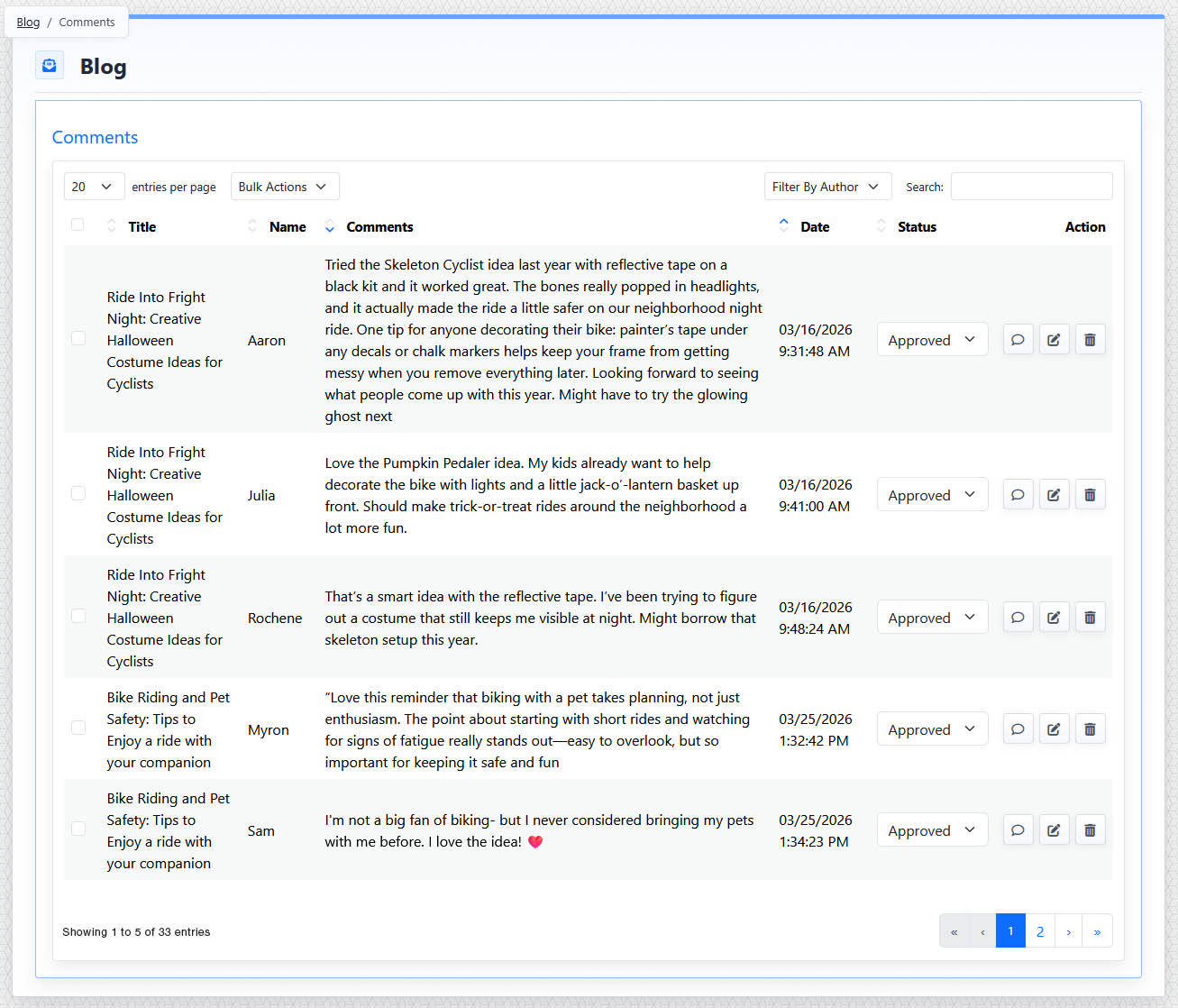
The Comments Manager list view shows verified comments, moderation status, and comment action buttons.
Comment Table
The Comments Manager list view shows verified comments in a table.
The comment table includes:
- Post title
- Commenter name
- Comment text
- Date
- Status
- Action buttons
The Post title identifies which blog post received the comment.
The Commenter name identifies the visitor who submitted the comment.
The Comment text shows the submitted comment.
The Date column shows when the comment was submitted.
The Status dropdown controls whether the comment is Pending, Approved, or Rejected. Status changes are saved immediately.
Comment Actions
Comment row actions include:
- Reply: opens the reply view so a CMS user can respond to the comment.
- Edit: opens the comment edit view so the submitted comment can be updated.
- Delete: removes the comment.
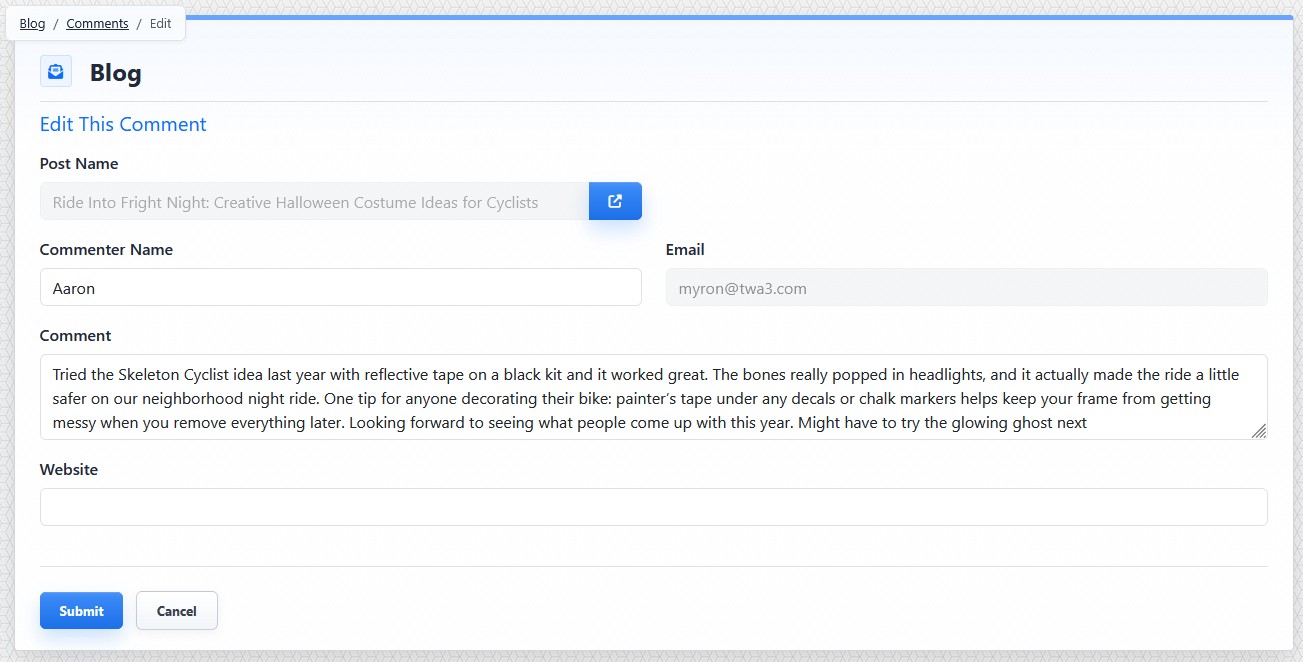
The comment edit view lets a CMS user update a submitted comment when correction is needed.
Deleting a comment also deletes its replies. Review comment threads carefully before deleting.
Bulk Actions
Bulk actions apply to selected comments.
Bulk action options can include:
- Approve
- Reject
- Pending
- Delete
Use moderation when comments need to be reviewed before they appear publicly, when a comment needs to be corrected, or when inappropriate comments need to be rejected or removed.
The controls you see depend on your CMS permissions. Users with restricted permissions may not be able to access all features.
Learn More
For how public comments are submitted, see Understanding Public Blog Comments. For CMS replies to comments, see Replying to Blog Comments.