 Ask Alvin (AI Chat)
Creating Buttons
Buttons in the Content Editor are created from linked text. This workflow can feel different from a dedicated button tool because the button styling options appear only after the text has already been turned into a link.
Create the Button Text
Type the text that should appear on the button. Keep the label short and action-focused, such as "Register Now," "Learn More," or "Download Guide."
Avoid writing a full sentence unless the design specifically calls for a longer link treatment.
Add the Link

Use the Link tool to turn the button label into a clickable link before applying the button style.
Highlight the button text, then click the Link icon in the toolbar.
Choose the correct link type and enter the destination. This may be a URL, email address, phone number, file, or anchor link, depending on what the button should do.
Click OK to apply the link.
Apply the Button Style

After the text is linked, open Mobi Workspace and use Styles to apply a button treatment.
After the text is linked, click anywhere inside the linked text.
Open Mobi Workspace, then use Styles. Because the selected text is now linked, the Styles view displays button-related options, including button style and button size when those options are available for the site.
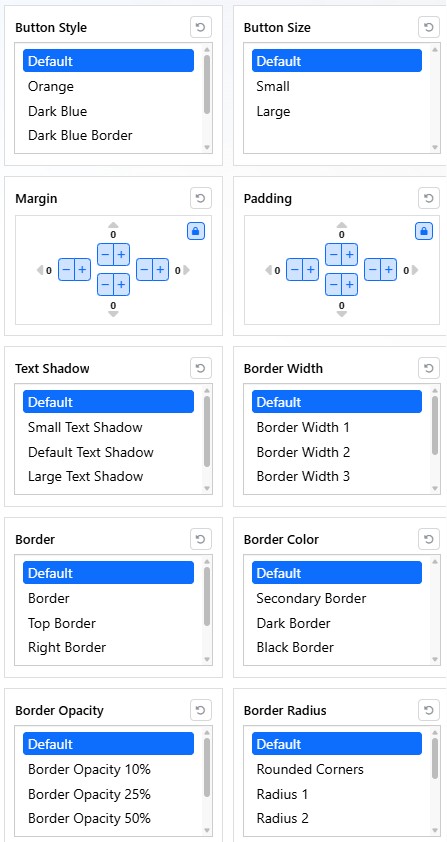
Button style options appear when Mobi Workspace recognizes the selected content as a linked element.
Choose the button treatment that fits the page. Common options may include a default button, colored button, bordered button, or size variation.
Why the Order Matters
Mobi Workspace Styles are context-aware. The styling options change based on what is selected in the editor.
If the text is not linked yet, Mobi Workspace treats it as regular text and shows text styling options. After the text is linked, Mobi Workspace can show button styling options for that linked element.
For this reason, create buttons in this order: write the label, add the link, then apply the button style.
Learn More
For creating the link behind a button, see Adding and Editing Links and Anchors. For available style options, see Applying CMS Styles. For basic text editing tools, see Basic Editing Tools.