 Ask Alvin (AI Chat)
Configuring Slideshow Settings
Slideshow settings apply to the slideshow as a whole. They affect all slides within that slideshow.
The controls you see depend on your CMS permissions. Users with restricted permissions may not be able to access all features.
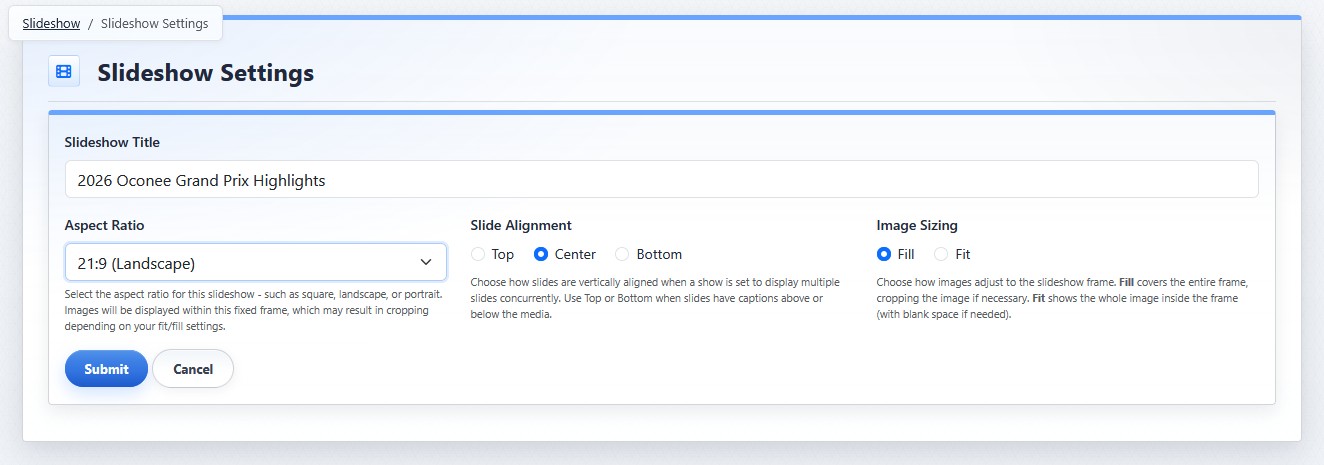
The Slideshow Settings view controls settings that apply to the full slideshow.
Slideshow Title
Slideshow Title is the name used to identify the slideshow in the CMS and when selecting it on a page. Each slideshow must have a unique title.
Slideshow Aspect Ratio
Aspect Ratio controls the proportional shape of the slideshow frame. The frame is the space reserved for each slide's image when the slideshow displays on the public page. Every slide's image or video is displayed inside that frame.
Changing the aspect ratio after slides are configured can affect how images and captions appear.
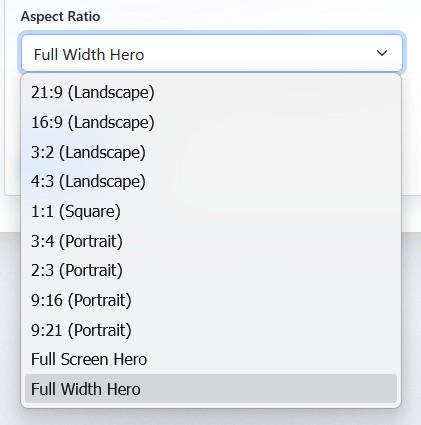
The Aspect Ratio menu controls the shape of the slideshow frame.
Slideshow Alignment
Slide Alignment controls how slides align vertically when multiple slides appear at the same time. It is most useful when the slideshow displays multiple slides at once and when captions appear above or below media.
Image Sizing
An image's shape will not always match the slideshow frame's shape. For example, your slide image might have a portrait aspect ratio, but your slideshow's frame might be set to landscape. Image Sizing controls how the system handles that mismatch. Use Fill when images should cover the entire frame, even if parts of the image are cropped. Use Fit when the full image should remain visible inside the frame, even if blank space appears.
Editing Slideshow Settings
To edit slideshow settings:
- Open the Slideshow tool from the Plugins accordion.
- Find the slideshow in the show list view.
- Click the slideshow's Settings button.
- Update the needed settings.
- Click Submit.
Learn More
For adding slides to the slideshow, see Managing Slides in a Slideshow. For page-level sizing and animation settings, see Configuring Slideshow Appearance and Animation on a Page.