 Ask Alvin (AI Chat)
Adding Videos in the Content Editor
The Video tool inserts video into the editor. Videos can be self-hosted files stored on the website or embedded from services such as YouTube or Vimeo.
Click the Video icon in the toolbar to open the Video Properties dialog.
Choosing a Source Type

Click the video icon to open Video Properties.
Use Self-Hosted when the video file is stored on the website, uploaded to the server, or referenced by a direct video file URL.
Use YouTube / Vimeo Embed when the video is hosted by YouTube or Vimeo and you have the provider's embed code.
The fields in the dialog change based on the selected source type.
Self-Hosted Videos
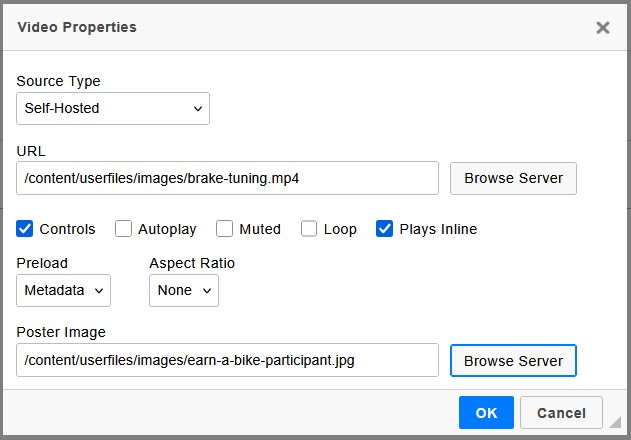
Self-hosted videos use a direct video file URL and can include playback, preload, aspect ratio, and poster image settings.
For self-hosted videos, enter the video file path in URL or click Browse Server to select the file.
Common self-hosted video options include:
- Controls: displays browser playback controls such as play, pause, volume, and fullscreen.
- Autoplay: starts playback automatically when the page loads.
- Muted: starts the video with sound turned off.
- Loop: restarts the video after it finishes.
- Plays Inline: allows playback within the page on supported mobile browsers.
Keep Controls enabled for most informational videos. If Autoplay is enabled, Muted should usually be enabled because most browsers restrict autoplay with sound.
Preload and Aspect Ratio
Use Preload to control how much video data the browser loads before playback:
- None: does not preload video data.
- Metadata: loads basic information such as duration and dimensions.
- Auto: allows the browser to preload the video file.
Metadata is a good default for most self-hosted videos.
Use Aspect Ratio to set the display shape. Common options include landscape ratios such as 16:9, square 1:1, and portrait ratios such as 9:16.
Poster Image
Use Poster Image to show an image before the video starts. Click Browse Server to select an existing image or enter the poster image URL.
Poster images are especially useful when autoplay is not enabled.
YouTube and Vimeo Embeds
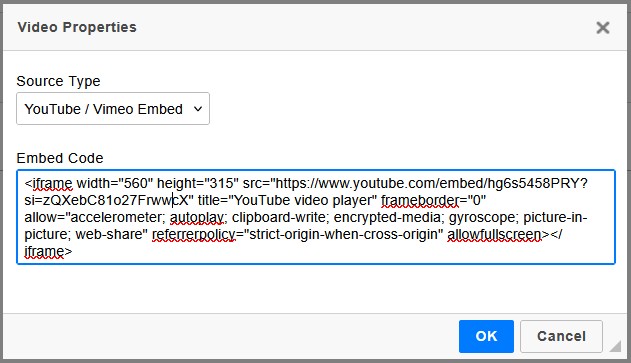
YouTube and Vimeo videos use embed code provided by the video service.
Choose YouTube / Vimeo Embed, then paste the full iframe embed code into Embed Code.
Use embed code from a trusted source. Playback behavior for embedded videos is primarily controlled by the video provider and the embed code.
Learn More
For inserting image assets used as video poster images, see Adding Images in the Content Editor. For video-based layout templates, see Using Modules to Build Pages. For accessibility review after adding media, see Checking Content Accessibility in the Editor.